This tutorial will guide you through building a knowledge graph from scratch building a Telecommunications use case, helping you explore, analyze and visualize data in different ways using the Timbr platform.
This Telecommunications use case will deal with different types of relationships and connections between different individuals and how to spot them.
ERD Model for Telecommunications use case
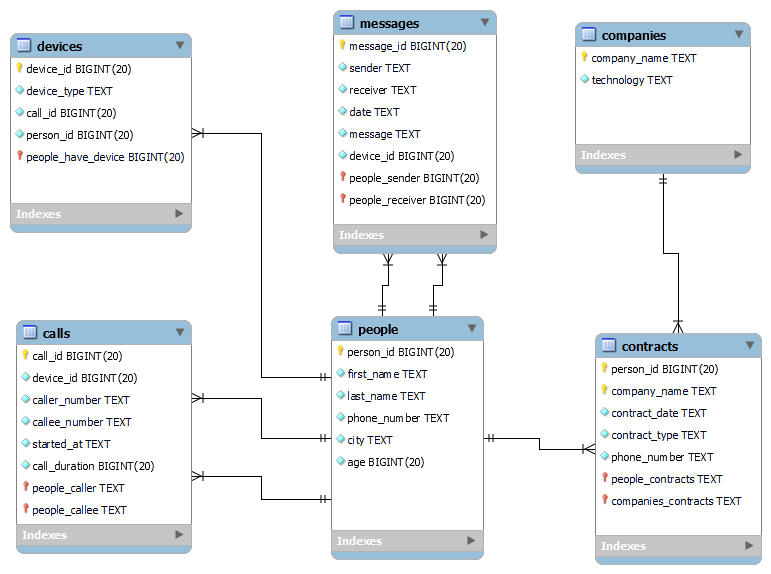
This ERD model describes the entity types and relationships that exist between the entities used for this telecommunications use case. The relationships in this use case include:
- A one-to-many relationship between devices and people, representing devices owned by different people.
- Two one-to-many relationships between calls and people, representing both those who made calls to people and those who received calls from people.
- Two one-to-many relationships between messages and people, representing both those who sent messages to people and those who received messages from people.
- A one-to-many relationship between contracts and companies, representing the different information regarding company contracts.
What we will cover in this guided tutorial:
- Create a virtual Knowledge Graph with hierarchies and business logic
- Map data from a sample database to the virtual Knowledge Graph
- Define logical relationships between the business concepts
- Use SQL statements to complete the Knowledge Graph model
- Query the Knowledge Graph to get insights easily and fast
- Explore and discover hidden relationships in the data using a graph explorer
- Create a dashboard to represent the data by using different visualizations
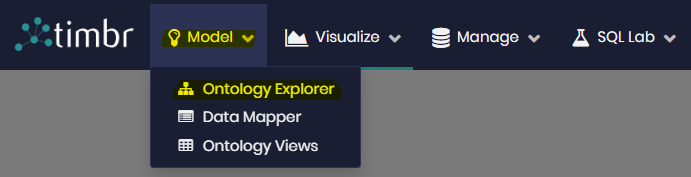
- To begin click on the Model tab on the top menu bar and then click on Ontology Explorer.
- For the purpose of this tutorial select the Knowledge Graph that was assigned to you, in this guide we will use calls_tutorial_replica.
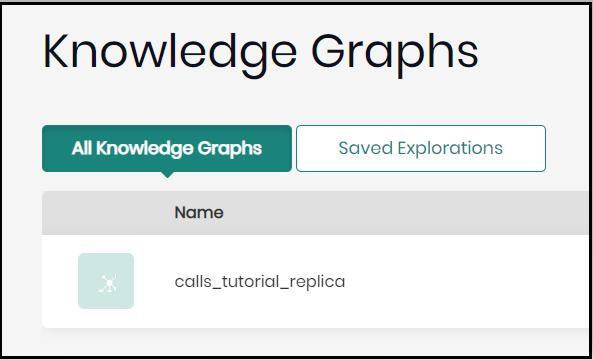
Once in the Ontology Explorer, you will see a brand new knowledge graph with the core concept called thing (the model of our Knowledge Graph is an "Ontology", where everything is a thing, in a hierarchical structure).

Creating our first concepts in the Knowledge Graph
We will model our knowledge graph by creating concepts that best represent our data according to the business point of view and terminology.
Creating "person" concept
- Right-click on the concept thing and then click on + Child concept.
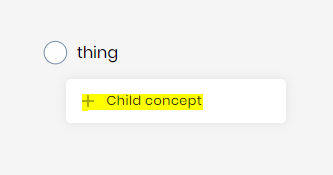
The "create concept" window will open in order to create our first concept.
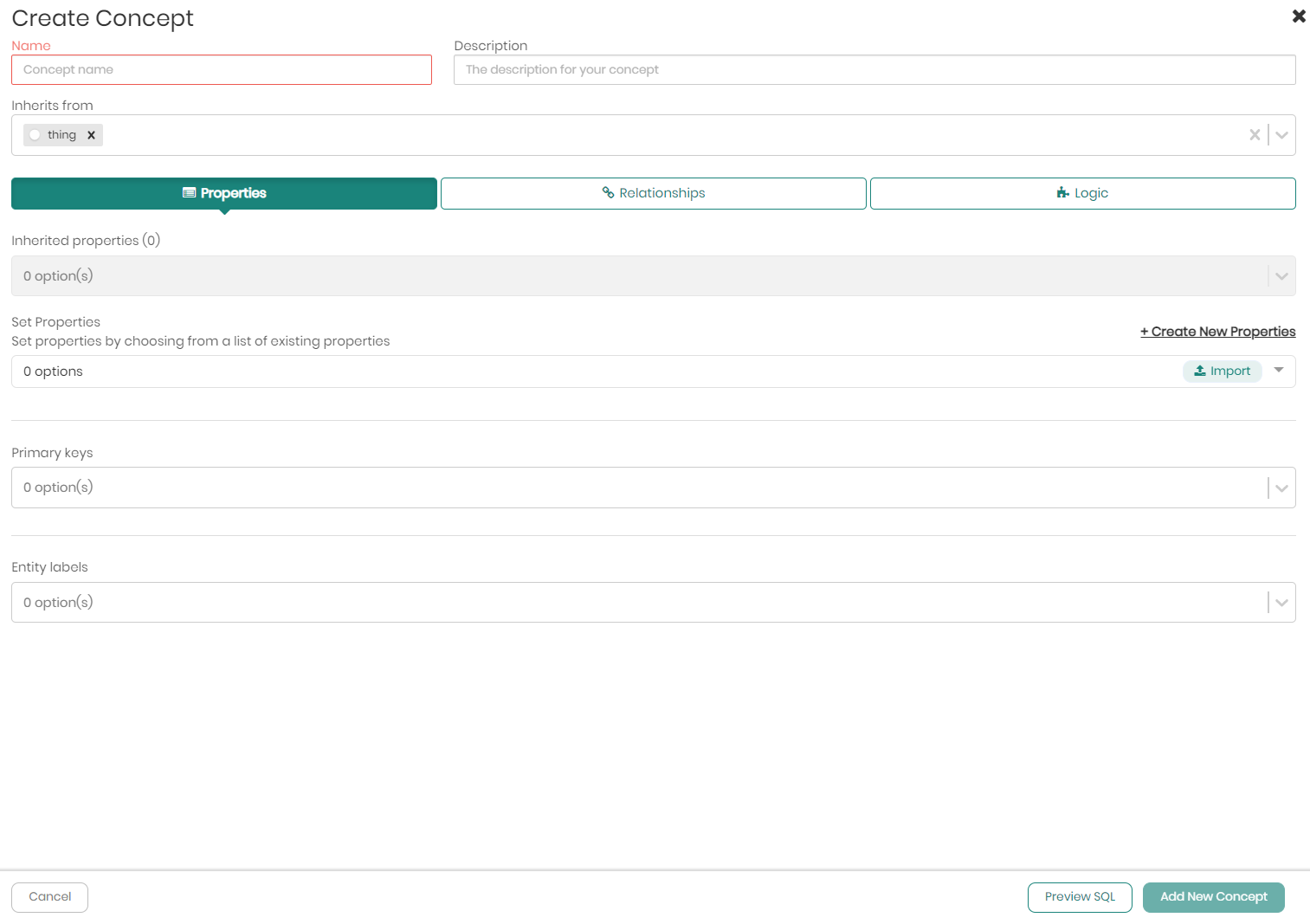
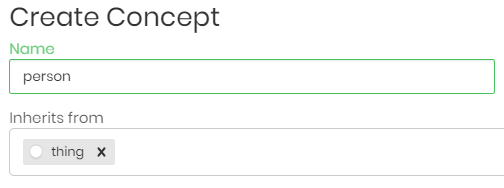
- Start the creation by writing the name of our concept, in this case, "person".
- We can also give our concept a description to explain what type of data our concept will represent.

- Now it's time to add properties to our concept. One option we can use is to manually create new properties by clicking on +Create New Properties.
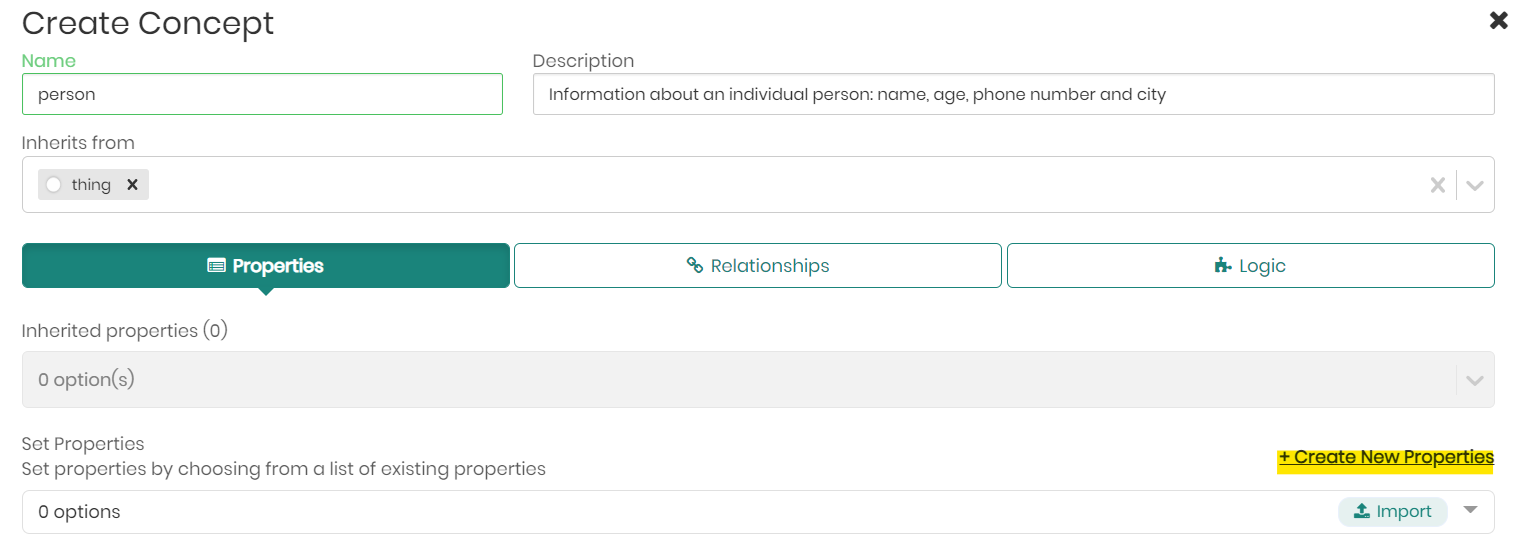
- A small popup will appear, give the property a name (first_name) and choose the type (STRING). You can also add a description to the property, as well as decide if the property being created should be our concept's Primary Key or Entity Label, for this concept tick only the Entity Label checkbox. Once ready click on Add.
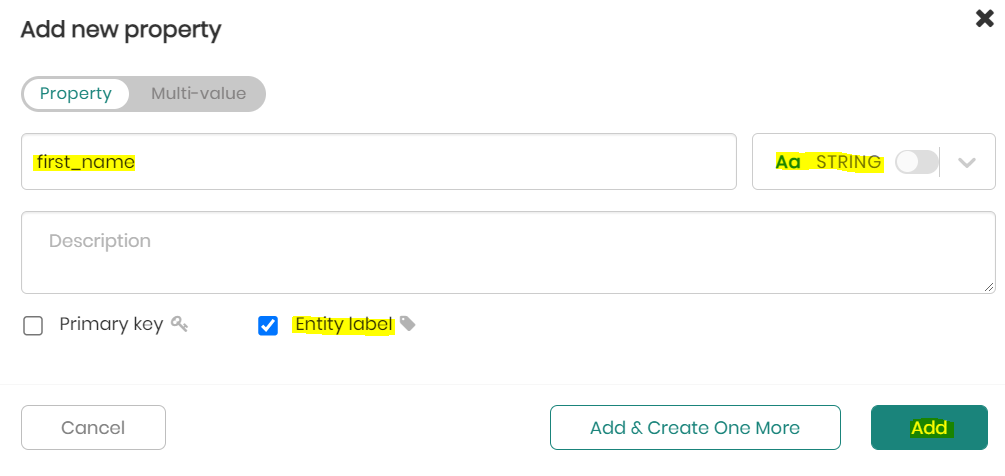
After clicking on the Add button we will see that our property has been added to the concept successfully (see below).
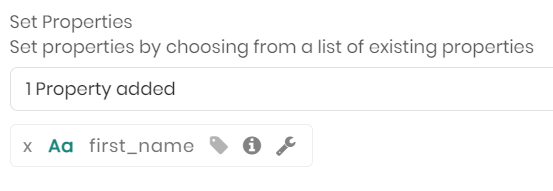
- The second option we have for adding properties to the concept, is to click on the Import button to import properties directly from a table in our datasource. Click on Import and let's see how easy it is to do.
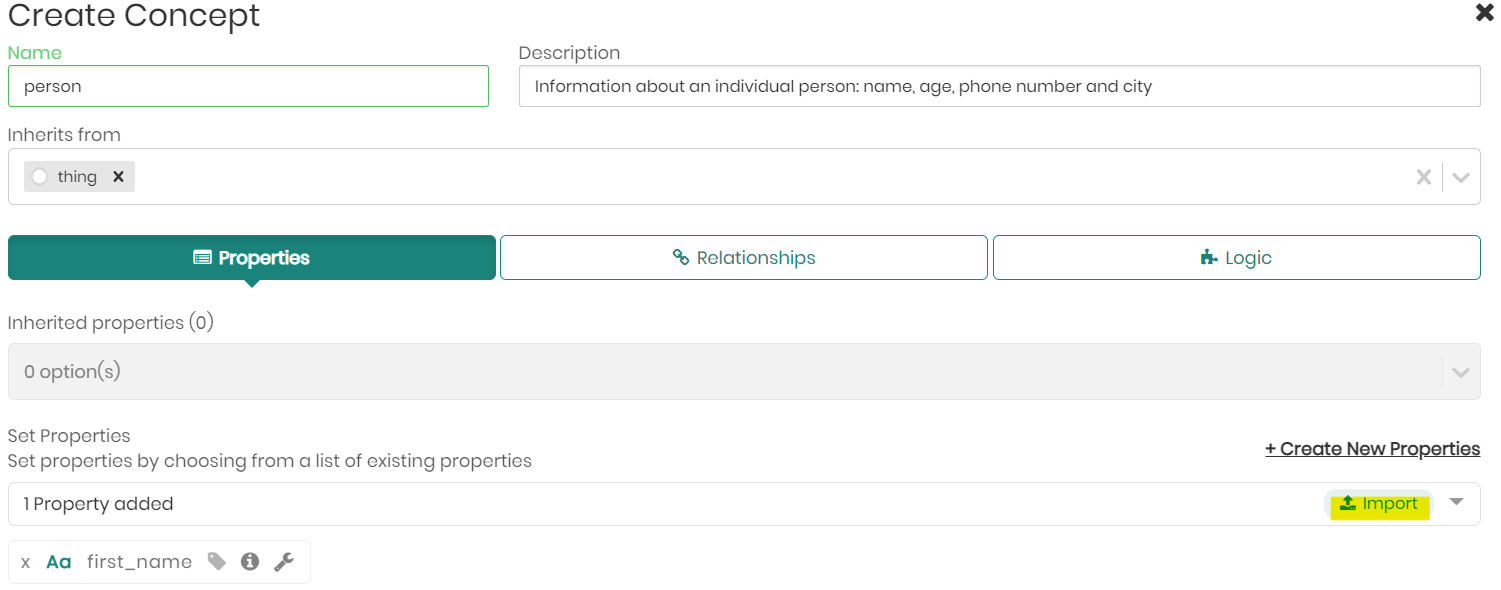
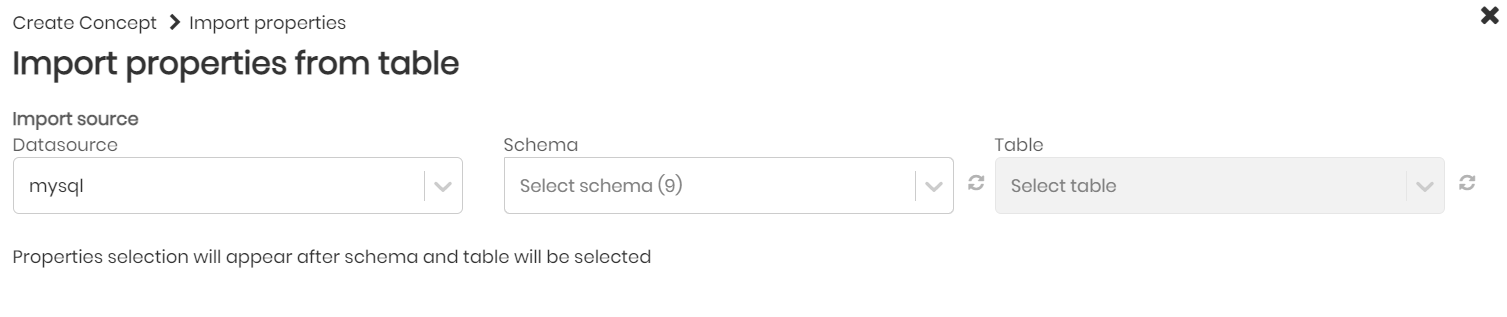
Once the import window appears, we need to choose our datasource, schema and table from which we will import the properties to our person concept.
In this step choose the schema "calls" and the table "people".
- Timbr will now import the columns' names and types automatically from the table.
Once you see all the properties load, go ahead and click on import columns.
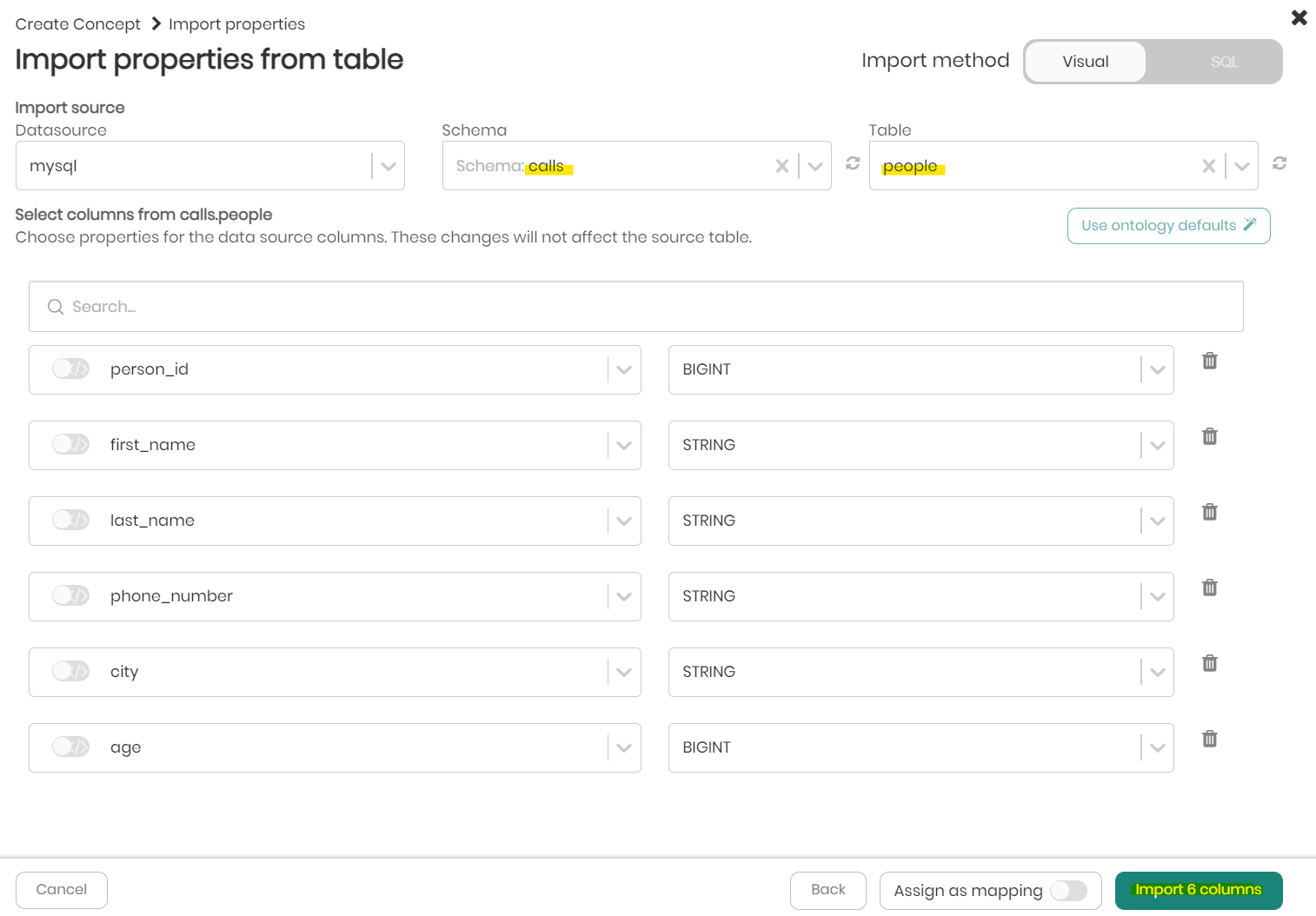
We can now see the properties have been imported and added successfully to our concept!

- Finally, let's choose the Primary Key and Entity Label of our concept.
Notice that it is mandatory to choose a Primary Key for a concept as without it, we won't be able to map data to our concept. Open the dropdown menu of Primary Key and choose person_id, move on to open the dropdown menu of Entity Label and add last_name.
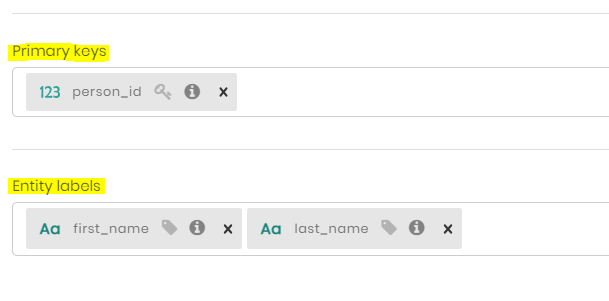
- Once we set the Primary Key and Entity label of our concept, click on Add New Concept and add our first concept.
We can now see our first concept person representing information about people.
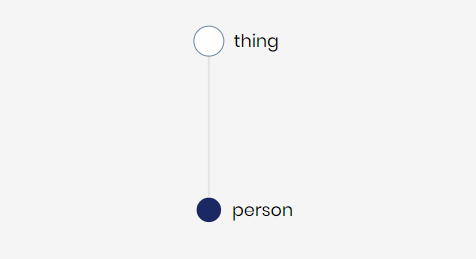
Let's proceed by similarly creating our second concept named call.
Creating "call" concept
- Right-click on the concept thing and click on + Child concept.
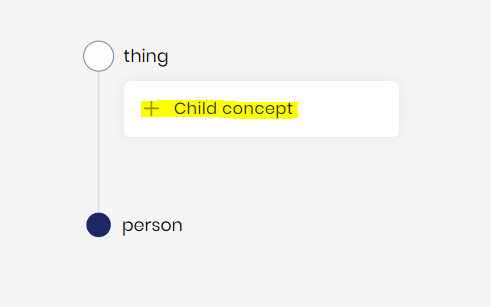
- Fill in the concept name (call) and add the description (A call between two people...).

- Click on import to import properties from our datasource.

- Choose the schema "calls", and table "calls", to import the columns from the table.
Once the properties load, click on import columns to add them as properties of our concept.
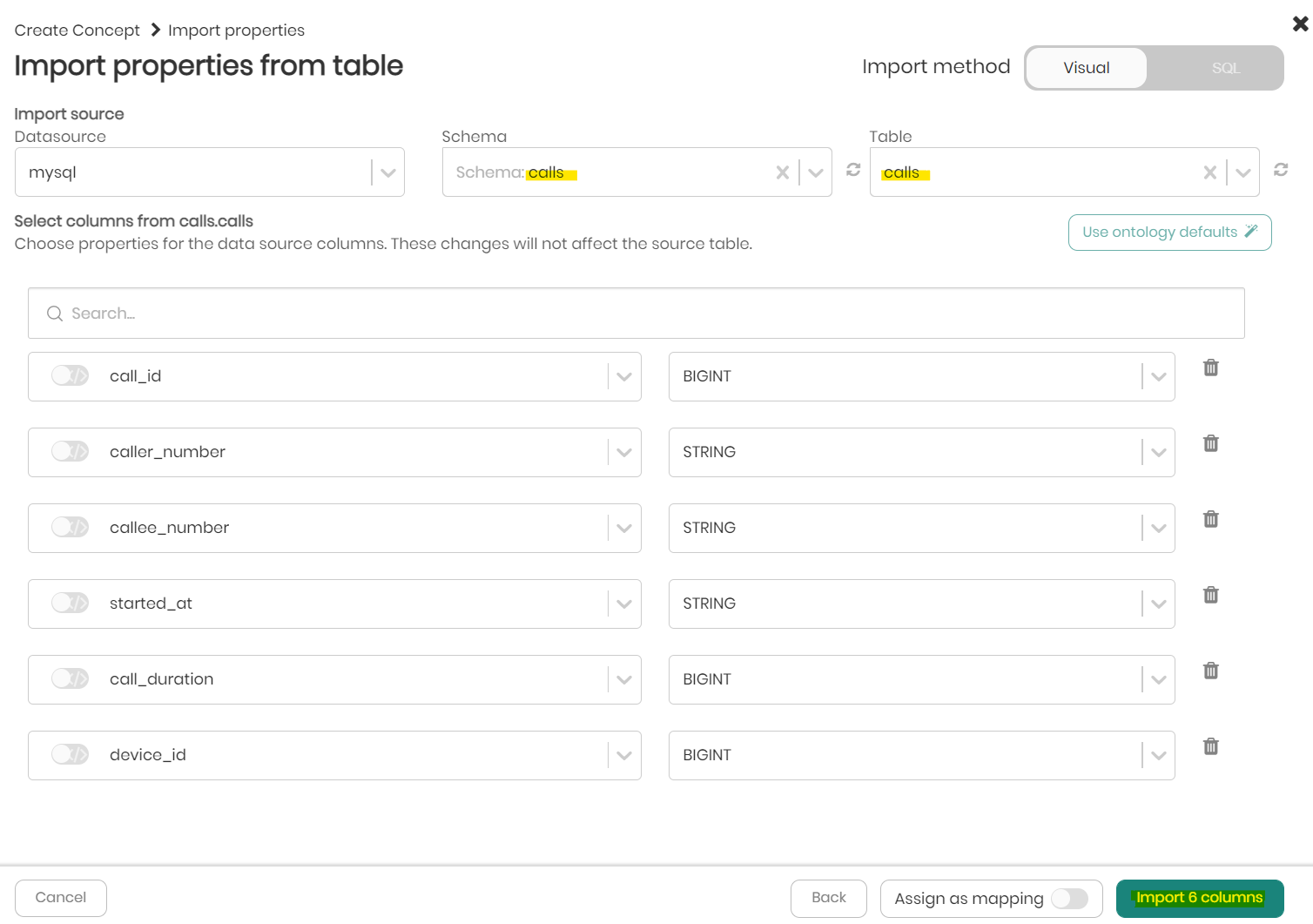
Our properties have been imported and added successfully to our concept.

- Add the Primary key "call_id" and the Entity label "call_id" for the concept.
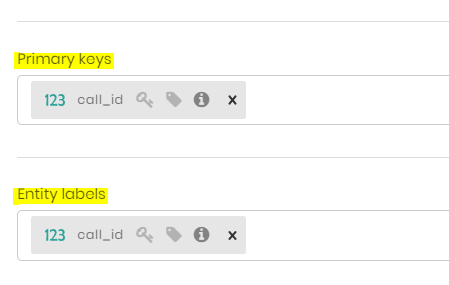
- Click Add New Concept to add our second concept to the knowledge graph.
We have successfully created our second concept named call which represents calls between people.
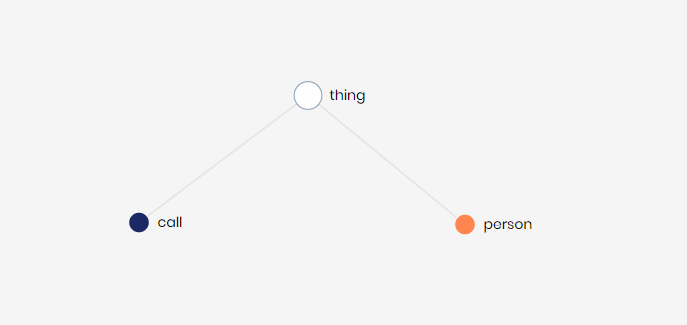
Let's proceed and create our final manual concept which in this case won't inherit from thing, but instead, will be a sub-concept inheriting from the concept person. Our third concept will be called adult and will represent a specific type of person.
Creating "adult" concept using hard-coded business logic
- Right-click on the concept person, hover over + Create, then click on + Child concept.
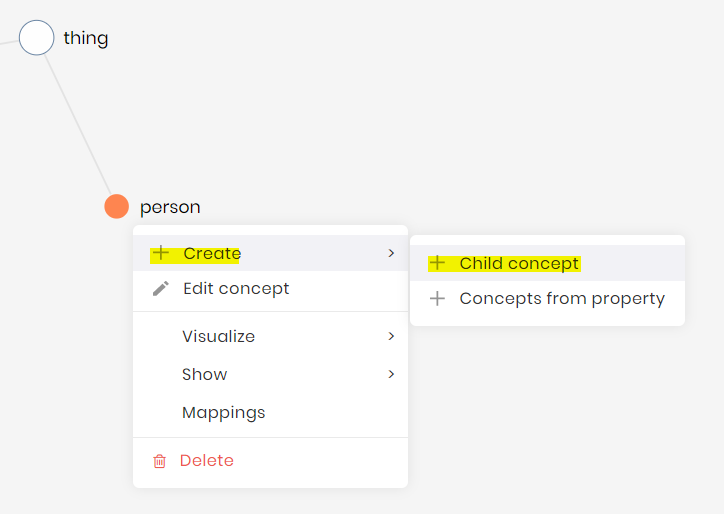
- Write the concept name "adult" and the description "Information about adults...".
Notice how our adult concept automatically inherits from the concept person.

- In the first two concepts we've created, we imported properties from a datasource, in this case, we can see that the concept adult inherited properties from its parent concept, person, automatically.
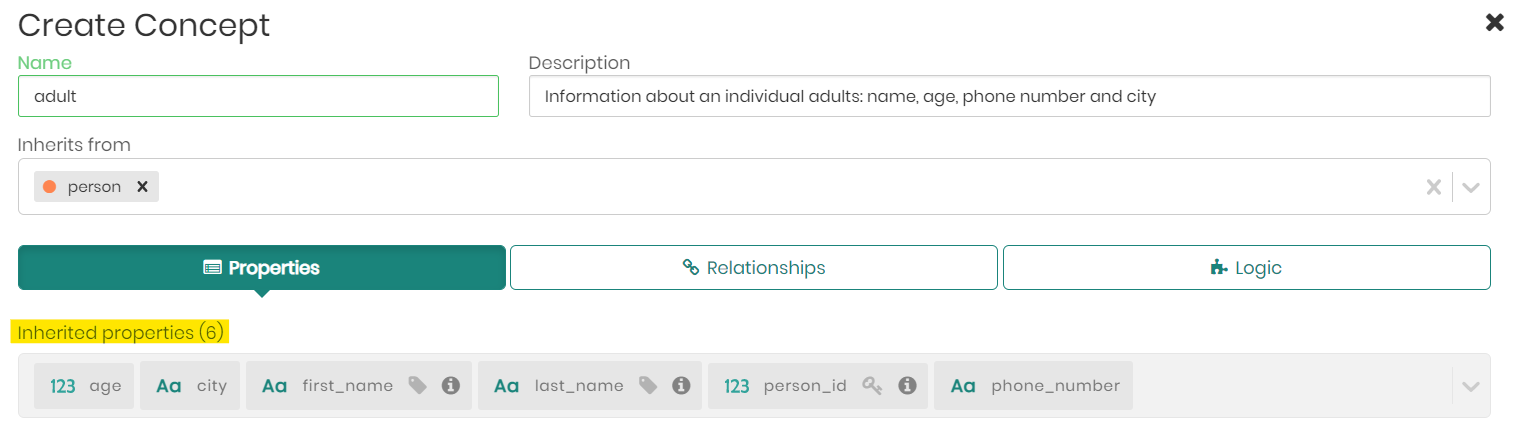
you can always add more properties too according to the data, though, in this example, we can continue with the 6 inherited properties.
- Choosing a Primary Key and Entity Labels won't be necessary here as well, as they are also inherited from the upper-level concept.
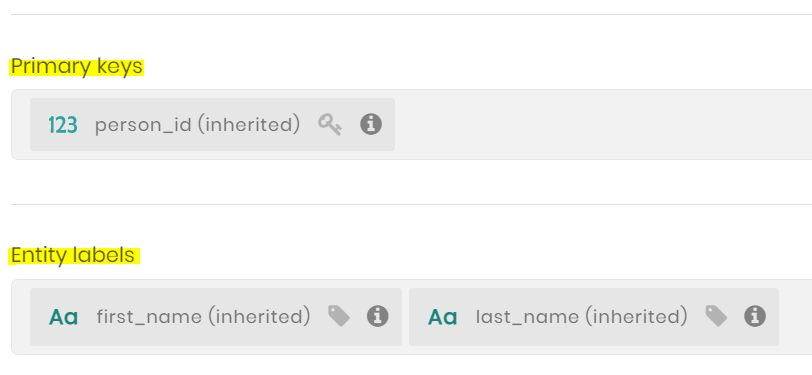
Normally at this point, we would click on Add New Concept and finish our concept, but to differentiate the adult concept from our person concept, we will add hard-coded logic that represents adults.
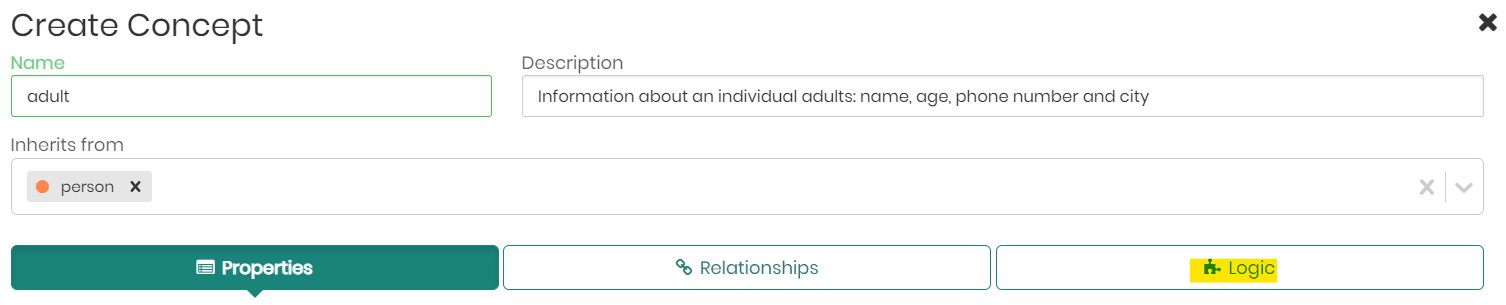
- Click on the Logic tab.
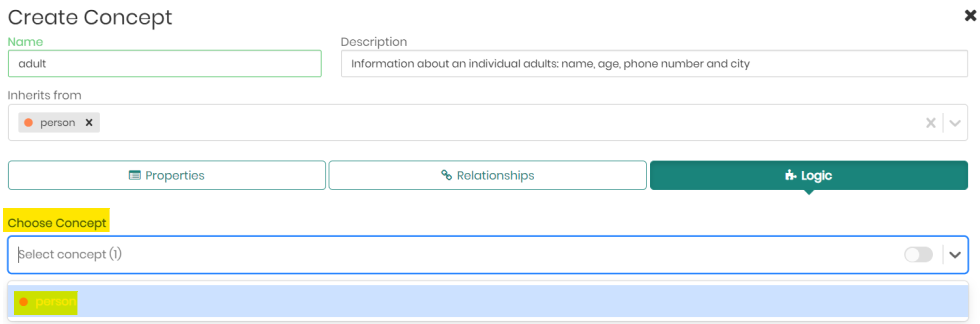
- Choose the person concept as the concept to apply our logic on.
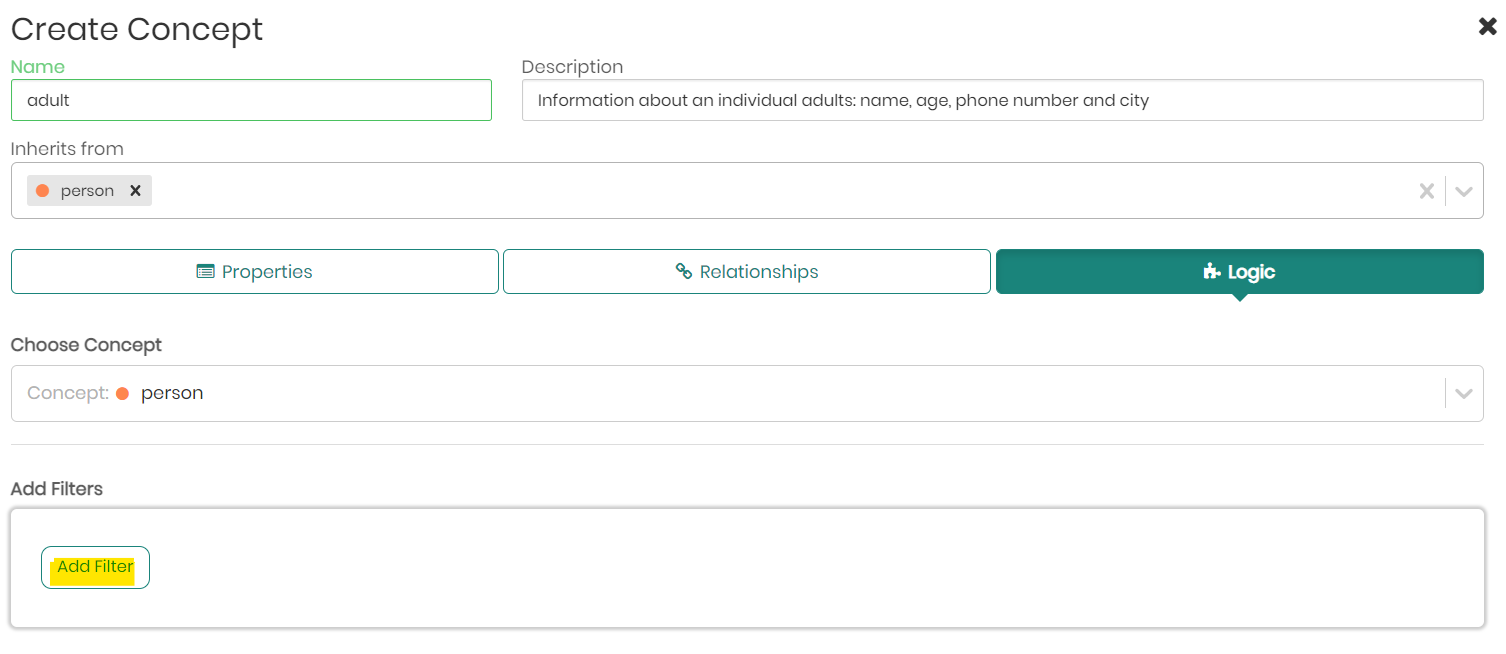
- Click on the Add Filter button to define the logic.
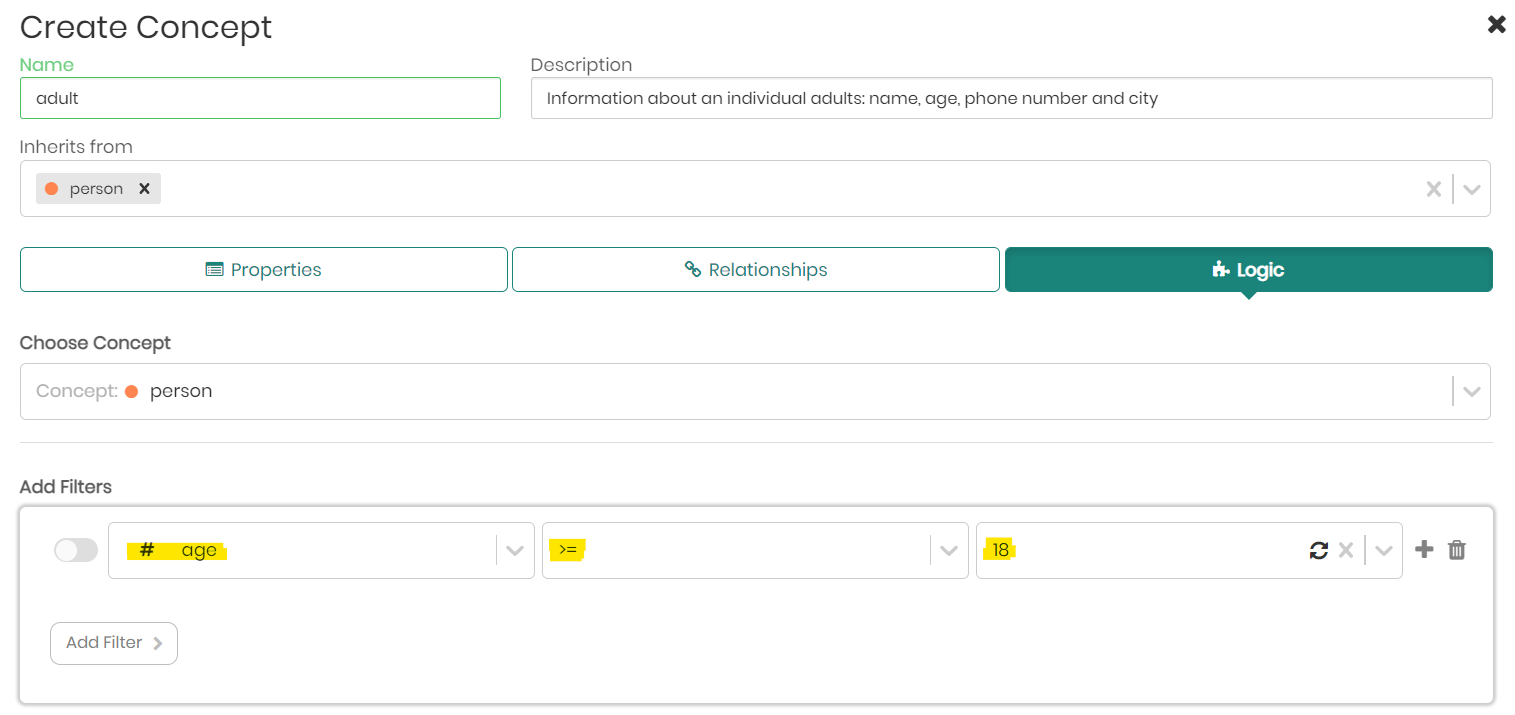
- In this case the logic for adult will be age >= 18, meaning that the concept adult will only inherit data from its parent concept person when the age of a person is 18 years or older.
- Click on Add New Concept to apply the logic and create our adult concept.
You have successfully created our third and final manual concept named adult using hard-coded logic, representing people 18 years and older.
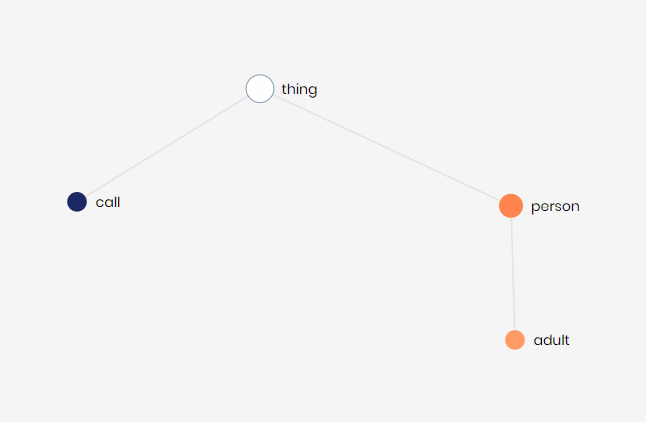
After creating the concepts with their properties, it's time to map data from our datasource, so we can query and use them in the Knowledge Graph.
We'll start by mapping the relevant data to the concept person which we created earlier.
Mapping data to person concept
- Right-click on the concept person and then click on Mappings.
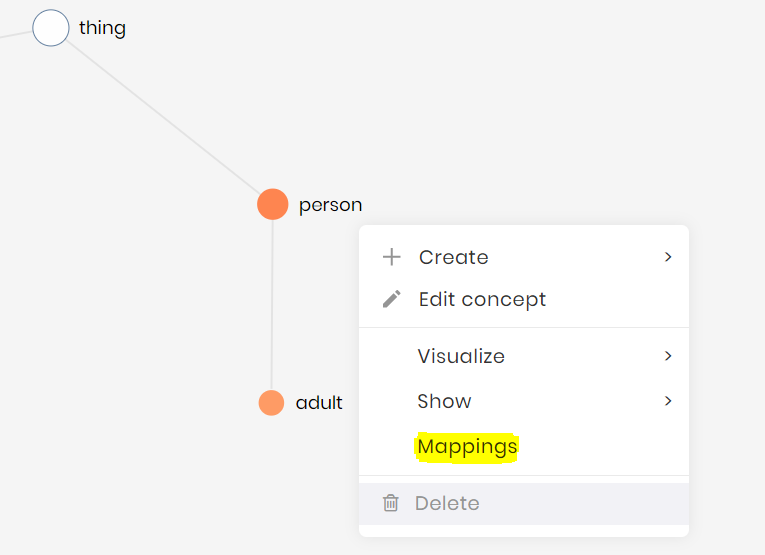
A new window will open, this is the Data Mapper, here we can map data to a concept visually or using SQL statements in a few simple steps.
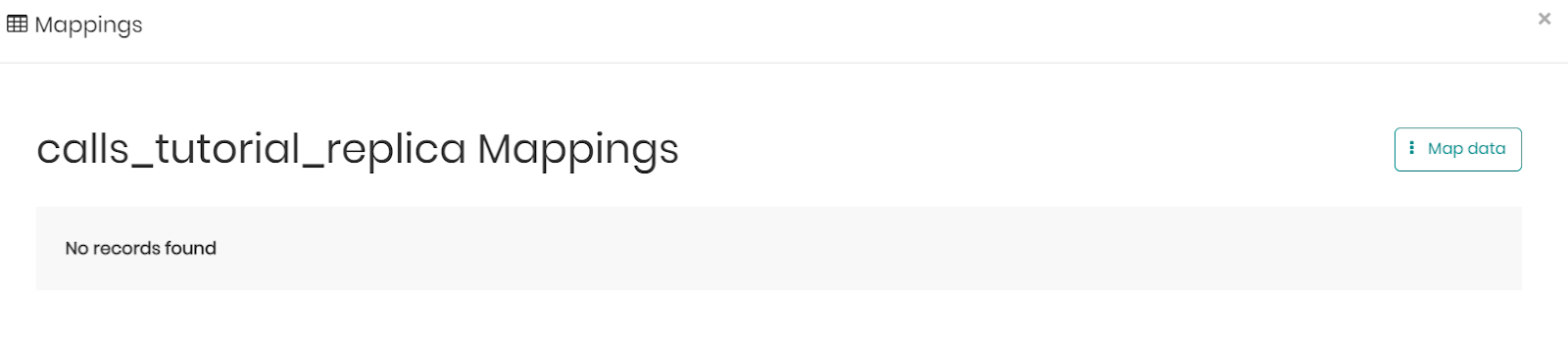
Step 1: Click on Map Data.
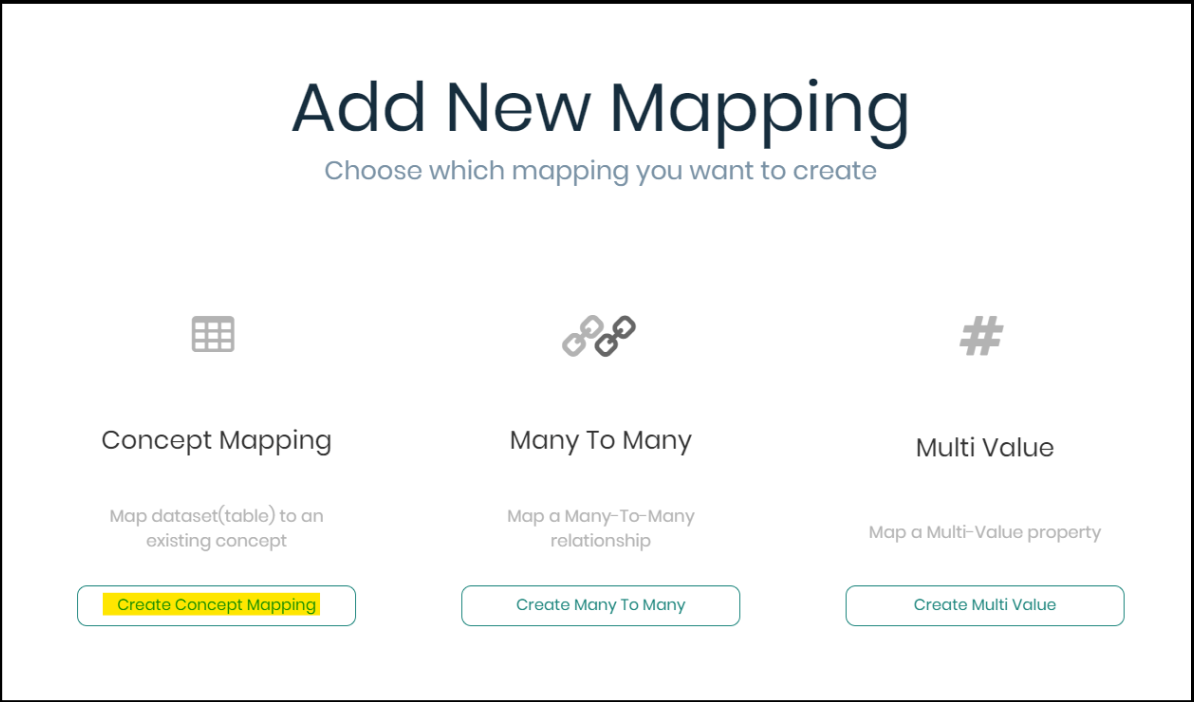
Step 2: In the pop-up that appears, click on Create Concept Mapping to map data from our database directly to our concept person.
Step 3: Choose the relevant schema to map the data from, in our case calls.
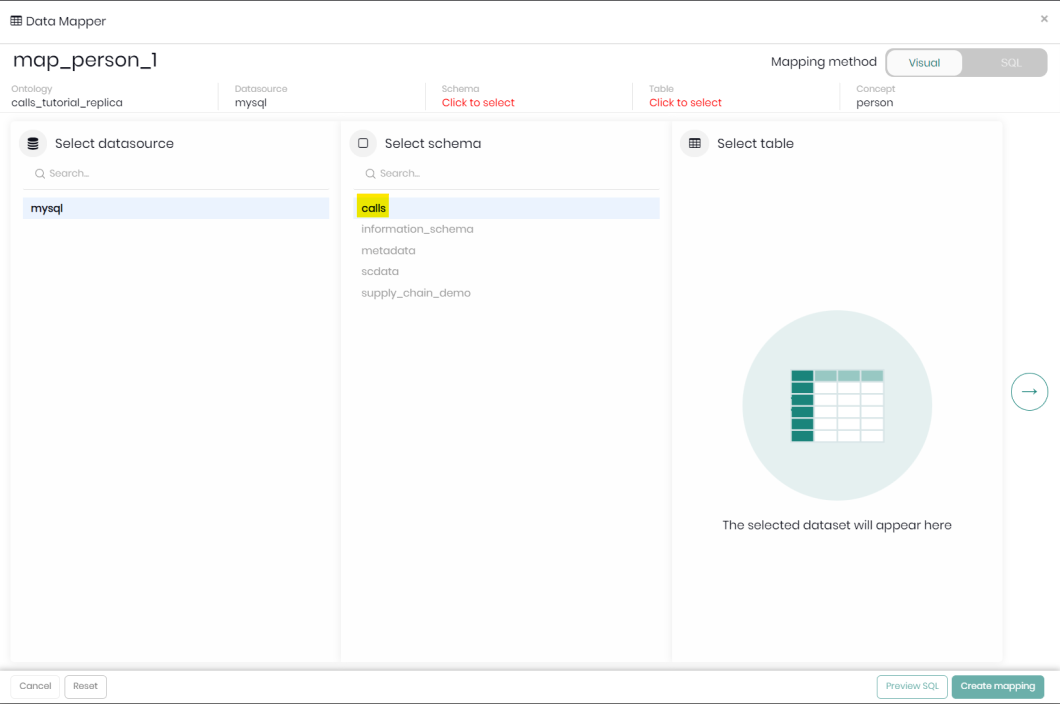
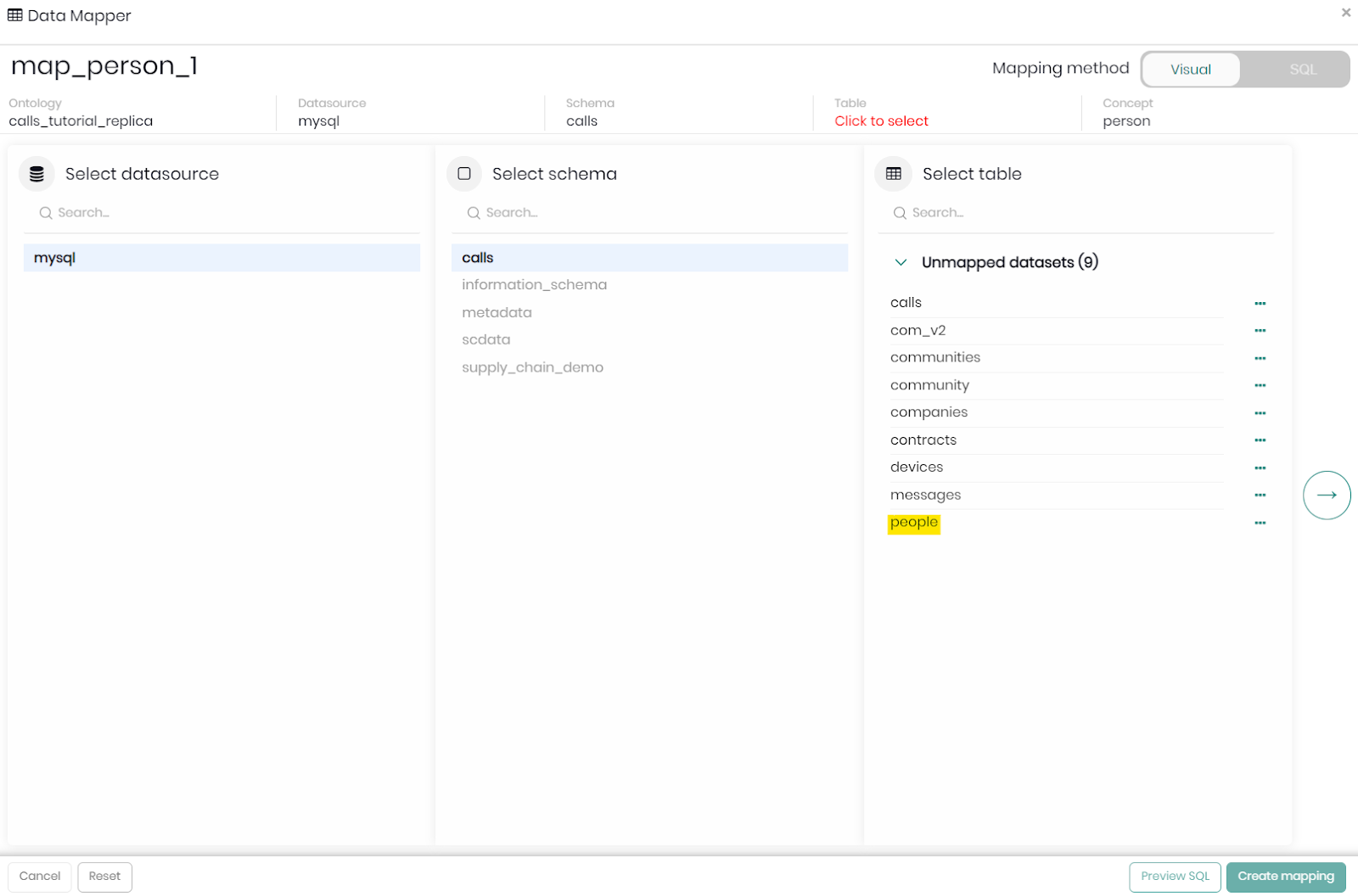
Once we choose the schema, Timbr will load the tables within that schema.
In our case, select the people table.
Step 4: Once the people table was selected we will now match the column names from the datasource to the concept properties. This can be done manually or instead, we can click on Add all suggestions on the top right, and Timbr will try to automatically make the matches. Click on Add all suggestions.
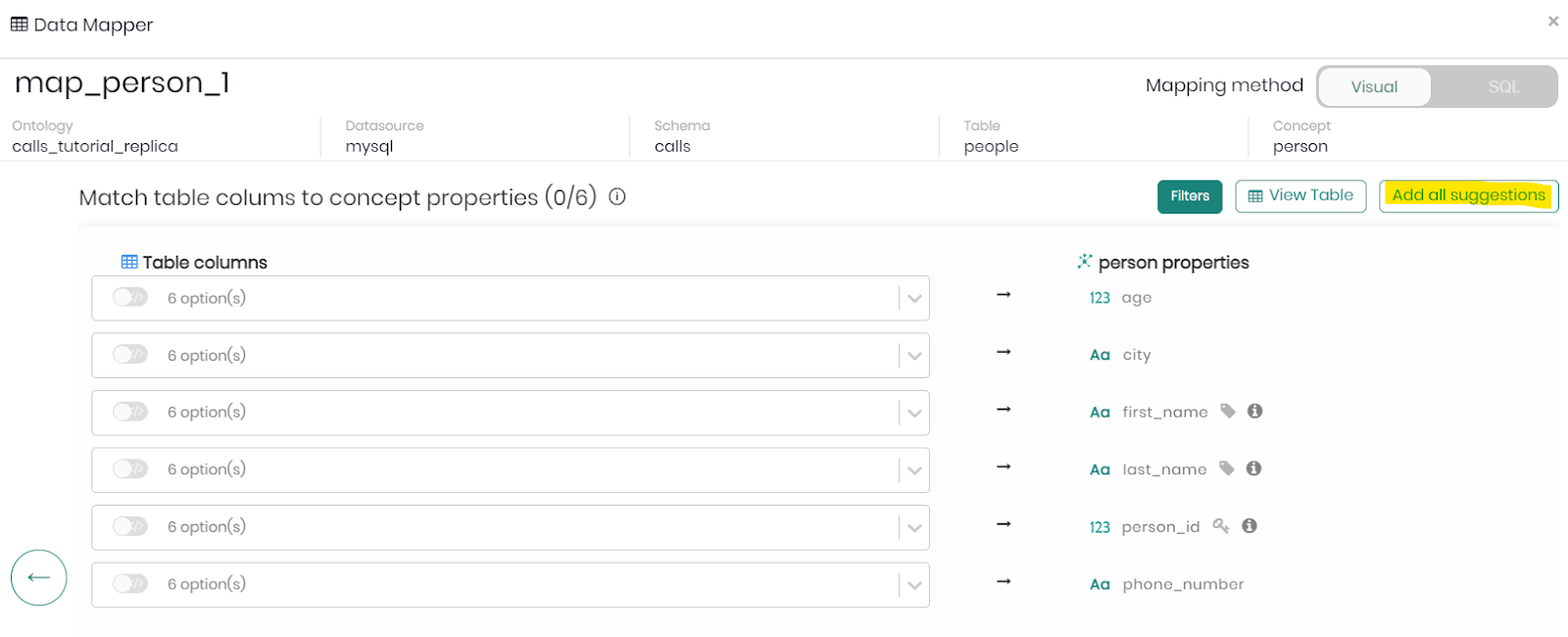
once the table columns are matched, click on Create mapping to complete the mapping for our concept person.
Notice: At this step, you can perform any SQL functions on the table columns (CAST, SUM, etc.).
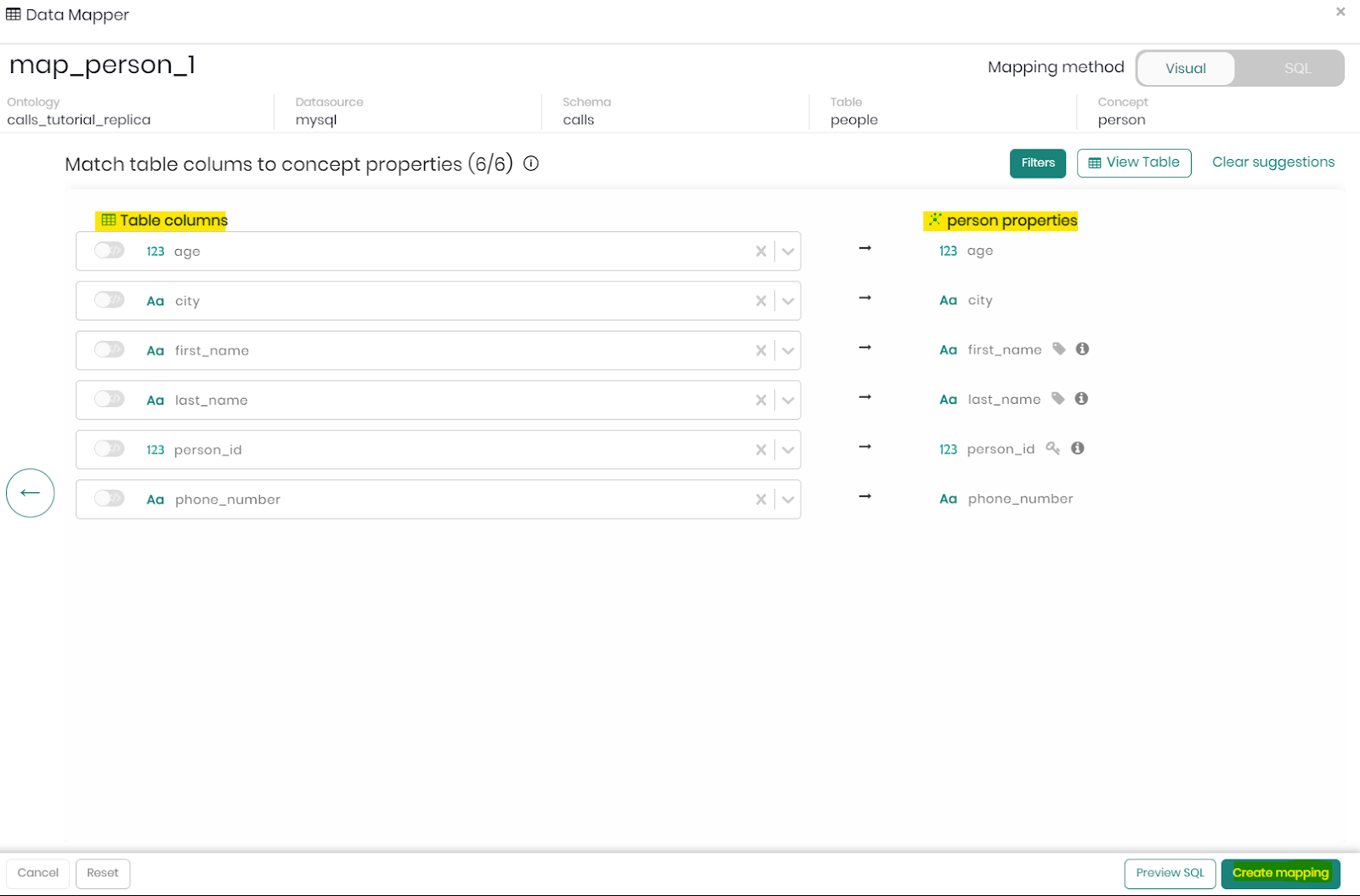
Our concept person now contains the relevant data.
We can now proceed by similarly mapping data to our second concept named call.
Mapping data to call concept
- Right-click on the concept call and then click on Mappings.
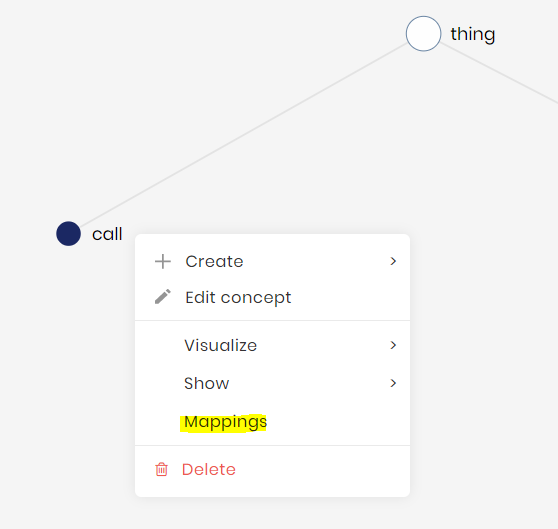
Once again follow the simple steps in the Data Mapper.
Step 1: Click on Map Data.
Step 2: In the pop-up that appears, click on Create Concept Mapping to map data from our database directly to our concept calls.
Step 3: Choose the relevant schema to map the data from, in our case calls.
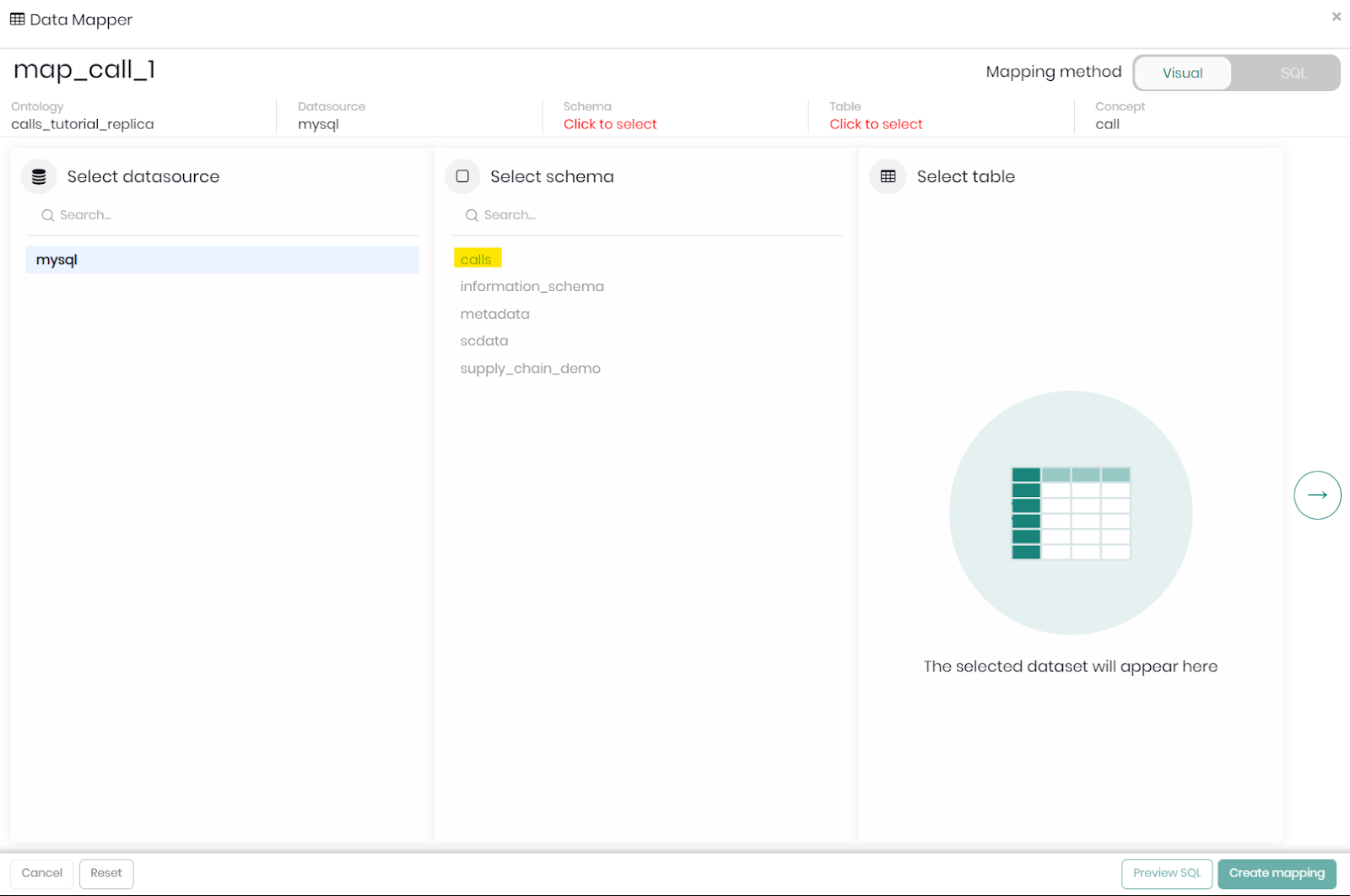
Once we choose the schema, Timbr will load the tables within that schema.
In our case, select the calls table.
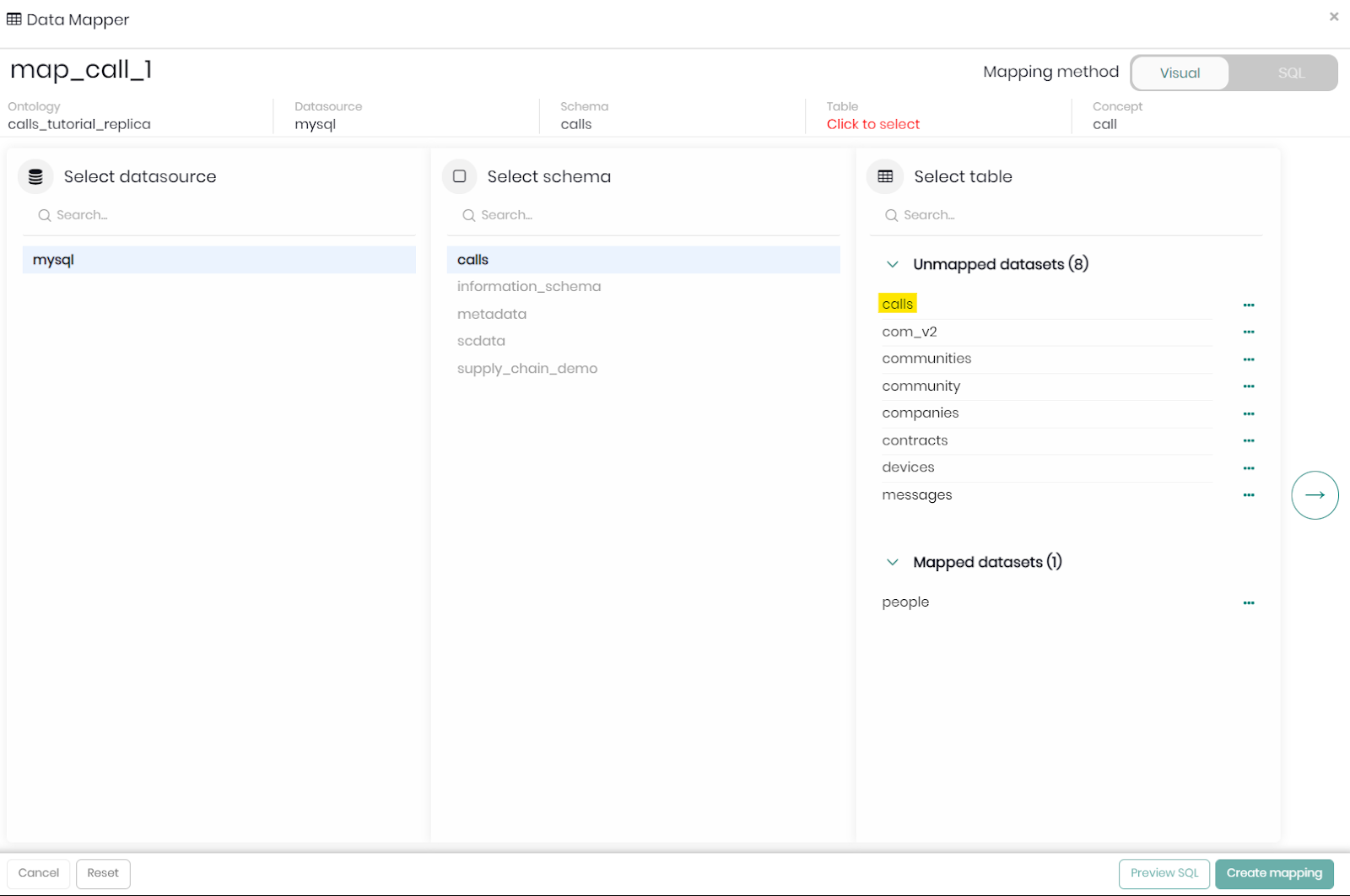
Step 4: Once the calls table was selected we will now match the column names from the datasource to the concept properties. Click on Add all suggestions.
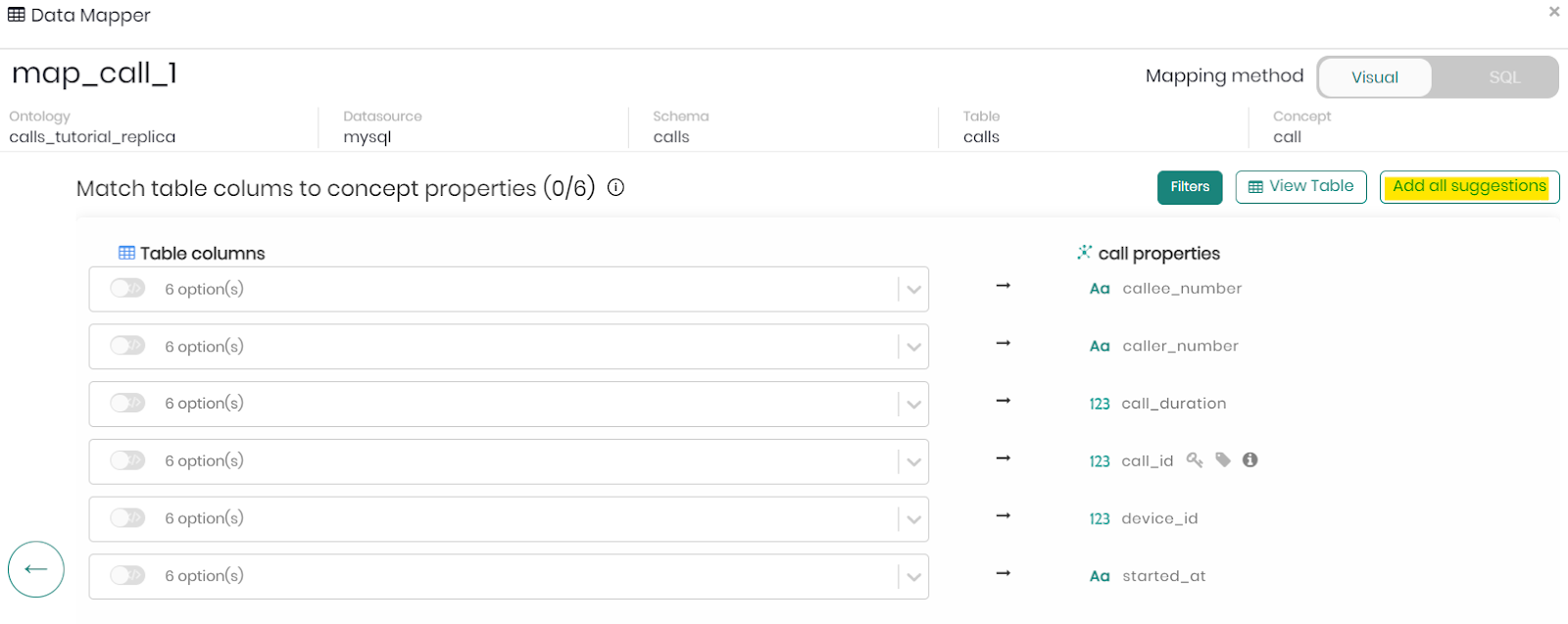
once the table columns are matched, click on Create mapping to complete the mapping for our concept call.
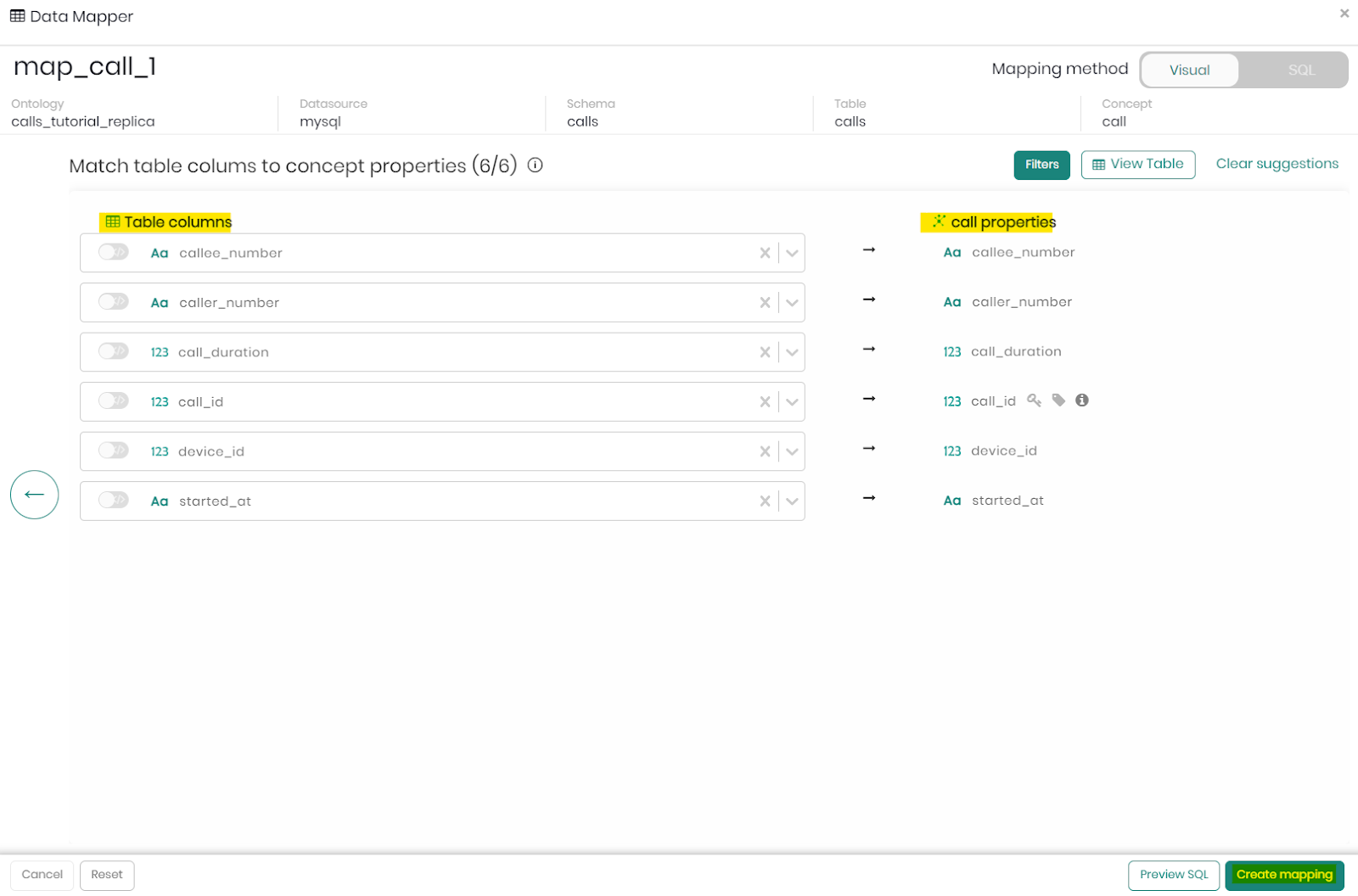
Our call concept now contains the relevant data!
Relationships in the knowledge graph are supposed to represent the human understanding of the connection between two concepts, let's begin and see how we can apply it in our graph.
Start by clicking on one of the two concept nodes that we would like to connect, in our case, a relationship between concept person and concept call.
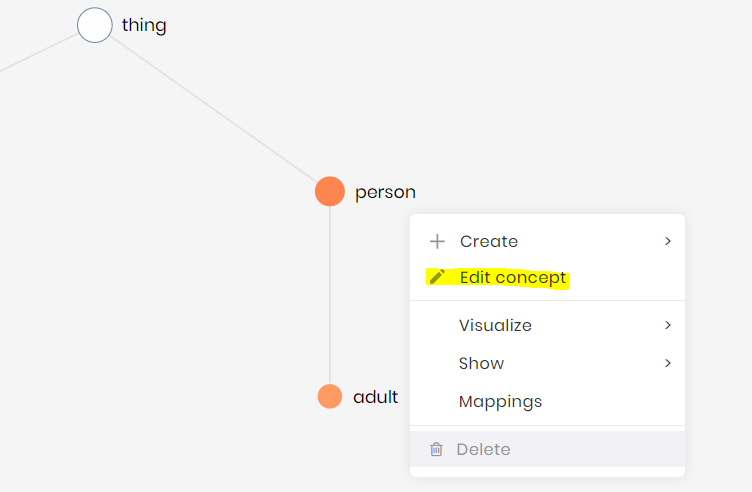
- Right-click on the concept person and then click on Edit concept.
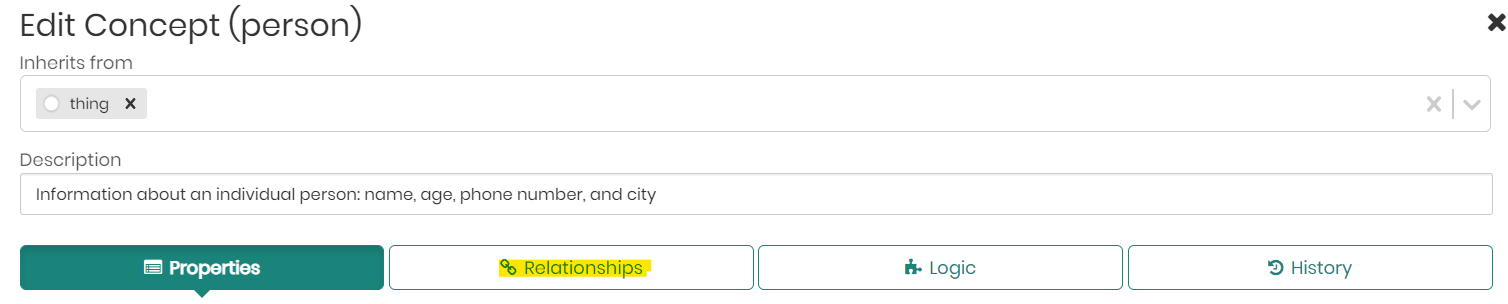
- Click on the Relationships tab.
- Click on the + New relationship button.
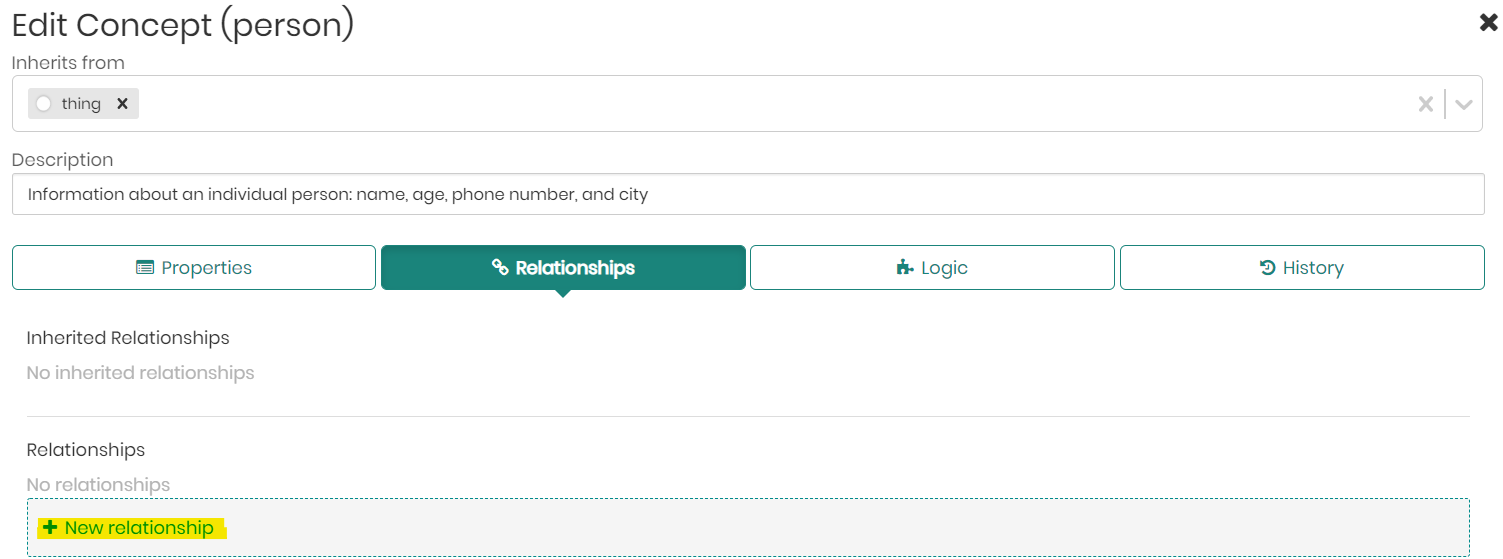
- Here we will define the relationship. Enter the direct relationship name made_call (from person to call), and add the inverse relationship name received_call (from call to person).
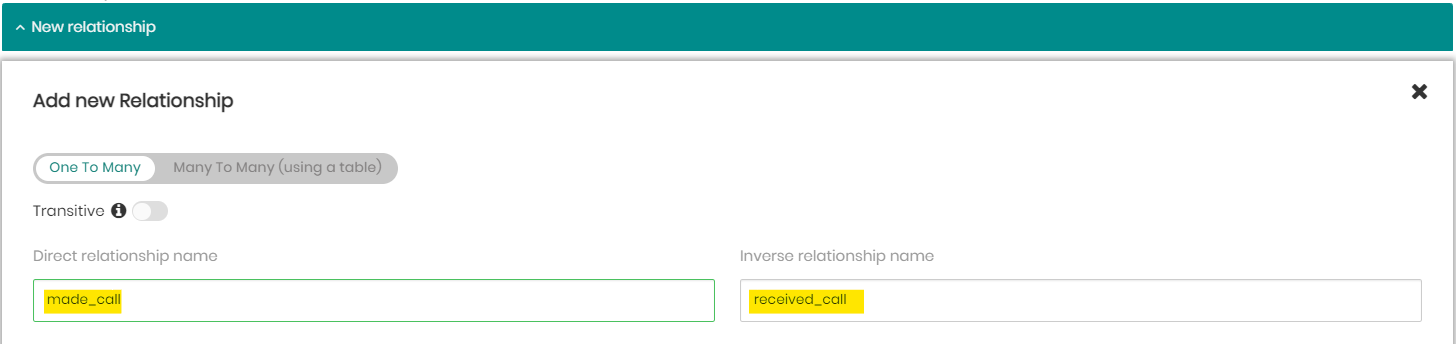
- Choose the target concept call to connect our relationship to.
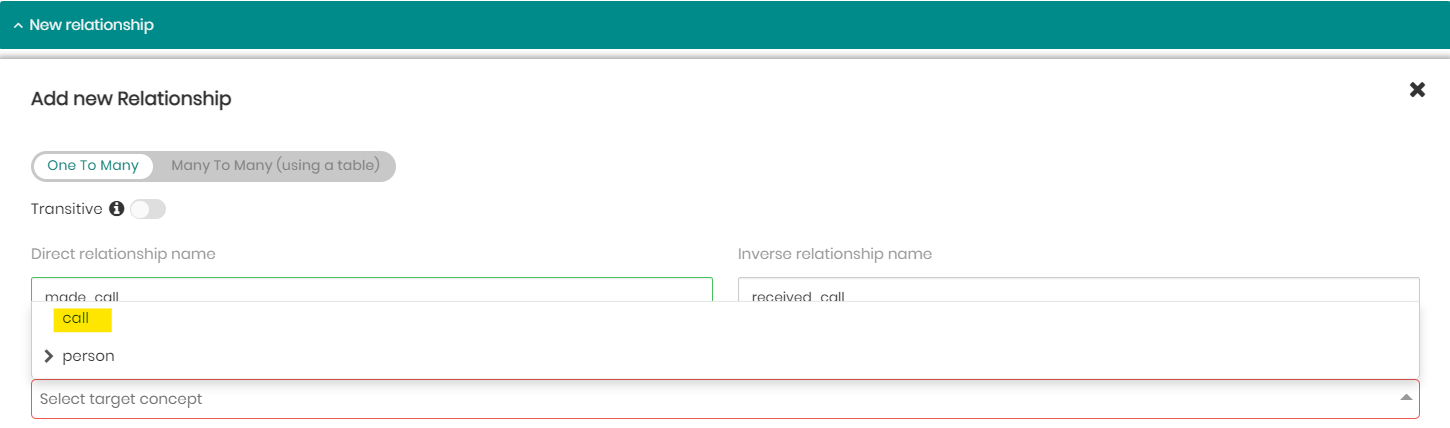
- Choose a property from our base concept person, that matches with a property from our target concept call, in our case choose "phone_number" for person, and "caller_number" for call - this means that a phone number of a person is the caller number in a call. To complete the relationship click Save.
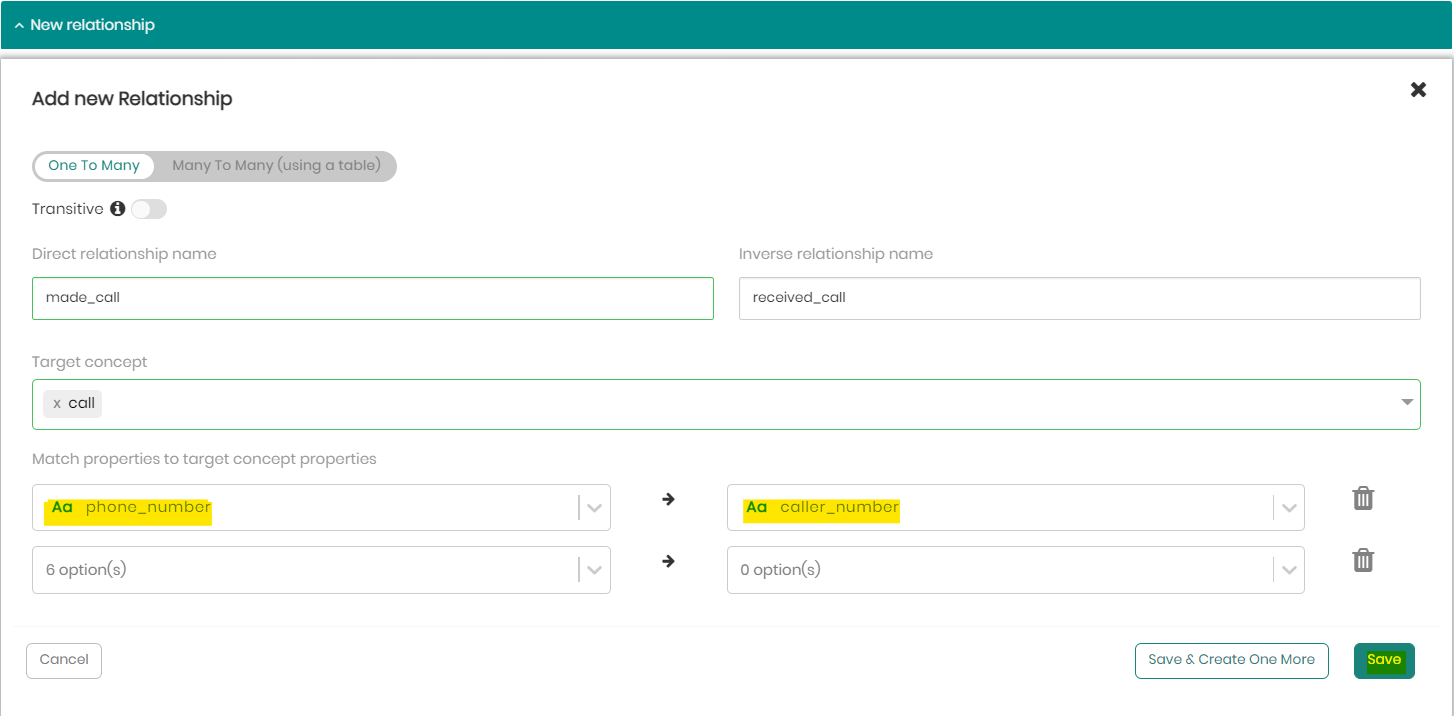
- Click on Save Changes to add our relationship to the concept.
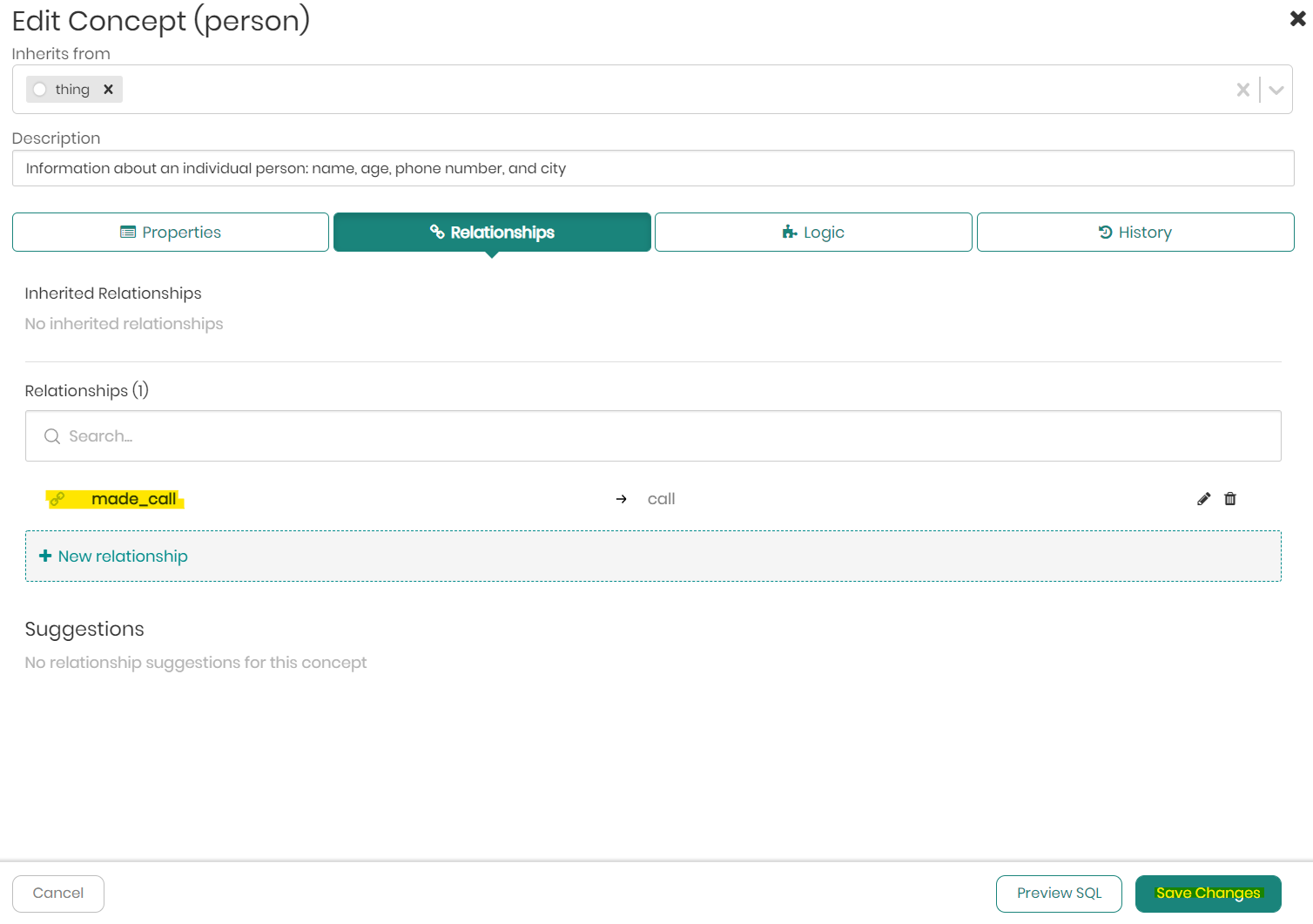
The relationship has been added successfully! Moving forward we will learn how to use these relationships to perform Graph Traversals in SQL, or in simpler words, how to shorten our queries by up to 90% using these relationships!
Some users prefer to add concepts manually, other users prefer using SQL statements to create, map, and define relationships in the graph. At this stage, we will see how to use the SQL statements to create the remaining concepts of our knowledge graph.
- Click on the SQL Lab tab on the top menu bar and then click on SQL Editor.
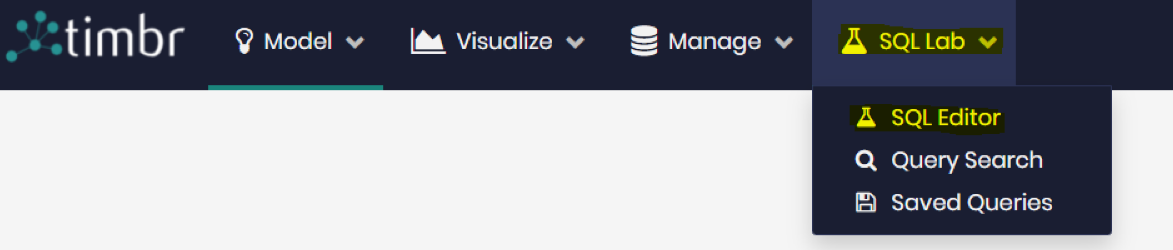
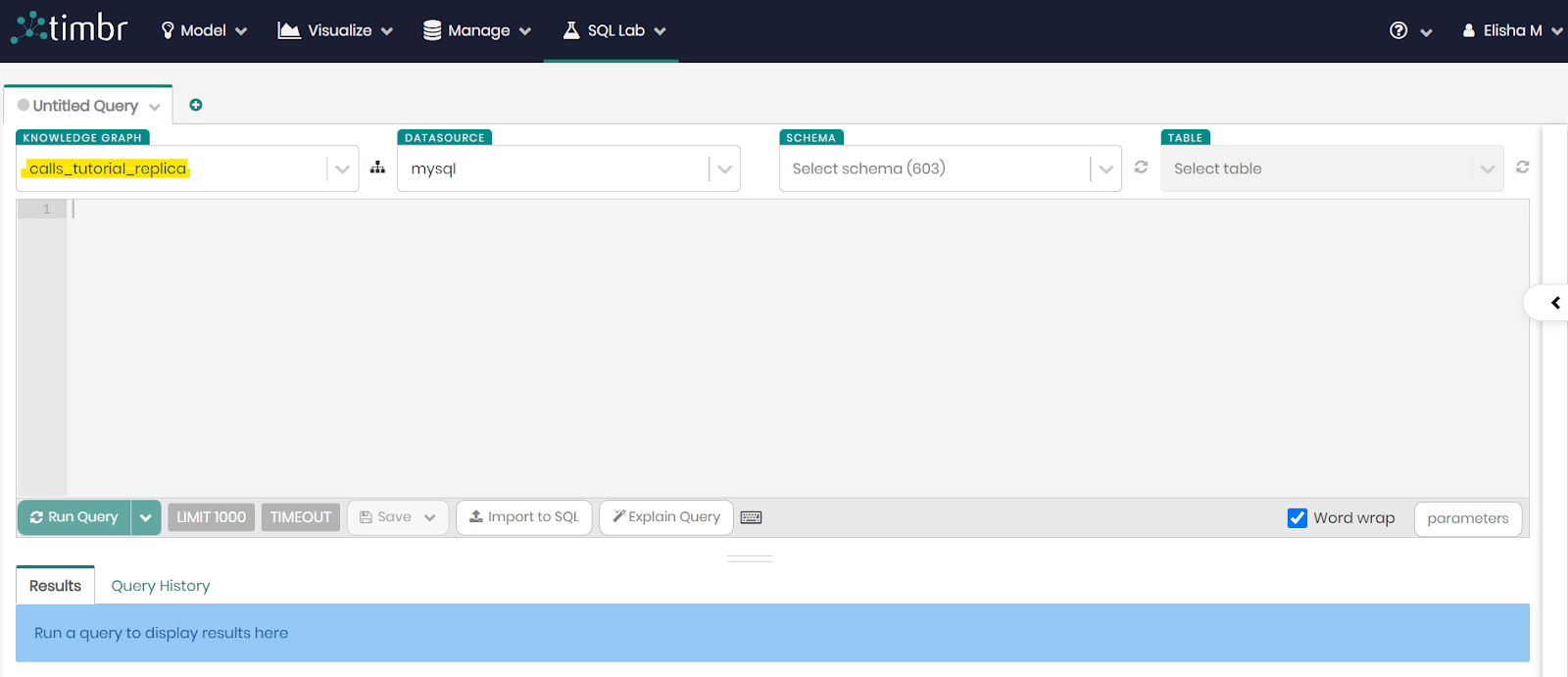
- Choose the knowledge graph assigned to you, usually it should be tutorial_<yourname>.
- Copy the first SQL statement below into the query box and click on Run Query.
SQL Statement #1 (creating all concepts and mapping data to them):
CREATE OR REPLACE CONCEPT `person` (`age` bigint, `city` string, `first_name` string, `last_name` string, `person_id` bigint, `phone_number` string , PRIMARY KEY(`person_id`), LABEL(`first_name`, `last_name`)) INHERITS (`thing`) DESCRIPTION 'Information about an individual person: name, age, phone number and city';
CREATE OR REPLACE MAPPING `map_person_1` INTO `person` AS SELECT `age` AS `age`, `city` AS `city`, `first_name` AS `first_name`, `last_name` AS `last_name`, `person_id` AS `person_id`,`phone_number` AS `phone_number` FROM `calls`.`people`;
CREATE OR REPLACE CONCEPT `device` (`call_id` bigint, `device_id` bigint, `device_type` string, `person_id` bigint , PRIMARY KEY(`device_id`), LABEL(`device_type`)) INHERITS (`thing`) DESCRIPTION 'Information on the types of devices and the calls that were made from them.';
CREATE OR REPLACE MAPPING `map_device_1` INTO `device` AS SELECT `call_id` AS `call_id`, `device_id` AS `device_id`, `device_type` AS `device_type`, `person_id` AS `person_id` FROM `calls`.`devices`;
CREATE OR REPLACE CONCEPT `contract` (`company_name` string, `contract_date` string, `contract_type` string, `person_id` bigint, `phone_number` string , PRIMARY KEY(`phone_number`), LABEL(`company_name`)) INHERITS (`thing`) DESCRIPTION 'A contract between a person and a company';
CREATE OR REPLACE MAPPING `map_contract_1` INTO `contract` AS SELECT `company_name` AS `company_name`, `contract_date` AS `contract_date`, `contract_type` AS `contract_type`, `person_id` AS `person_id`, `phone_number` AS `phone_number` FROM `calls`.`contracts`;
CREATE OR REPLACE CONCEPT `company` (`company_name` string, `technology` string , PRIMARY KEY(`company_name`), LABEL(`company_name`)) INHERITS (`thing`) DESCRIPTION 'Names of companies and their technologies ';
CREATE OR REPLACE MAPPING `map_company_1` INTO `company` AS SELECT `company_name` AS `company_name`, `technology` AS `technology` FROM `calls`.`companies`;
CREATE OR REPLACE CONCEPT `adult`  INHERITS (`person`) DESCRIPTION 'Information about individual adults: name, age, phone number and city' FROM `timbr`.`person` WHERE `age` >= 18;
CREATE OR REPLACE CONCEPT `minor`  INHERITS (`person`) DESCRIPTION 'Information about individual minors: name, age, phone number and city' FROM `timbr`.`person` WHERE `age` < 18;
CREATE OR REPLACE CONCEPT `pc`  INHERITS (`device`) DESCRIPTION 'Information on the calls that were made by people using a PC' FROM `timbr`.`device` WHERE `device_type` = 'PC';
CREATE OR REPLACE CONCEPT `tablet`  INHERITS (`device`) DESCRIPTION 'Information on the calls that were made by people using Tablets' FROM `timbr`.`device` WHERE `device_type` = 'Tablet';
CREATE OR REPLACE CONCEPT `smartwatch`  INHERITS (`device`) DESCRIPTION 'Information on the calls that were made by people using smartwatches' FROM `timbr`.`device` WHERE `device_type` = 'Smartwatch';
CREATE OR REPLACE CONCEPT `smartphone`  INHERITS (`device`) DESCRIPTION 'Information on the calls that were made by people using smartphones' FROM `timbr`.`device` WHERE `device_type` = 'Smartphone';
CREATE OR REPLACE CONCEPT `call` (`callee_number` string, `caller_number` string, `call_duration` bigint, `call_id` bigint, `device_id` bigint, `started_at` timestamp , PRIMARY KEY(`call_id`), LABEL(`call_id`)) INHERITS (`thing`) DESCRIPTION 'A call between two people as caller and callee, including call start time and call duration';
CREATE OR REPLACE MAPPING `map_call_1` INTO `call` AS SELECT `callee_number` AS `callee_number`, `caller_number` AS `caller_number`, `call_duration` AS `call_duration`, `call_id` AS `call_id`, `device_id` AS `device_id`, CAST(`started_at` AS TIMESTAMP) AS `started_at` FROM `calls`.`calls`;
CREATE OR REPLACE CONCEPT `call_longer_than_five_min`  INHERITS (`call`) DESCRIPTION 'A call between two people as caller and callee, including call start time and call duration for calls longer than 5 minutes' FROM `timbr`.`call` WHERE `call_duration` > 300;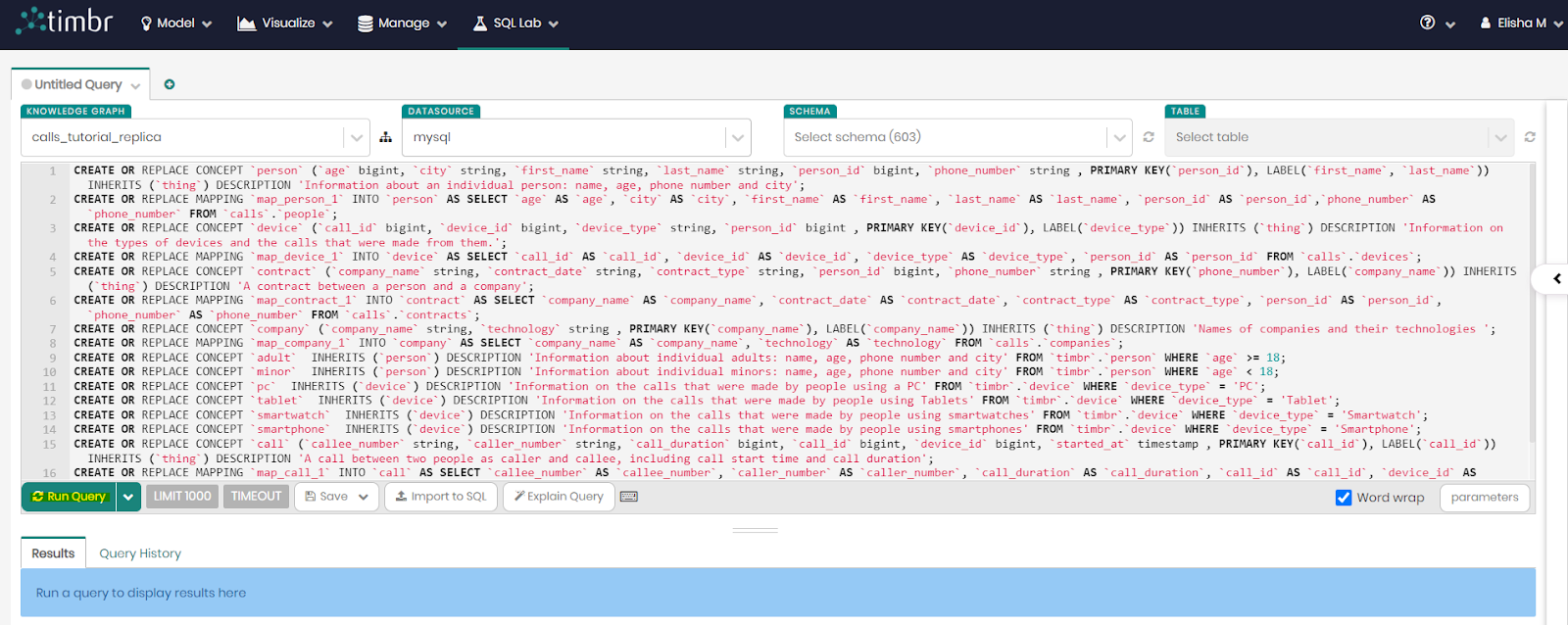
Once the query finished running, we should see: "Query OK. No results".
This means you have successfully created and mapped data to all the ontology concepts and added hard-coded logic to them.
- Remove the first query and copy the second query below into the query box and click on Run Query.
SQL Statement #2 (defining all the relationships in the ontology):
CREATE OR REPLACE CONCEPT `person` (`age` bigint, `city` string, `first_name` string, `last_name` string, `person_id` bigint, `phone_number` string , PRIMARY KEY(`person_id`), LABEL(`first_name`, `last_name`), CONSTRAINT `has_contract` FOREIGN KEY (`person_id`) REFERENCES `contract` (`person_id`)  INVERSEOF `signed_by`)  INHERITS (`thing`) DESCRIPTION 'Information about an individual person: name, age, phone number and city';
CREATE OR REPLACE MAPPING `map_person_1` INTO `person` AS SELECT `age` AS `age`, `city` AS `city`, `first_name` AS `first_name`, `last_name` AS `last_name`, `person_id` AS `person_id`,`phone_number` AS `phone_number` FROM `calls`.`people`;
CREATE OR REPLACE CONCEPT `device` (`call_id` bigint, `device_id` bigint, `device_type` string, `person_id` bigint , PRIMARY KEY(`device_id`), LABEL(`device_type`),  CONSTRAINT `owned_by` FOREIGN KEY (`person_id`) REFERENCES `person` (`person_id`) INVERSEOF `has_device`)  INHERITS (`thing`) DESCRIPTION 'Information on the types of devices and the calls that were made from them.';
CREATE OR REPLACE MAPPING `map_device_1` INTO `device` AS SELECT `call_id` AS `call_id`, `device_id` AS `device_id`, `device_type` AS `device_type`, `person_id` AS `person_id` FROM `calls`.`devices`;
CREATE OR REPLACE CONCEPT `contract` (`company_name` string, `contract_date` string, `contract_type` string, `person_id` bigint, `phone_number` string , PRIMARY KEY(`phone_number`), LABEL(`company_name`))  INHERITS (`thing`) DESCRIPTION 'A contract between a person and a company';
CREATE OR REPLACE MAPPING `map_contract_1` INTO `contract` AS SELECT `company_name` AS `company_name`, `contract_date` AS `contract_date`, `contract_type` AS `contract_type`, `person_id` AS `person_id`, `phone_number` AS `phone_number` FROM `calls`.`contracts`;
CREATE OR REPLACE CONCEPT `company` (`company_name` string, `technology` string , PRIMARY KEY(`company_name`), LABEL(`company_name`))  INHERITS (`thing`) DESCRIPTION 'Names of companies and their technologies '; CREATE OR REPLACE MAPPING `map_company_1` INTO `company` AS SELECT `company_name` AS `company_name`, `technology` AS `technology` FROM `calls`.`companies`;
CREATE OR REPLACE CONCEPT `call` (`callee_number` string, `caller_number` string, `call_duration` bigint, `call_id` bigint, `device_id` bigint, `started_at` timestamp , PRIMARY KEY(`call_id`), LABEL(`call_id`),  CONSTRAINT `called_using` FOREIGN KEY (`device_id`) REFERENCES `device` (`device_id`) INVERSEOF `used_to_call`,  CONSTRAINT `callee` FOREIGN KEY (`callee_number`) REFERENCES `person` (`phone_number`) INVERSEOF `received_call`,  CONSTRAINT `caller` FOREIGN KEY (`caller_number`) REFERENCES `person` (`phone_number`) INVERSEOF `made_call`)  INHERITS (`thing`) DESCRIPTION 'A call between two people as caller and callee, including call start time and call duration';
CREATE OR REPLACE MAPPING `map_call_1` INTO `call` AS SELECT `callee_number` AS `callee_number`, `caller_number` AS `caller_number`, `call_duration` AS `call_duration`, `call_id` AS `call_id`, `device_id` AS `device_id`, CAST(`started_at` AS TIMESTAMP) AS `started_at` FROM `calls`.`calls`;
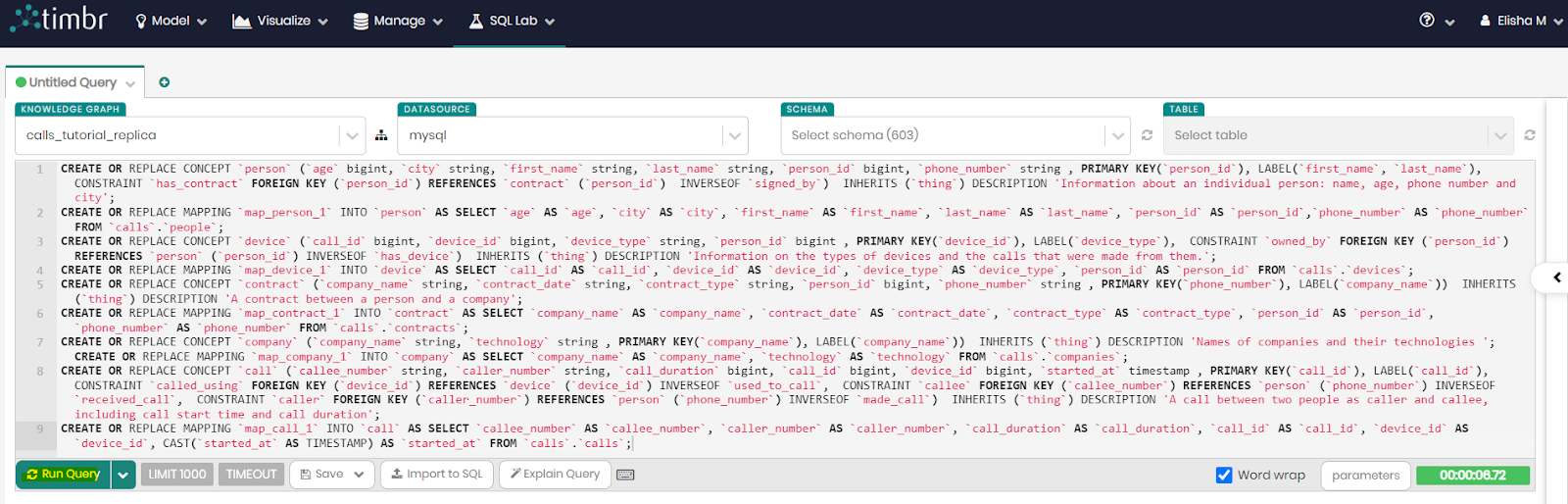
Once again if the query result states: "Query OK. No results", then you have successfully created and defined the relationships in our knowledge graph, connecting the underlying data together.
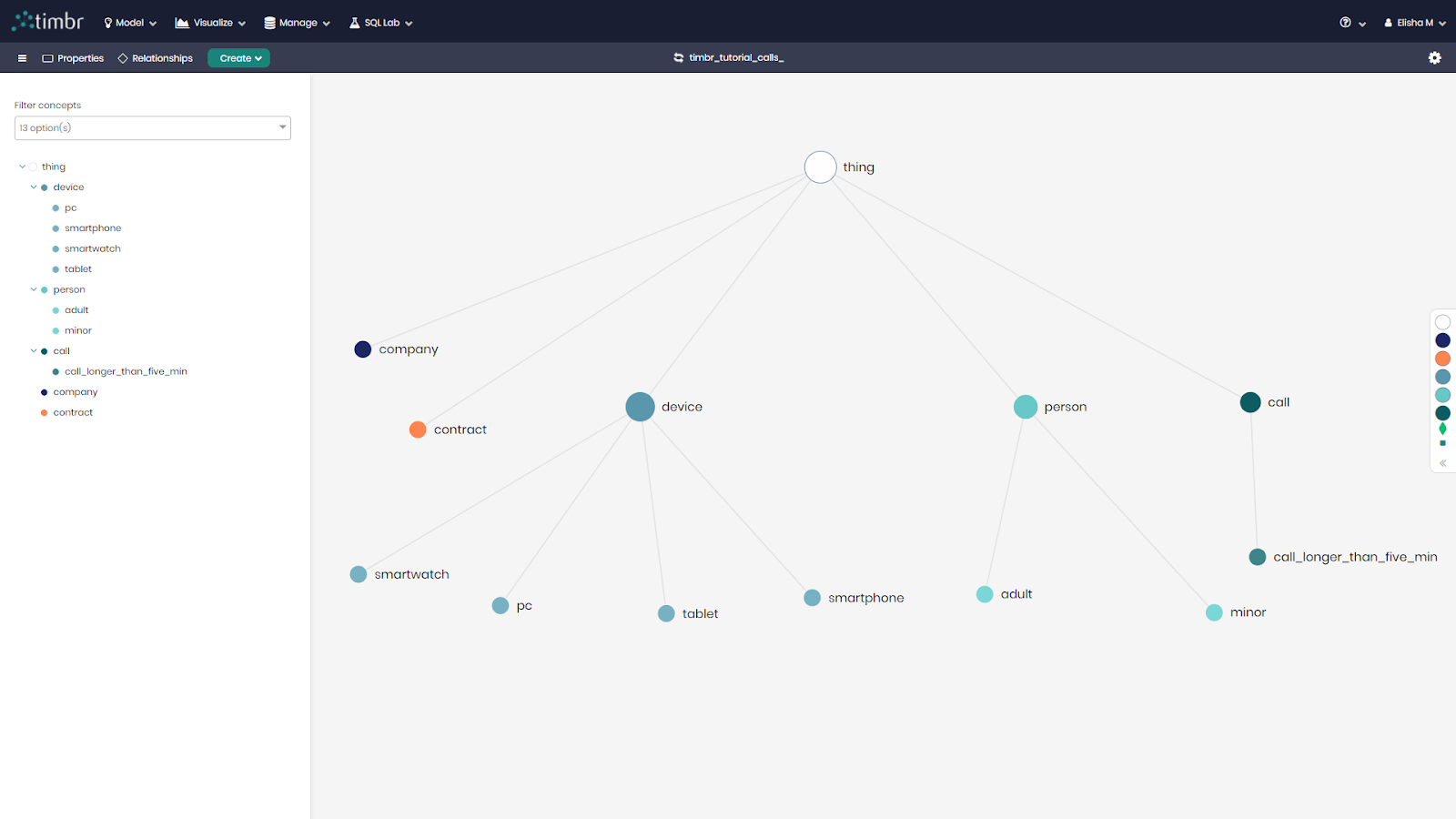
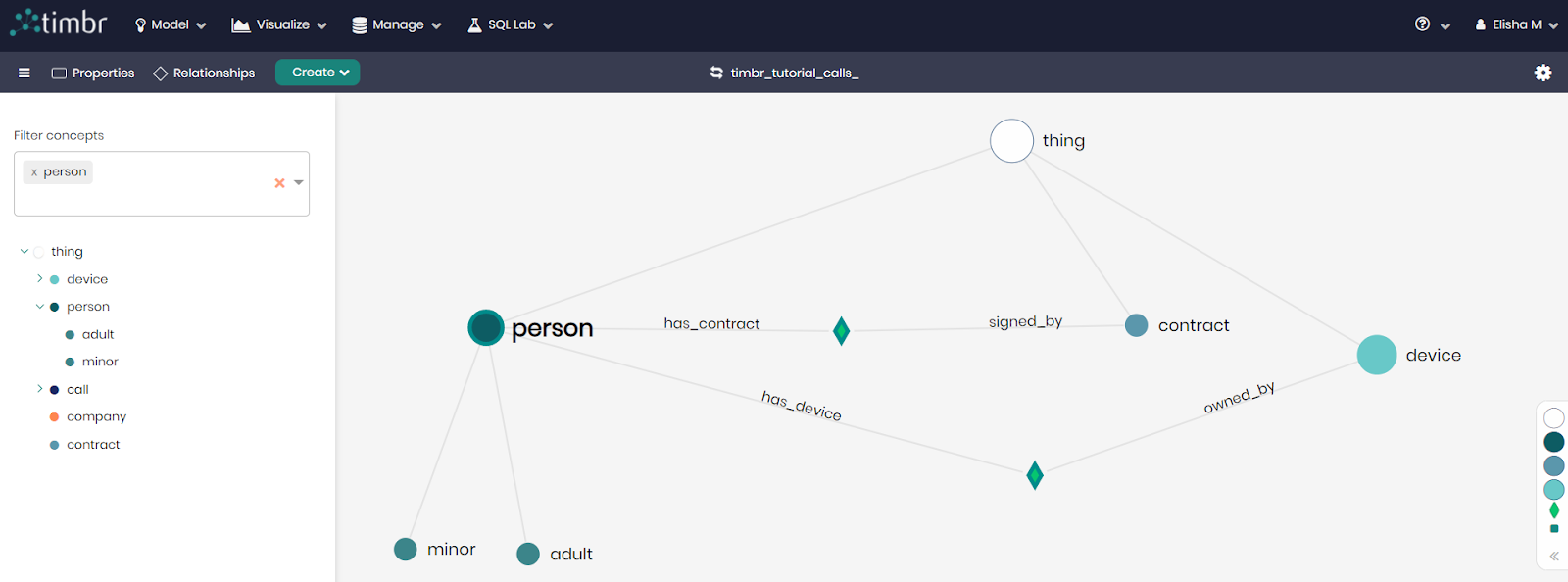
Our knowledge graph is now complete and should look as follows:
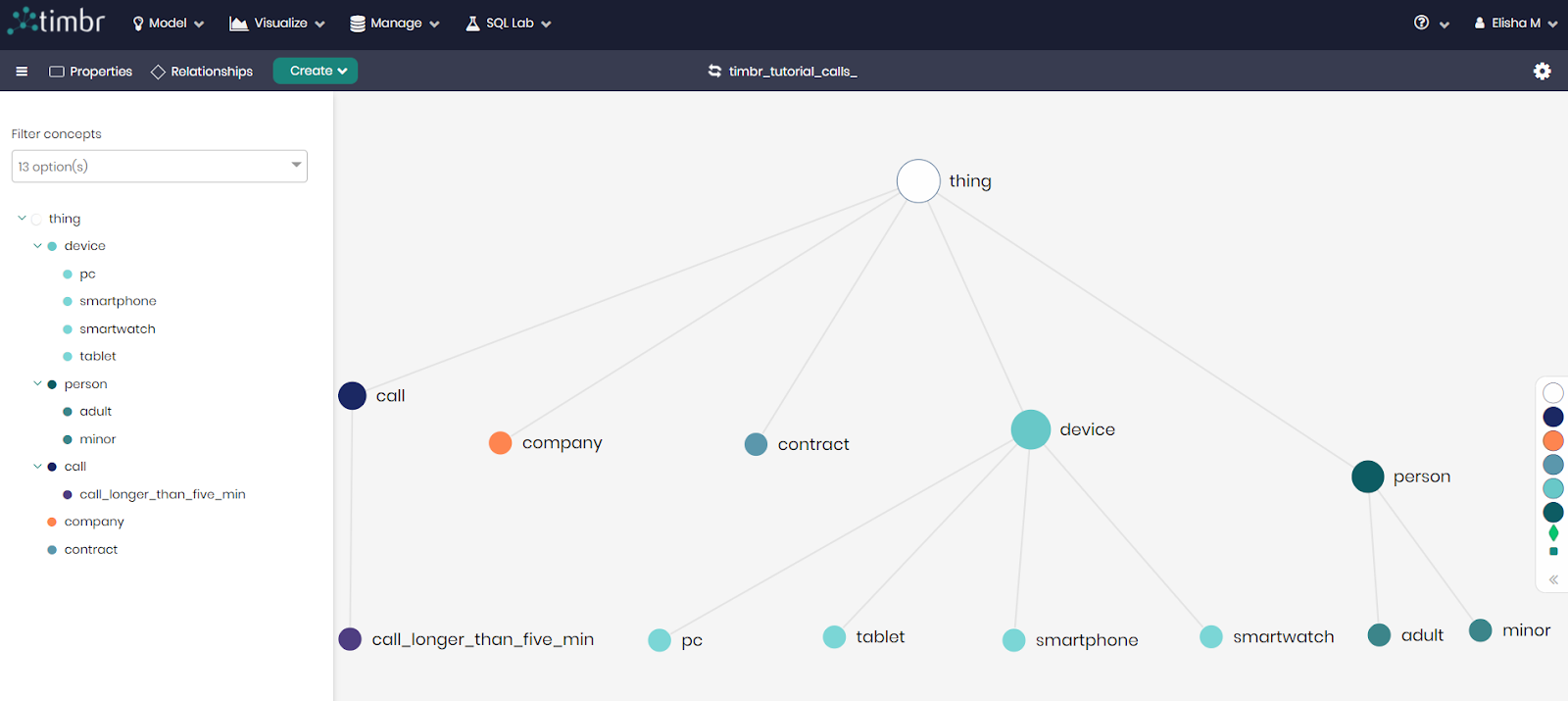
Now that the Knowledge Graph is ready, we can use and explore it in our next steps!
Go ahead and click on the Model tab on the top menu bar and then click on Ontology Explorer. Select your knowledge graph to begin exploring it!
Exploring the Knowledge Graph model is a great way to understand which entities I have in my data, how they are related to each other, what kind of data points I have in each entity and what are the hierarchies in my model.
Viewing a concept
- Left click on a concept and the concept menu will slide in with all the information about this concept - description, hierarchy, PK & EL, properties, relationships and logic.
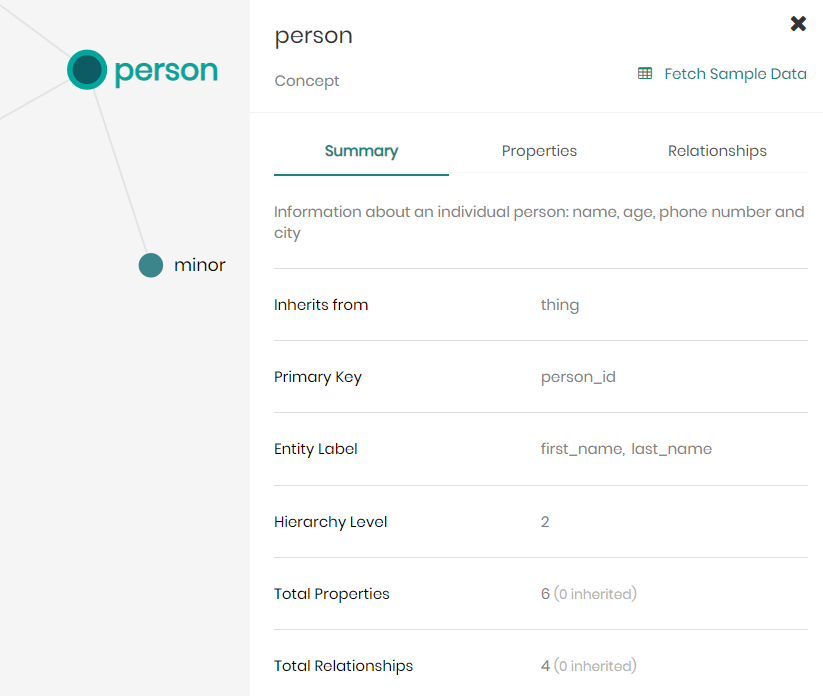
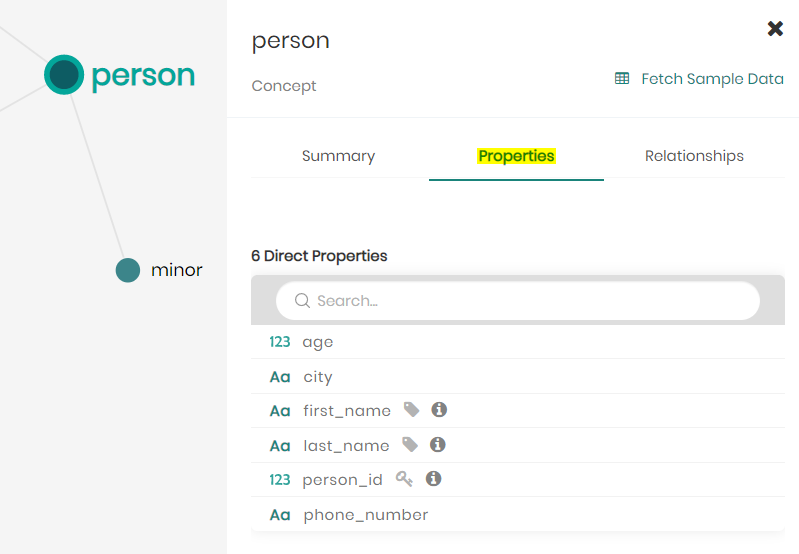
- Click on the Properties tab to view the list of all the concepts properties divided into inherited properties (from the upper-level concept) and direct properties, if any exist.
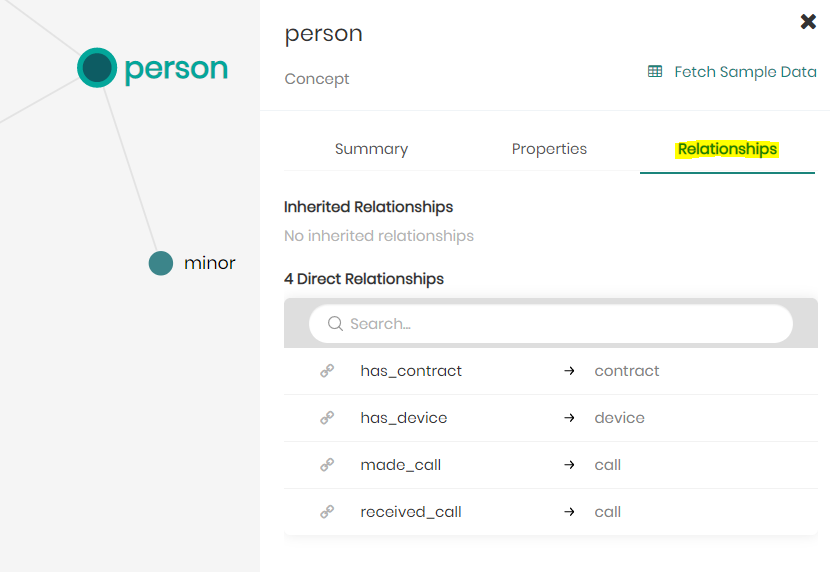
- Click on the Relationships tab to view the list of all the concepts relationships divided into inherited relationships (from the upper-level concept) and direct relationships, if any exist.
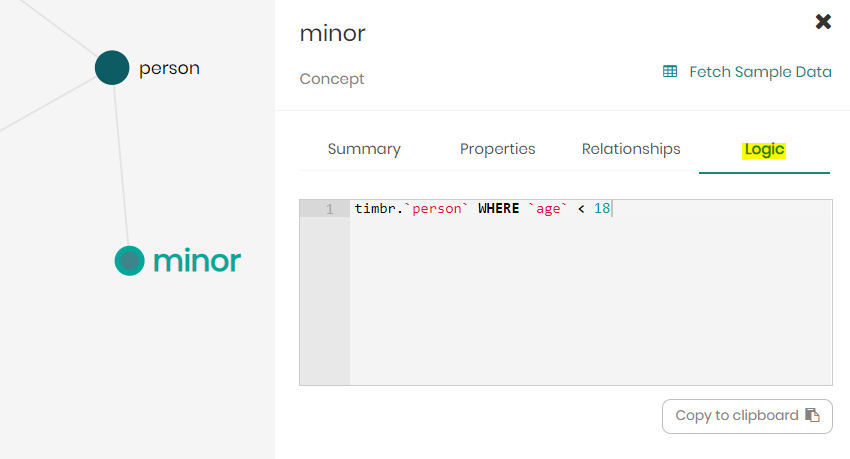
- Click on the Logic tab to see the SQL hard-coded logic of the concept, if logic has been defined on the concept.
Viewing properties
- On the menu bar above the knowledge graph, click on Properties to open the property filter box.
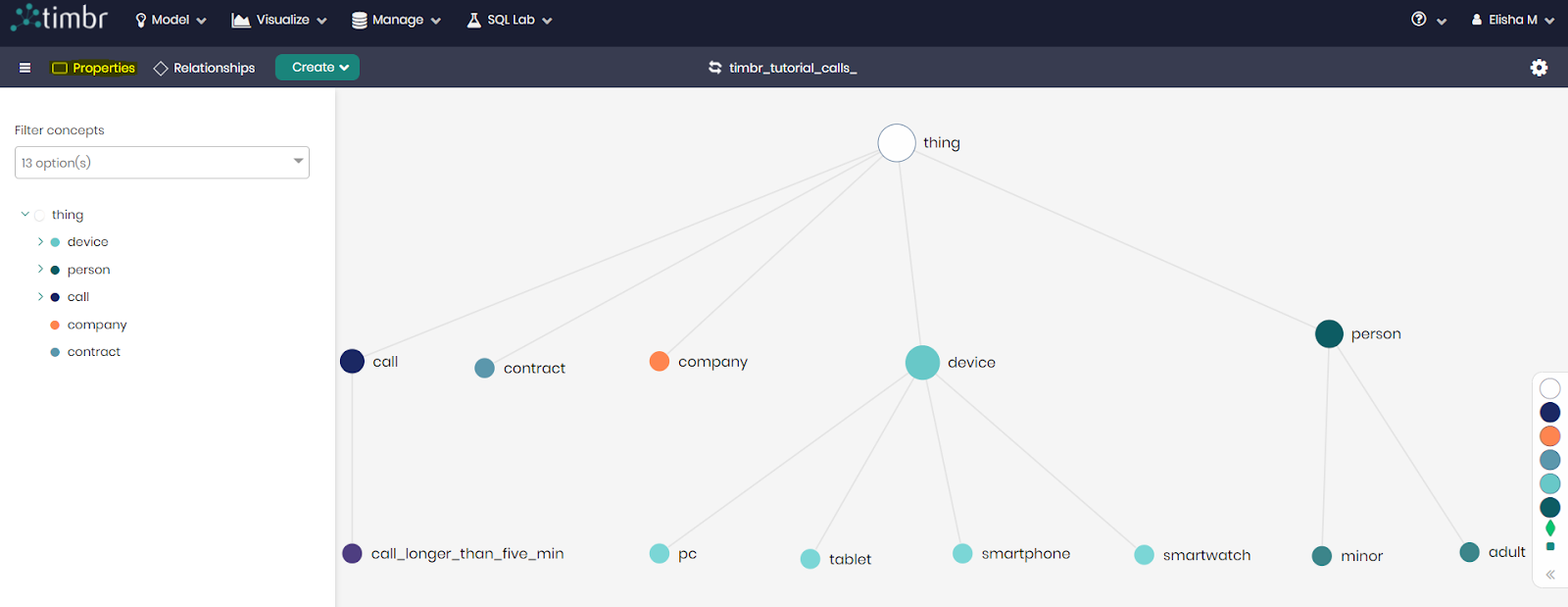
- You can now choose to load all the properties at once or choose specific properties you would like to load on the graph. For example, if you would like to know where the properties city and age are located, you can select them from the list and click Apply.
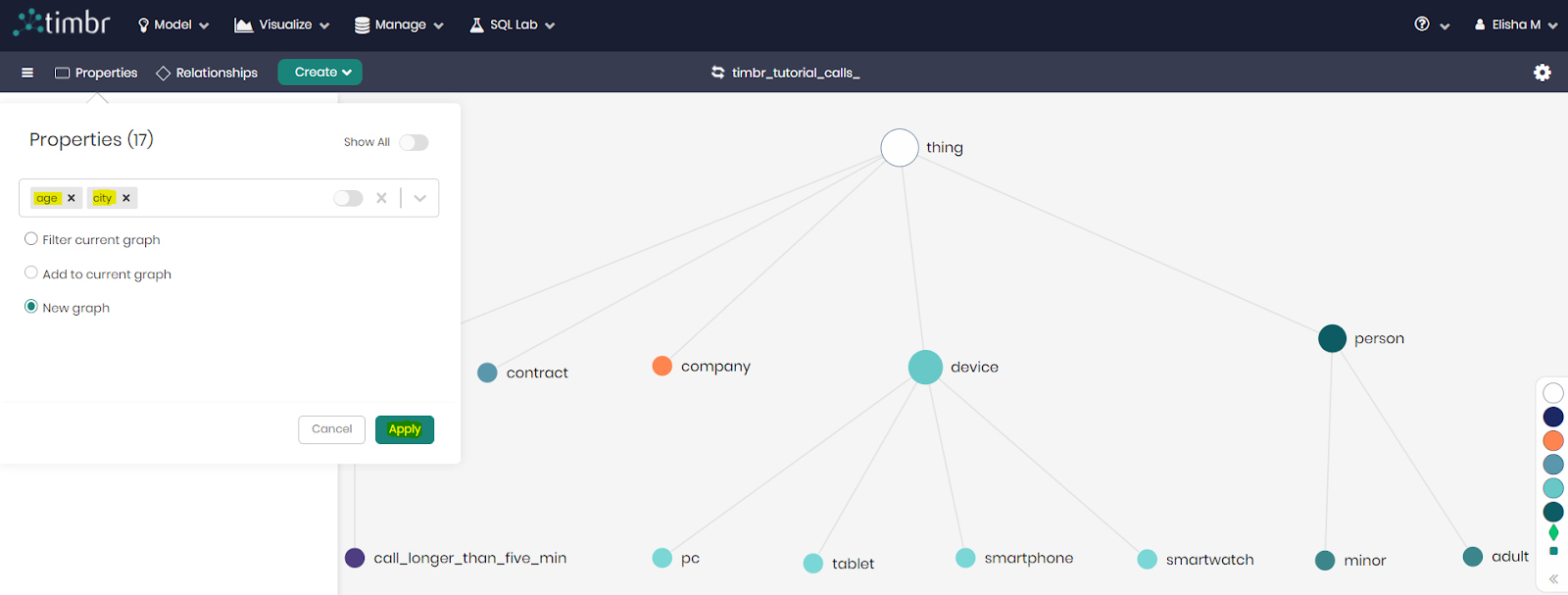
Once you click apply, Timbr will filter the graph with concepts that have the chosen properties.
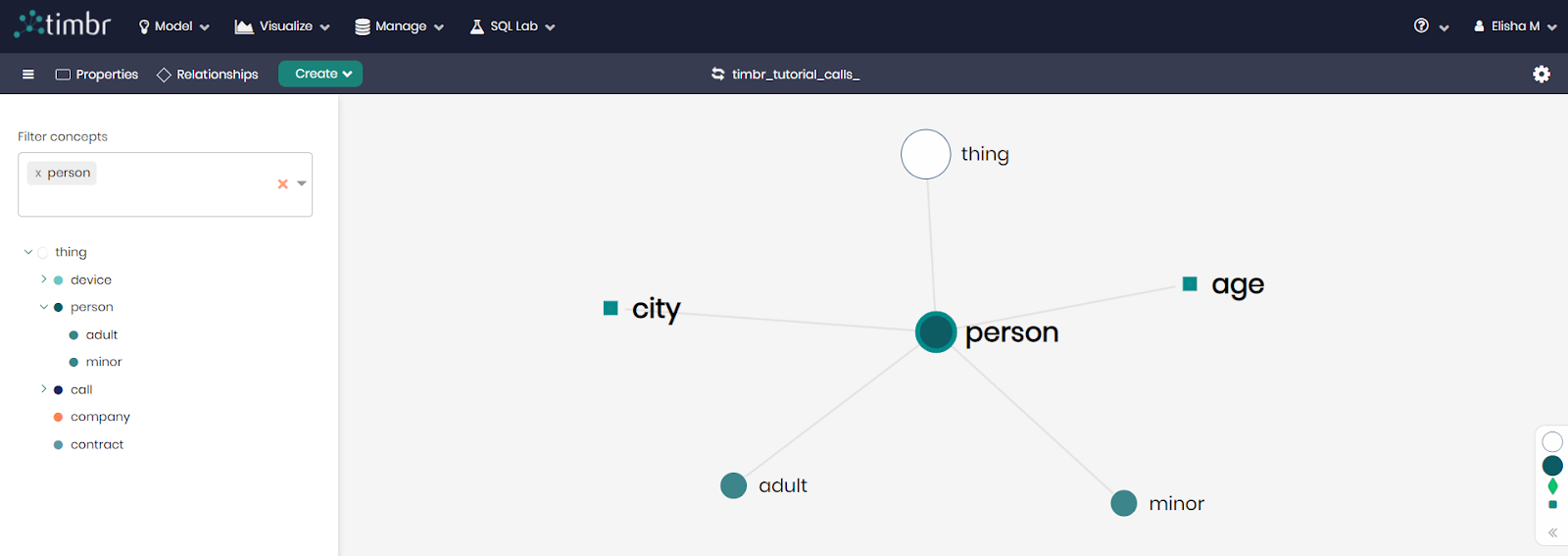
Viewing relationships
- Click on the X next to person in the filter box to clear the filter and load the full knowledge graph.
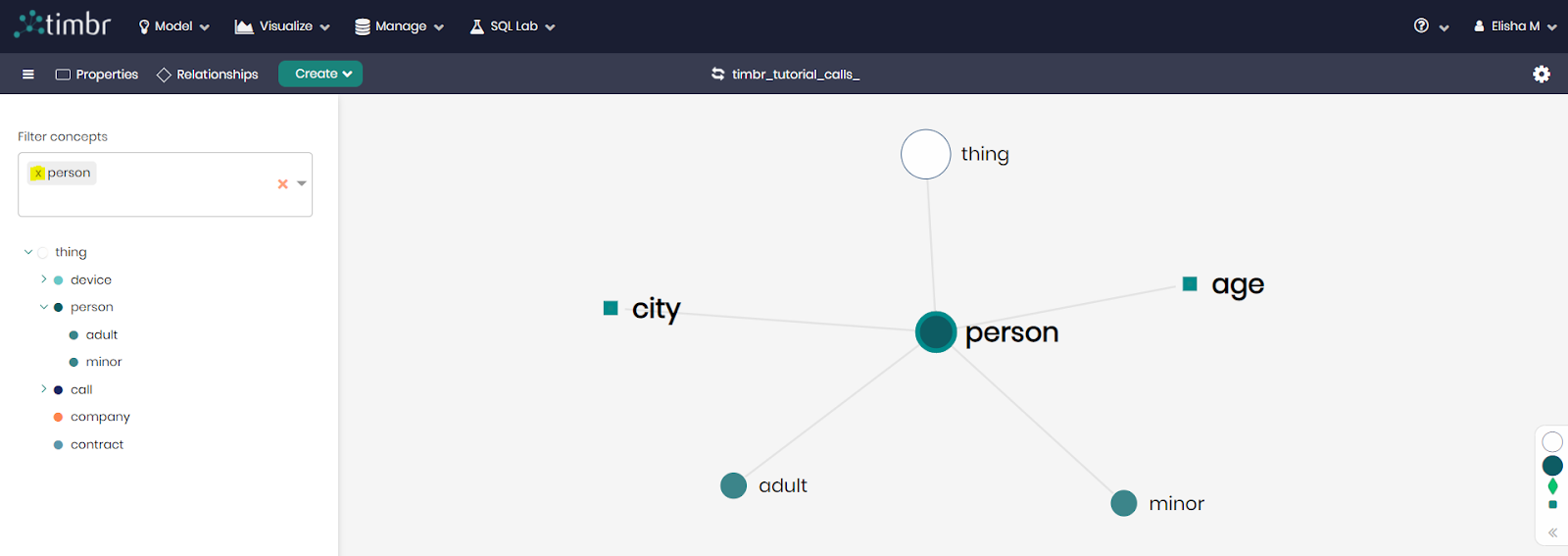
- On the menu bar above the knowledge graph, click on Relationships to open the relationship filter box.
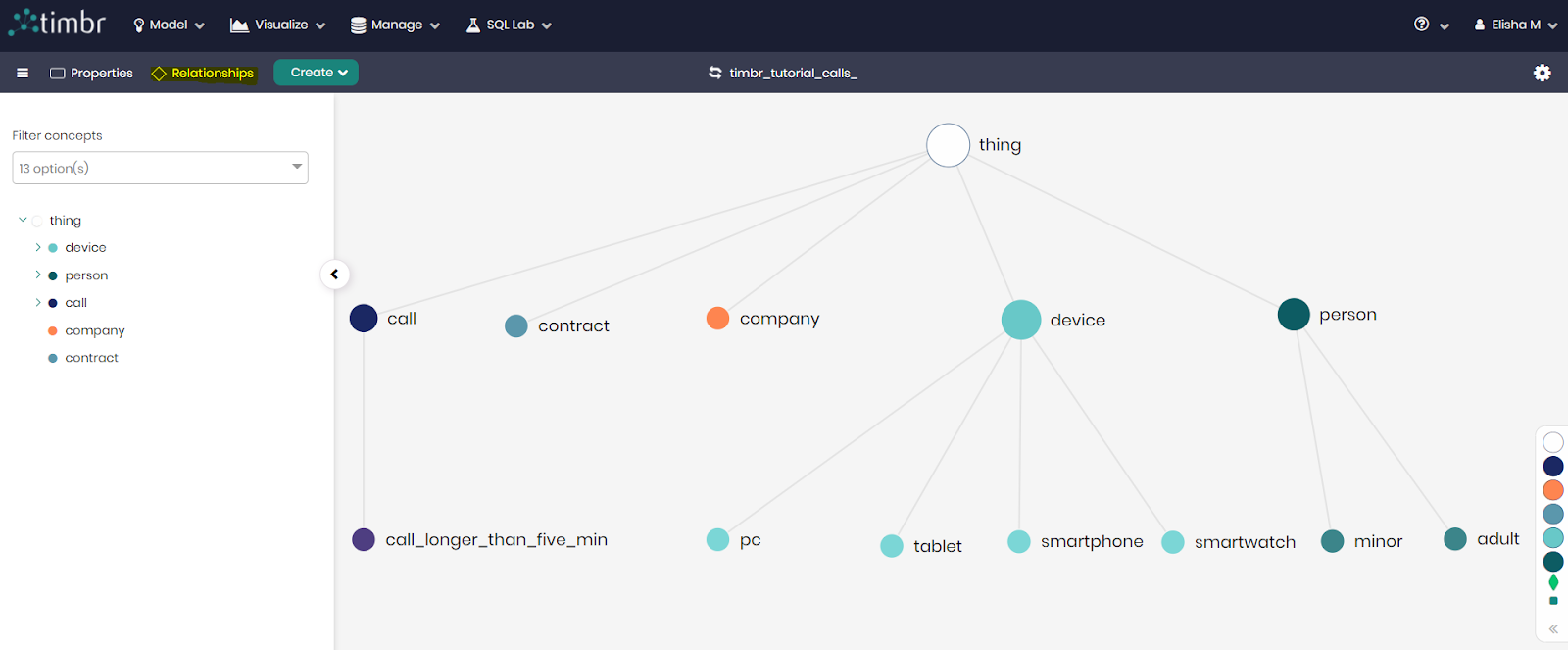
- You can now choose to load all the relationships at once or choose specific relationships you would like to load on the graph. For example, if you would like to view the relationships has_contract and has_device, you can add them to the list and then click Apply.
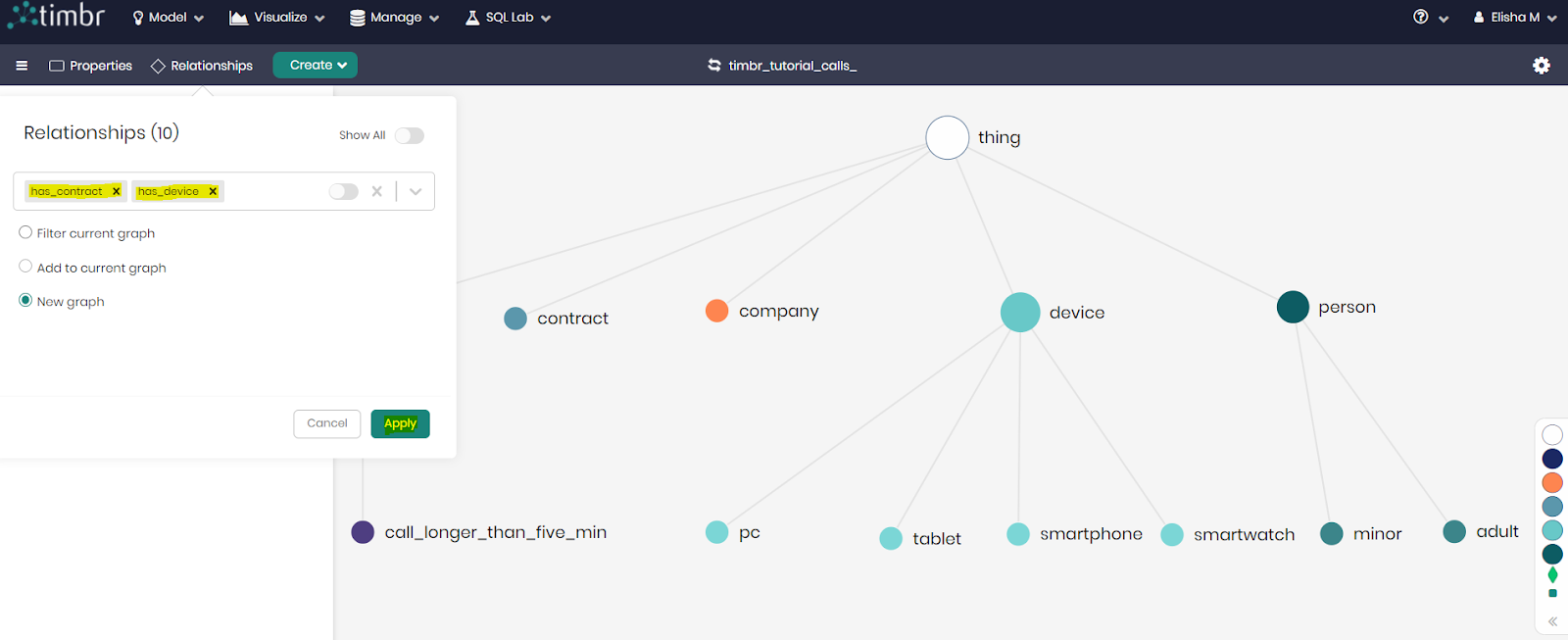
Just like with properties, Timbr will filter the graph according to the chosen relationships and present the concepts that have that relationship.
In this section, we will start using our knowledge graph, query the different concepts and see how we can utilize the relationships and the logic.
To begin querying the data we will need to go to the SQL Editor.
- Click on the SQL Lab tab on the top menu bar and then click on SQL Editor.
- Begin with choosing your knowledge graph and the schema dtimbr as well as the concept (table) you would like to query (in these queries we will use the dtimbr schema, as this schema allows us to travel through the graph using relationships).
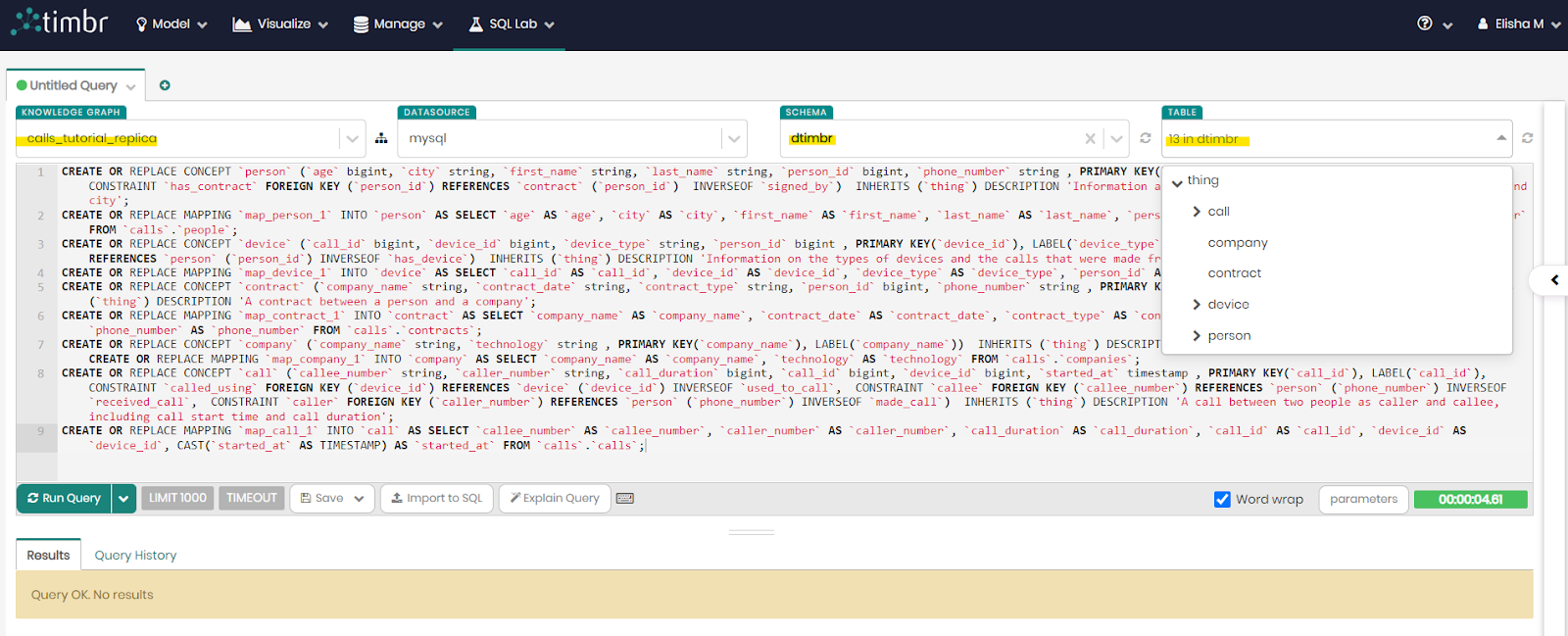
- Run the following queries and notice the difference in using different concepts and how their logic and relationships express the knowledge.
Simple Query #1
Remove your previous query and copy the following query into the query-box and click on Run Query:
select `caller[person].first_name`, `caller[person].last_name`
from `dtimbr`.`call`
where `caller[person].age` >= 18
and `caller[person].city` = 'Metropolis'
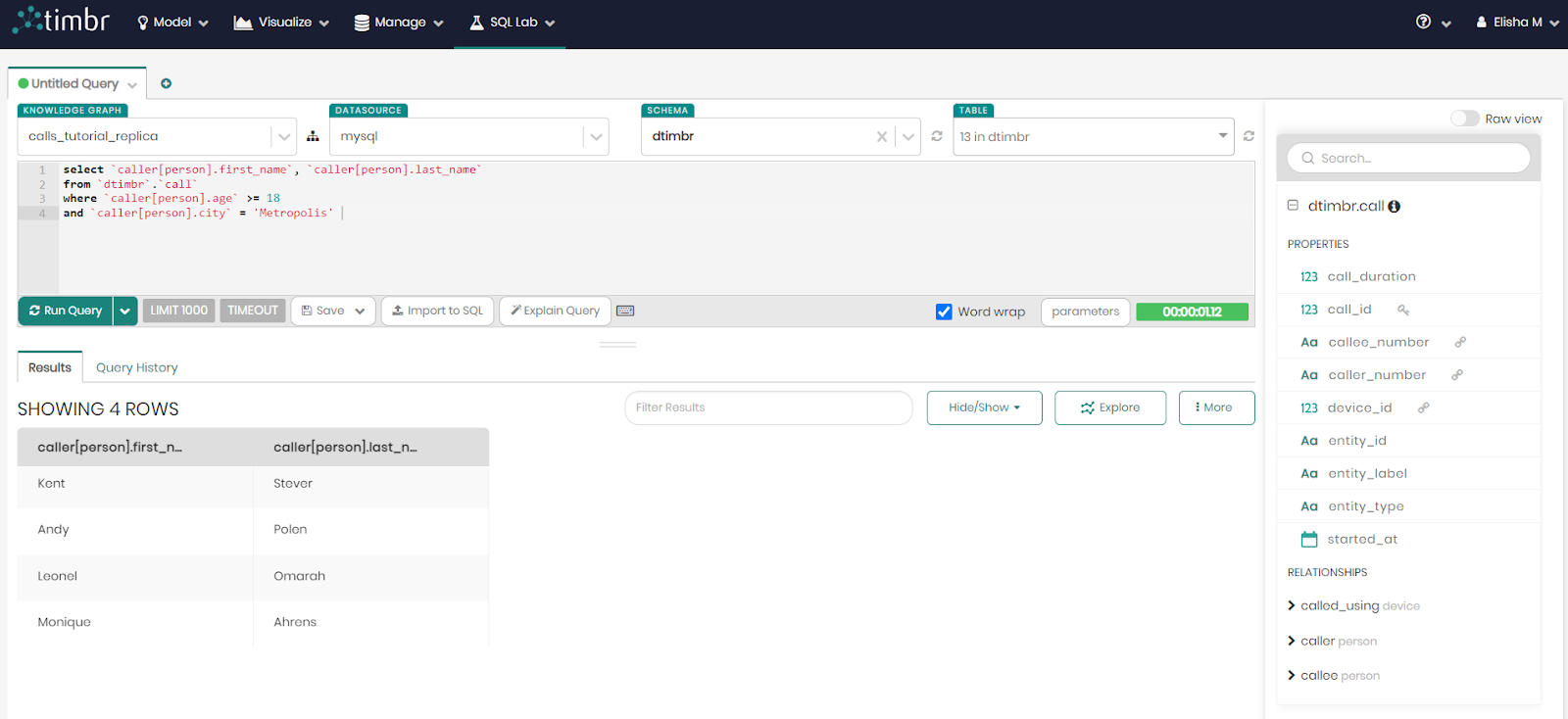
This query will find the first and last name of any person who is age 18 and above who made a phone call and lives in the city of Metropolis, and the conditions are in the where clause.
Notice that we used the relationship caller[person].first_name from the call concept to the person concept, to get the name of the individuals who made that call. As you can see, the relationship is exposed as a virtual column.
Relationship Syntax = relationship[concept].property.
The query and result should look like this:
Simple Query #2
Remove the previous query and copy the following query into the query-box and click on Run Query:
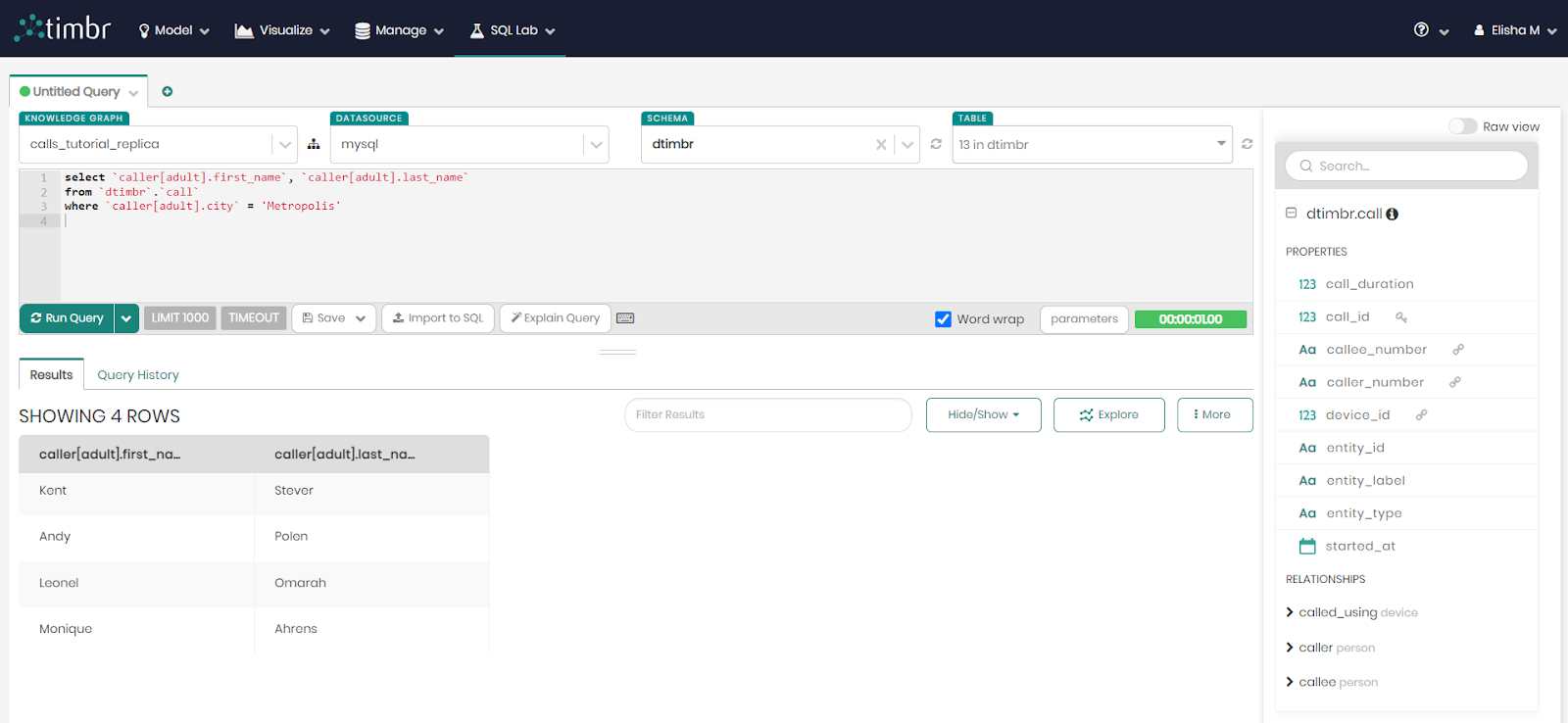
select `caller[adult].first_name`, `caller[adult].last_name`
from `dtimbr`.`call`
where `caller[adult].city` = 'Metropolis'
Similarly to the first query, this query will also find the first and last name of any person who is 18 and above who made a phone call and lives in the city of Metropolis.
The difference in this query is that this time the ontology and its logic were used so that you didn't need to define anyone 18 years old and above, just by using the concept adult and its logic, only individuals 18 and above were included.
The query and result should look like this:
Simple Query #3
Remove the previous query and copy the following query into the query-box and click on Run Query:
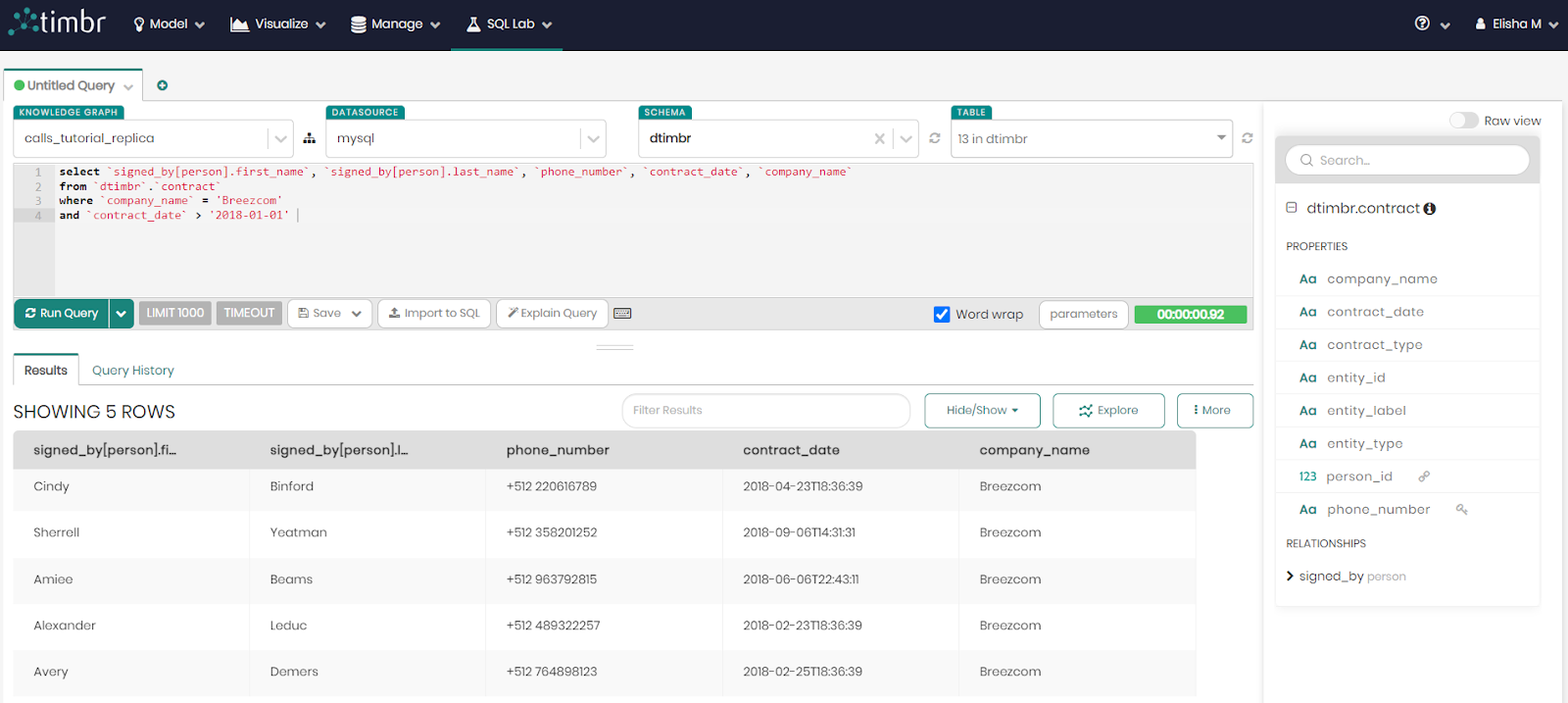
select `signed_by[person].first_name`, `signed_by[person].last_name`, `phone_number`, `contract_date`, `company_name`
from `dtimbr`.`contract`
where `company_name` = 'Breezcom'
and `contract_date` > '2018-01-01'
This query will find the first and last name as well as the phone number of any person who made a cellular contract with a company called "Breezcom" from the beginning of 2018 and onwards. We are using the relationship between contract and person to get the names of the individuals that have a contract.
The query and result should look like this:
We can also answer the SQL queries in a graph interface called the Graph Explorer, there we can explore the data values and find hidden connections between values in different datasets.
Let's go ahead and see how we can answer the same queries in a graph!
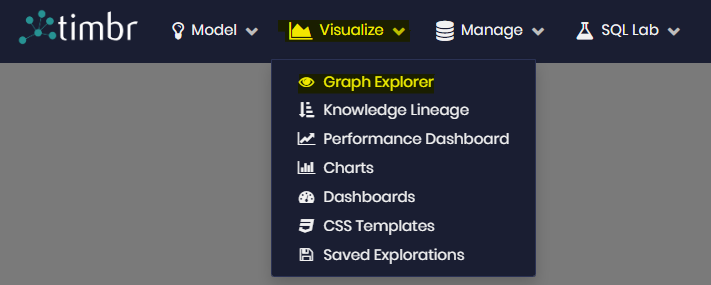
1. Click on the Visualize tab on the top menu bar and then click on Graph Explorer.
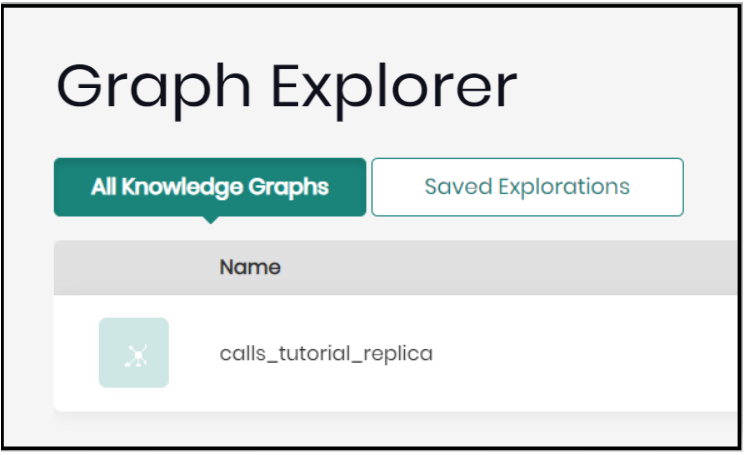
2. Select your knowledge graph.
Exploring Query #1
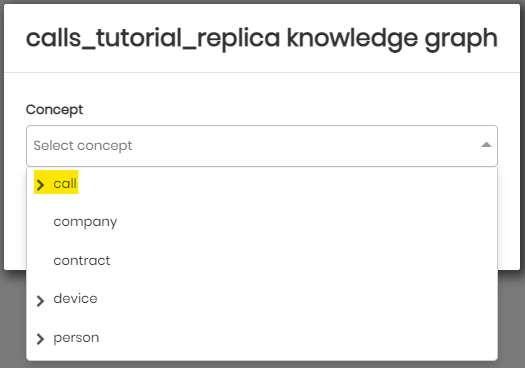
- In order to visualize query #1, we will select the concept call.
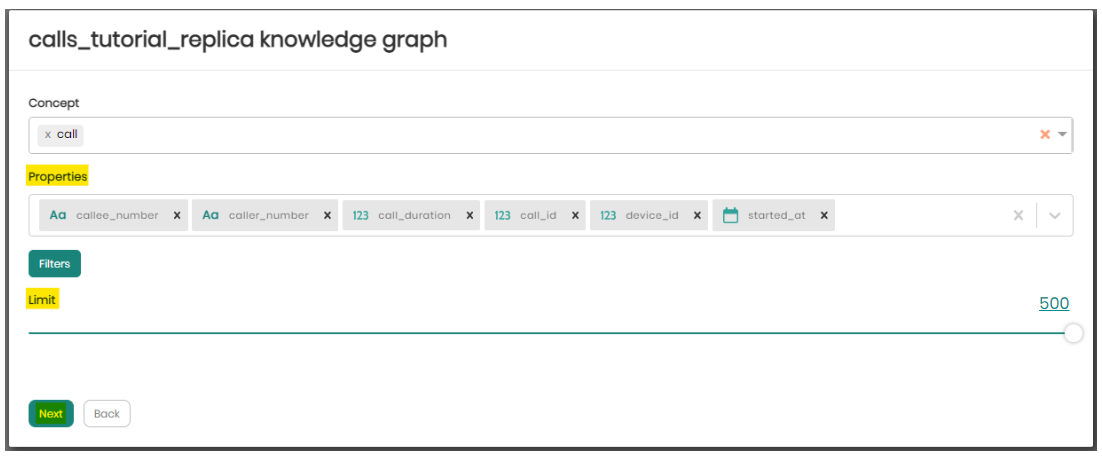
- In the next step, select all properties, set the limit bar to the maximum (500), and click Next.
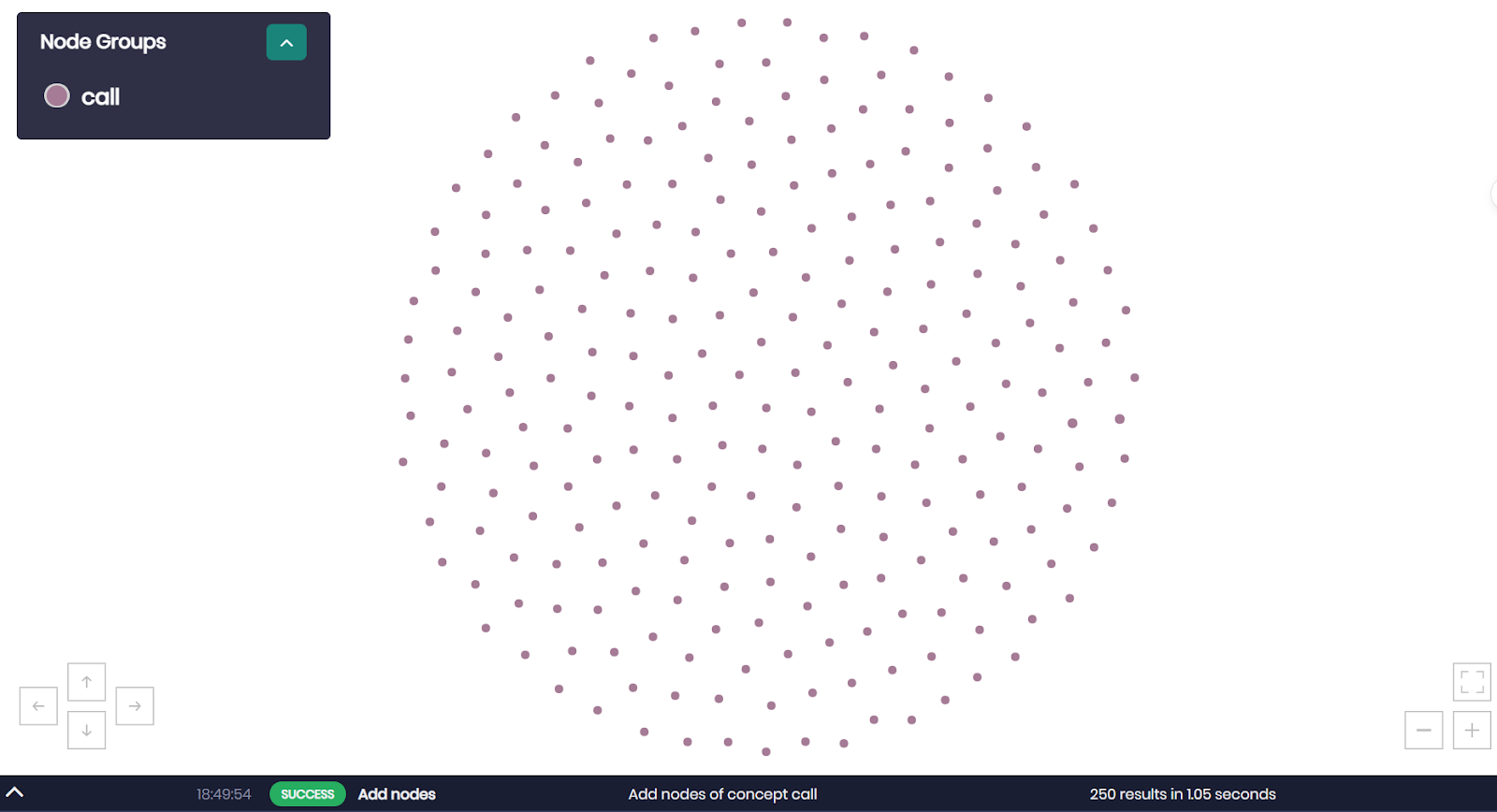
We can now see the call data points loaded in the graph, notice you can zoom in or zoom out using the scroll/trackpad to focus on specific nodes, or left-click and hold to drag the graph across the screen.
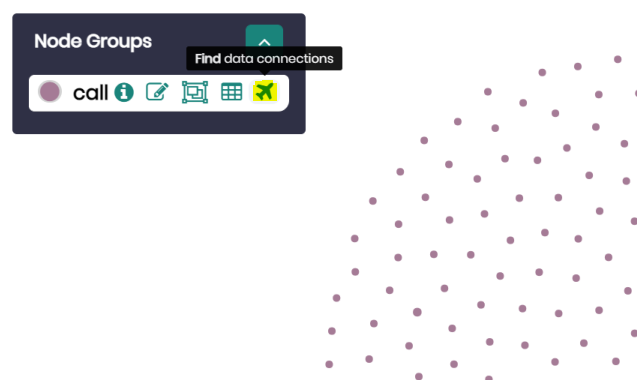
- When hovering over call in the Node Groups widget, click on the Find Data Connection (airplane logo) to load properties or travel to other relationships you wish to view.
- In our case, click on the Relationships tab, choose the relationship called caller and the relevant target concept person and choose all properties.
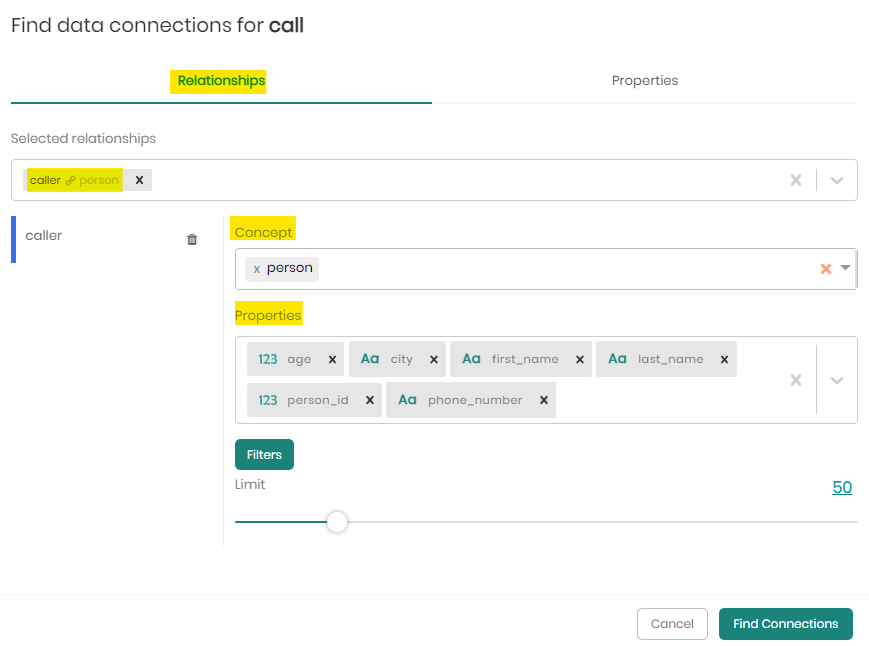
- Next, click on Filters to add a new filter.
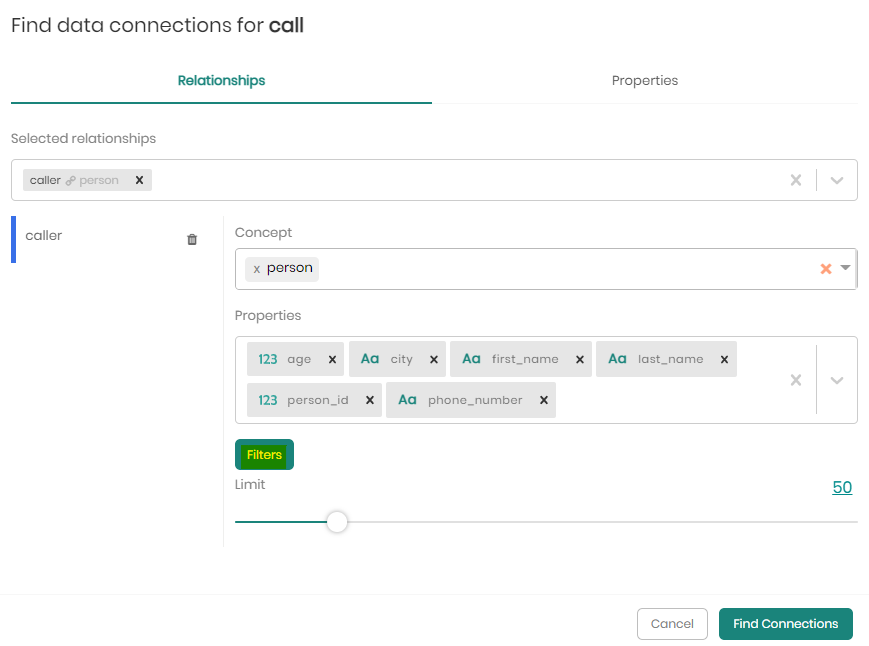
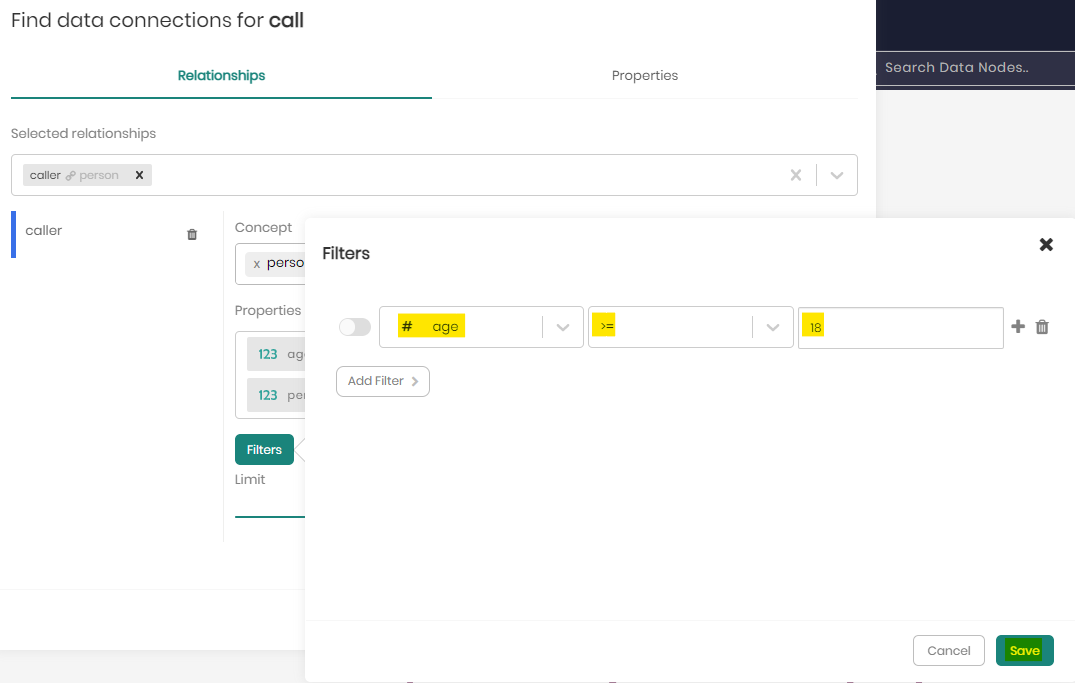
- In the filter box that appears, set the filter as "age >= 18" and click save.
- Finally, set the limit to 500 and click on Find Connections.
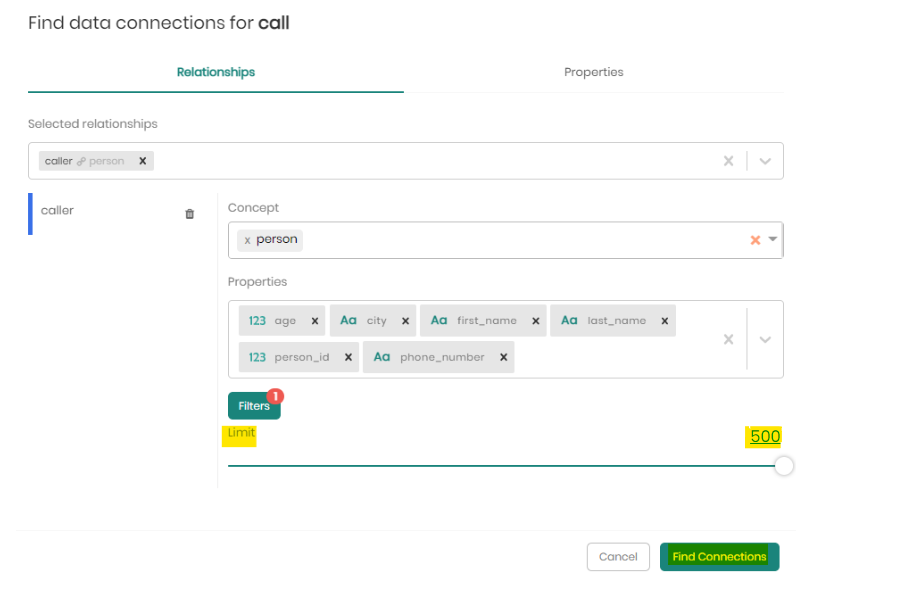
We can now see the connections formed in the graph with the relationship we've defined.
A new concept node group was added as well - person.
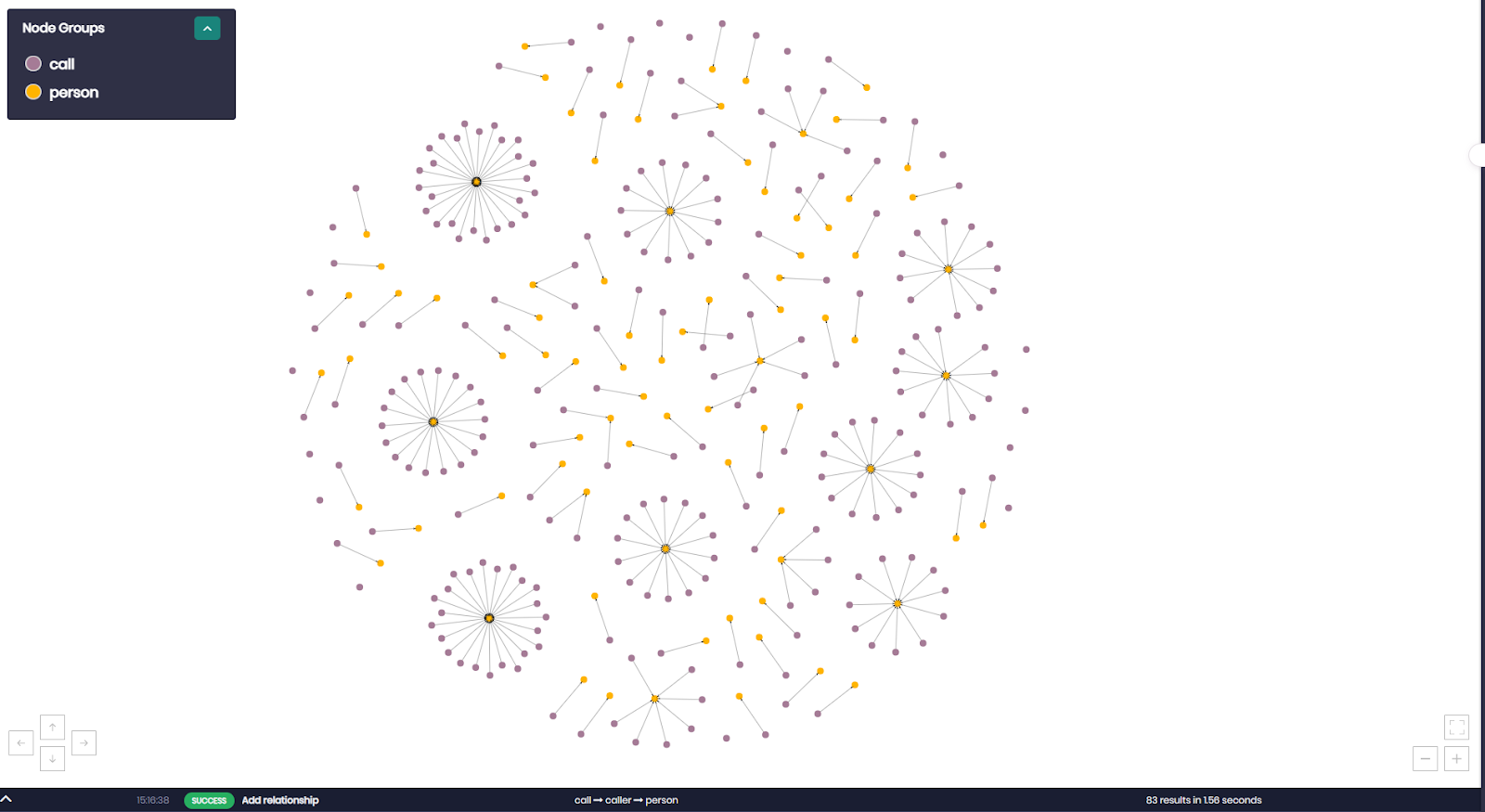
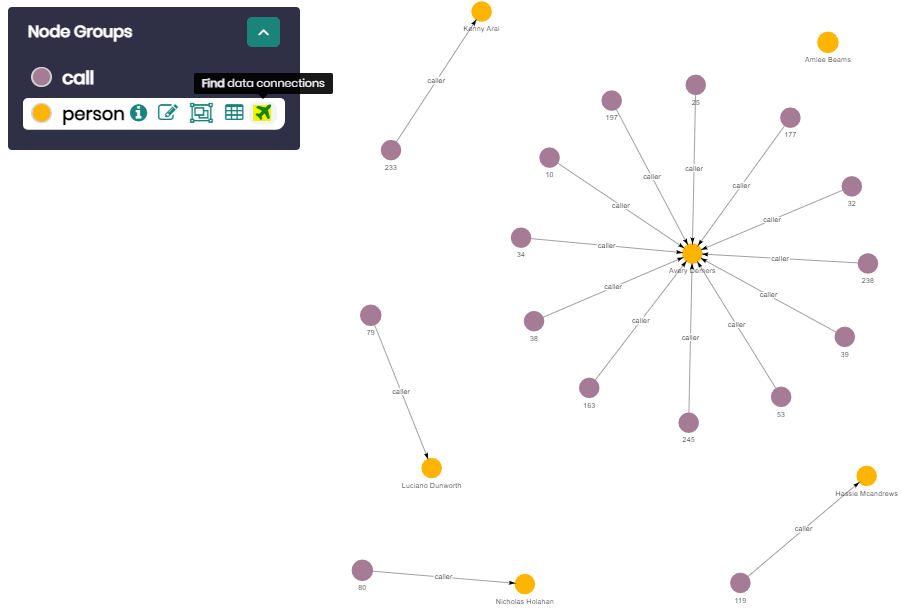
- Click on the Find Data Connections of the node group person, this time to load properties.
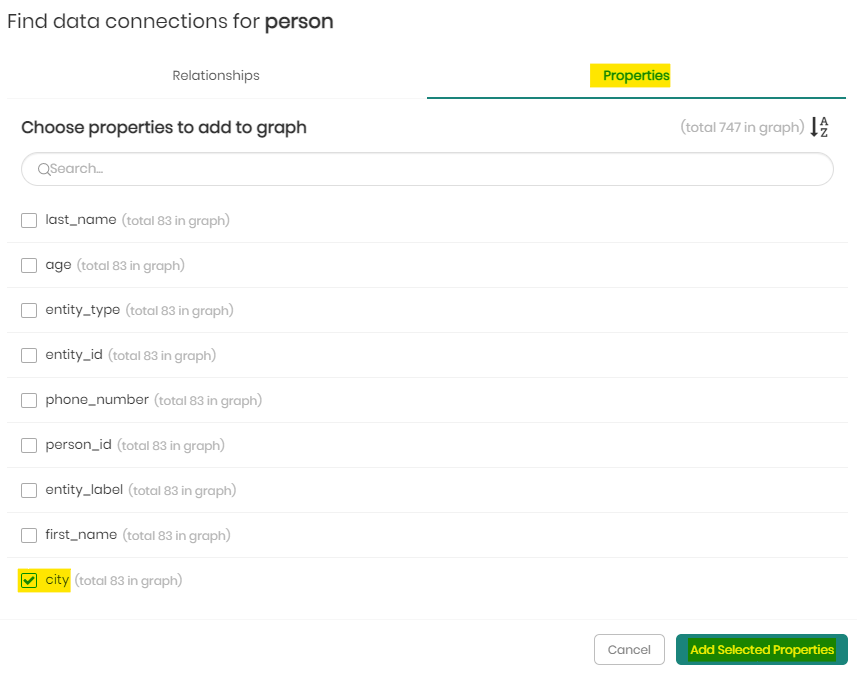
- Click on the Properties tab, select the property city and click on Add Selected Properties.
The city property has been added to the graph as a property of concept person.
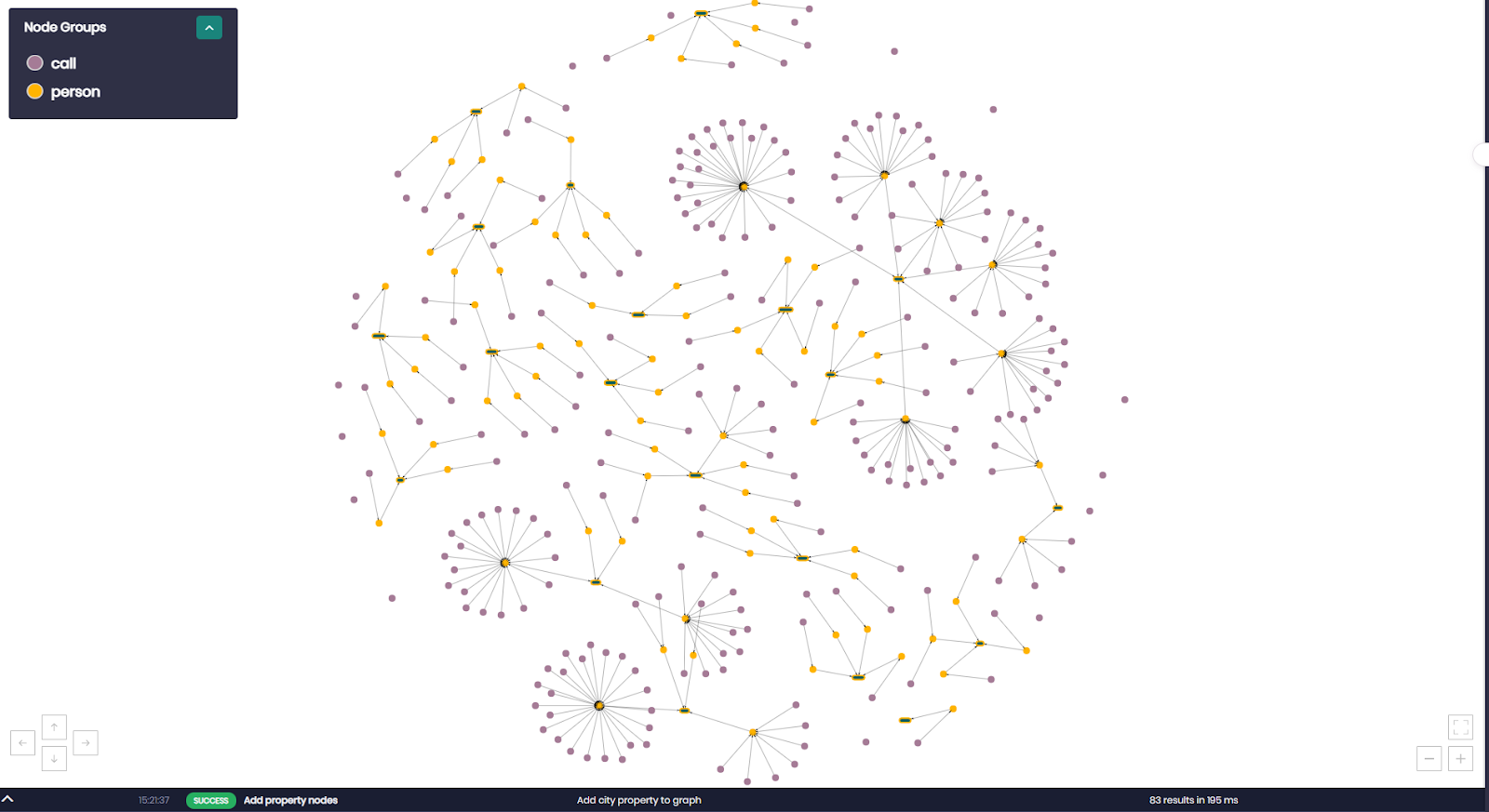
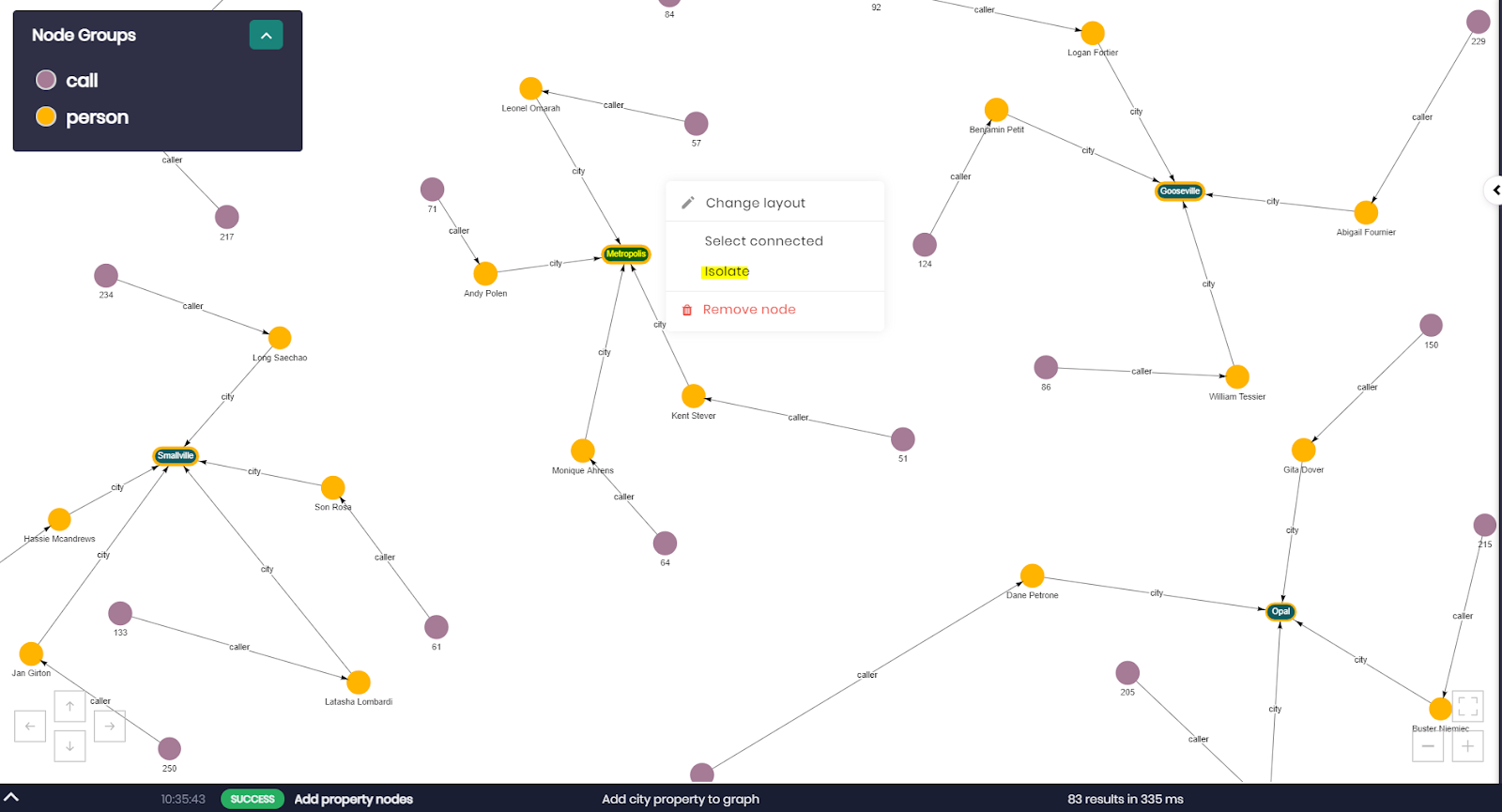
- Locate and right-click on the node Metropolis and click on isolate to isolate the node and all its connected subgraph.
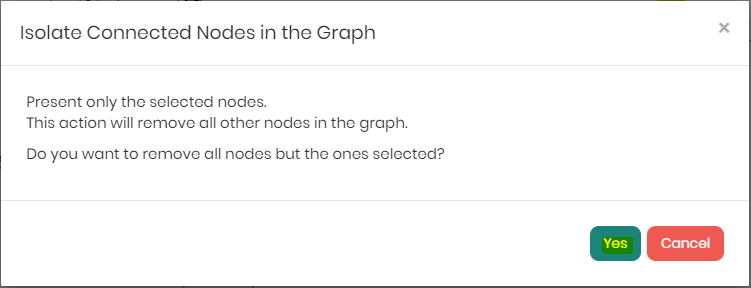
- Click on Yes to confirm the isolation of the nodes.
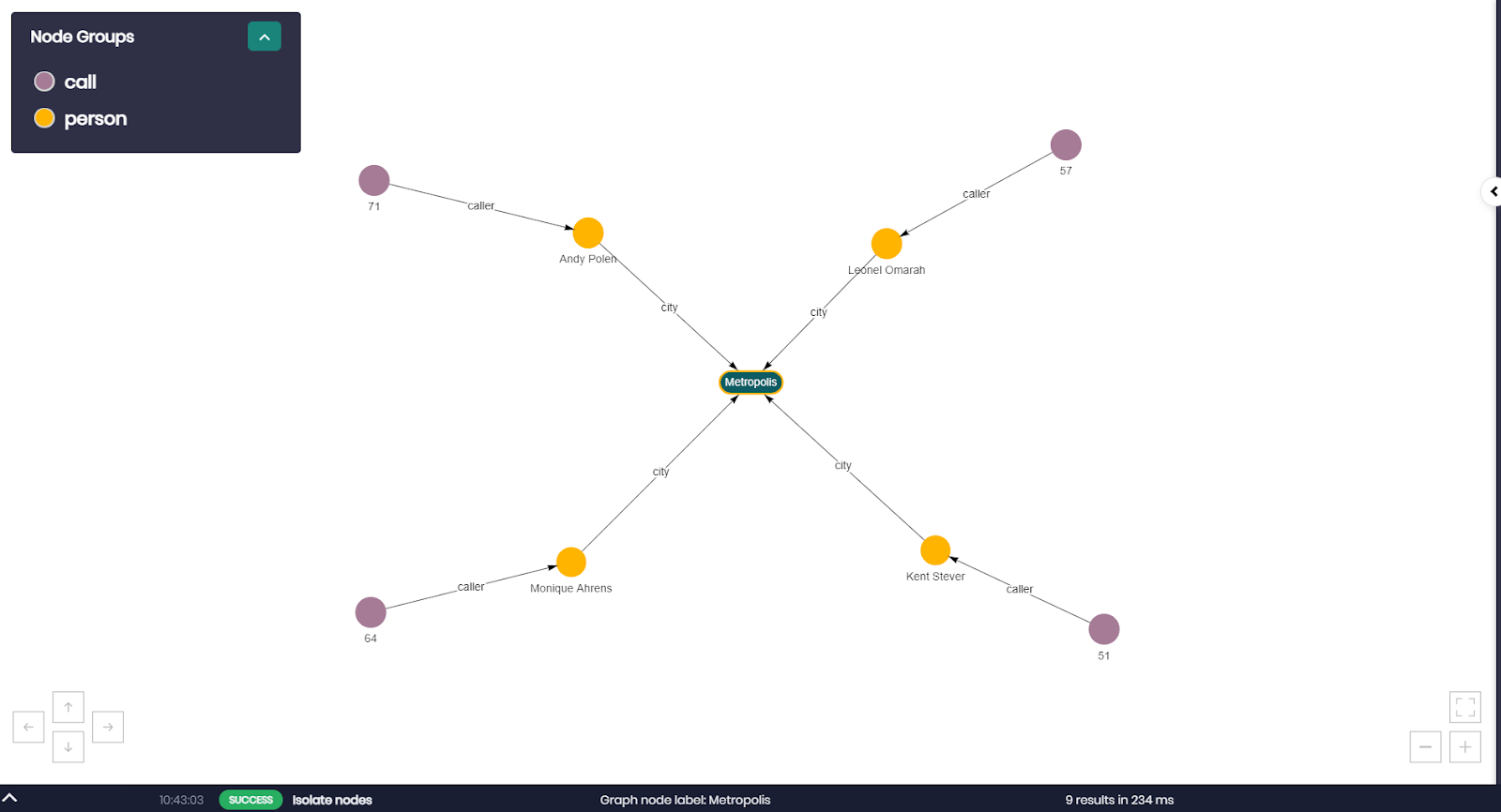
As you saw in the first query we answered earlier in the SQL Editor, we can now see clearly the calls that were made by people ages 18 and older who live in the city of Metropolis.
Exploring Query #2
The second query will return the same result as Query #1, though, the difference in this query is that when using the logic defined in our knowledge graph, we don't need to define filters while exploring.
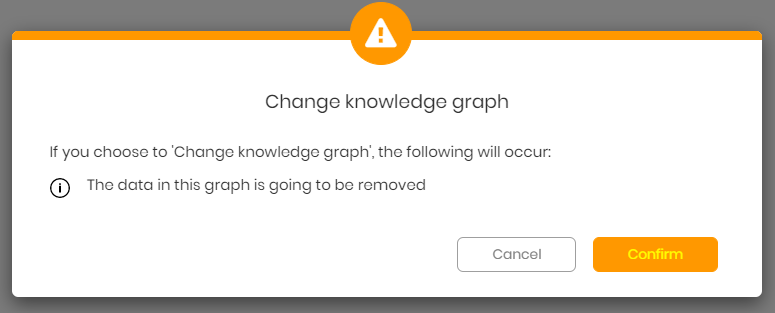
Click on the arrows on the top left of the window (below the Timbr logo) to begin the second exploration, and choose your knowledge graph.

A message will appear asking if you would like to proceed, click Confirm.
Once again, select your knowledge graph.
- In order to answer the second query, select concept call again.
- In the next step, select all properties, set the limit bar to the maximum (500), and click Next.
We can now see the call data points loaded into the graph.
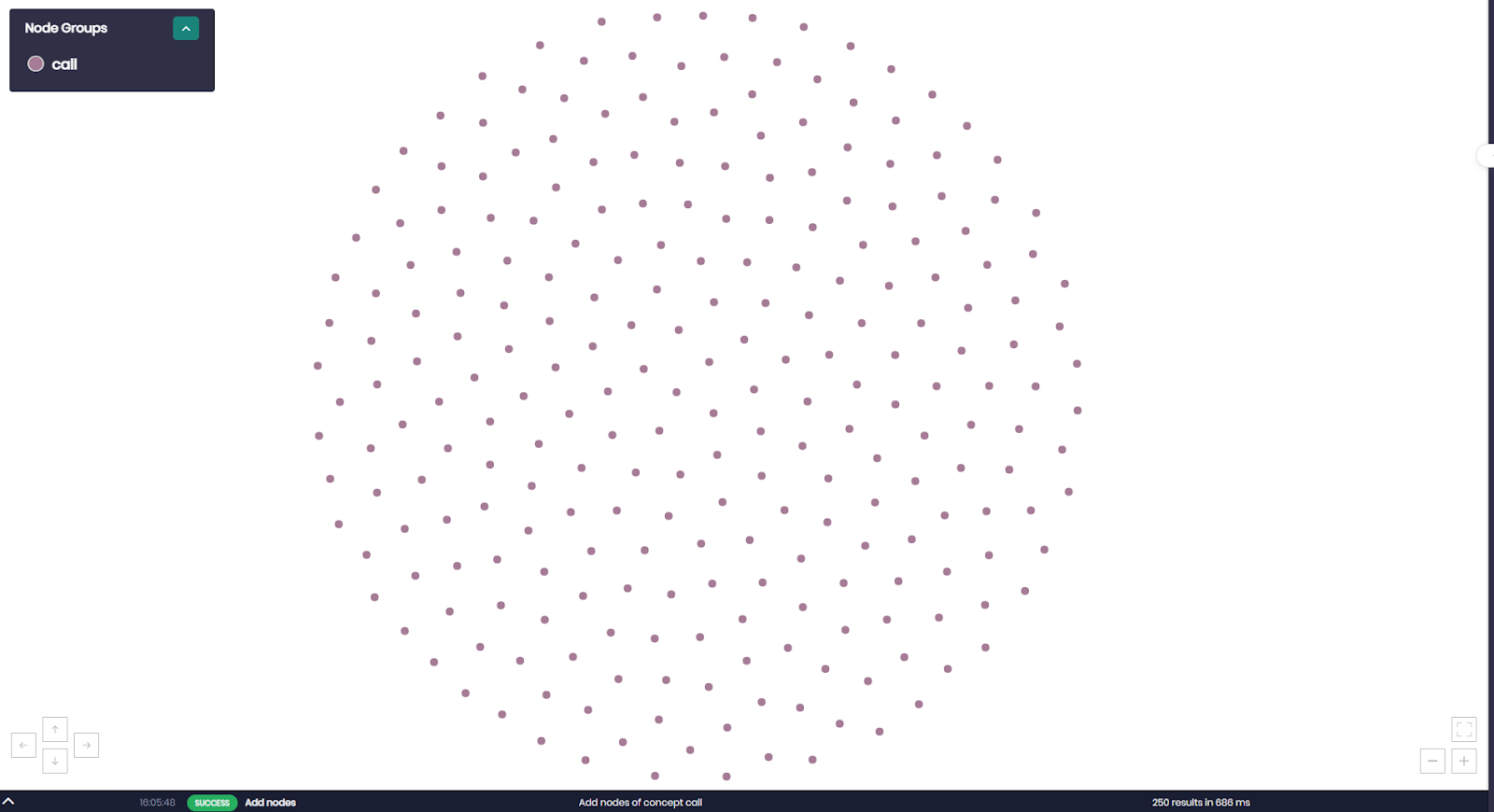
- Click on the Find Data Connections of the call node group to open the menu.
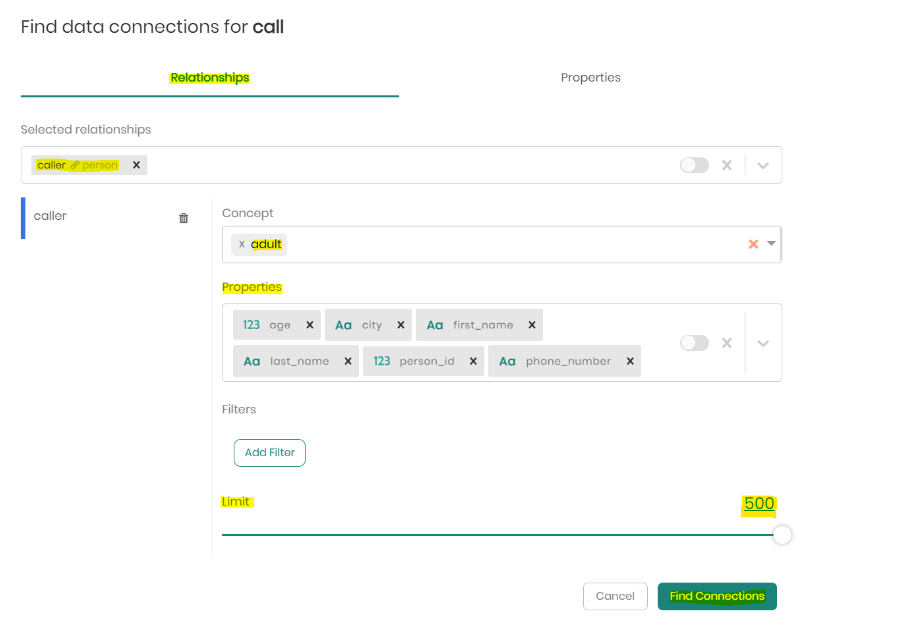
- Click on the Relationships tab, choose the relationship caller, but in this case, the target concept will be adult. Choose all properties and set the limit to 500, then click on Find Connections.
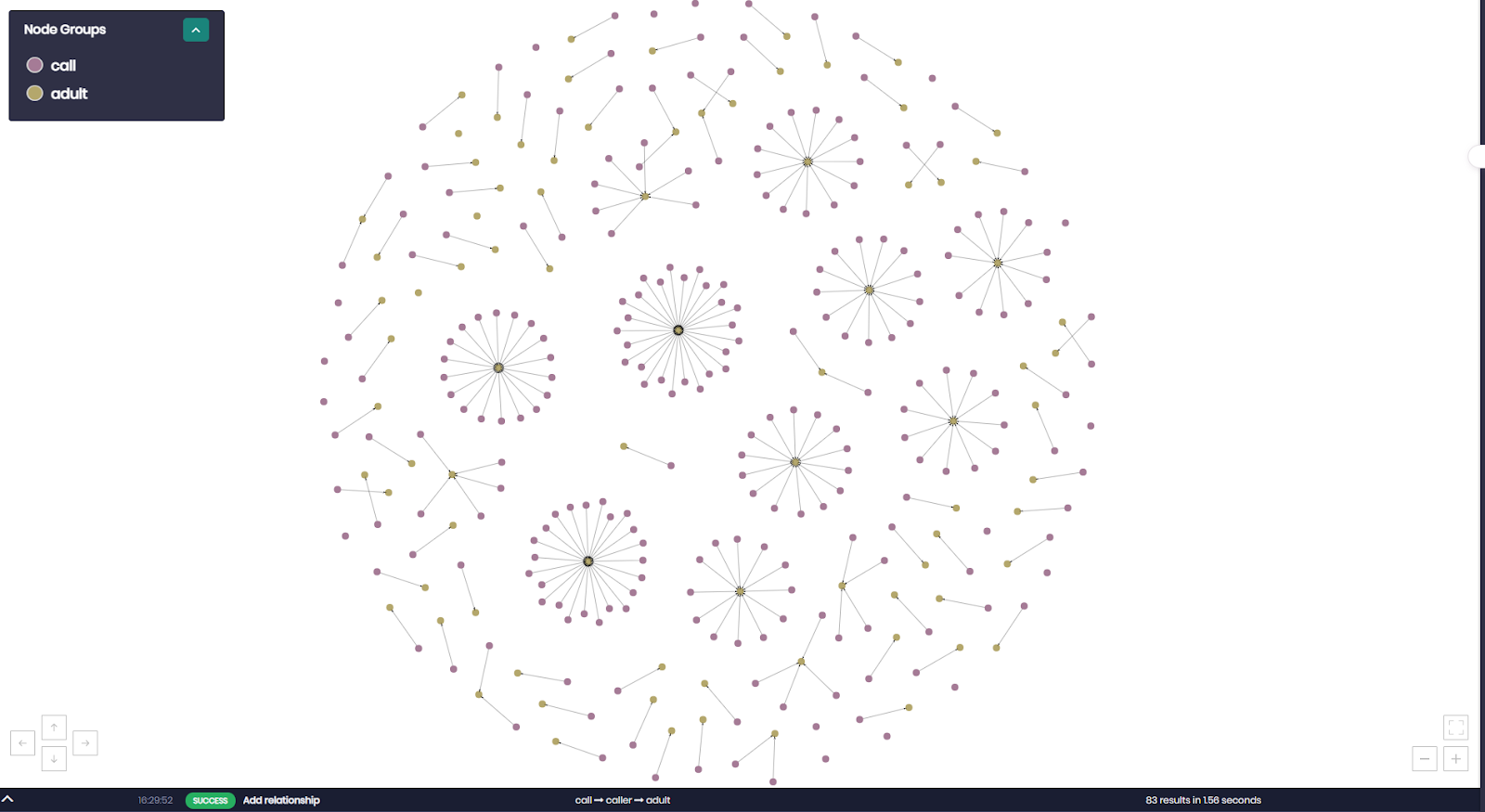
We can now see the connections formed with the relationship we've defined.
Notice we could travel in the person concept hierarchy and choose a lower-lever concept due to the inheritance of properties and relationships in a hierarchy.
When choosing the concept adult instead of person we were able to proceed without specifying any filters, as the age condition for an adult is already hard-coded in the concept.
- Now click on the Find Data Connections of the adult node group.
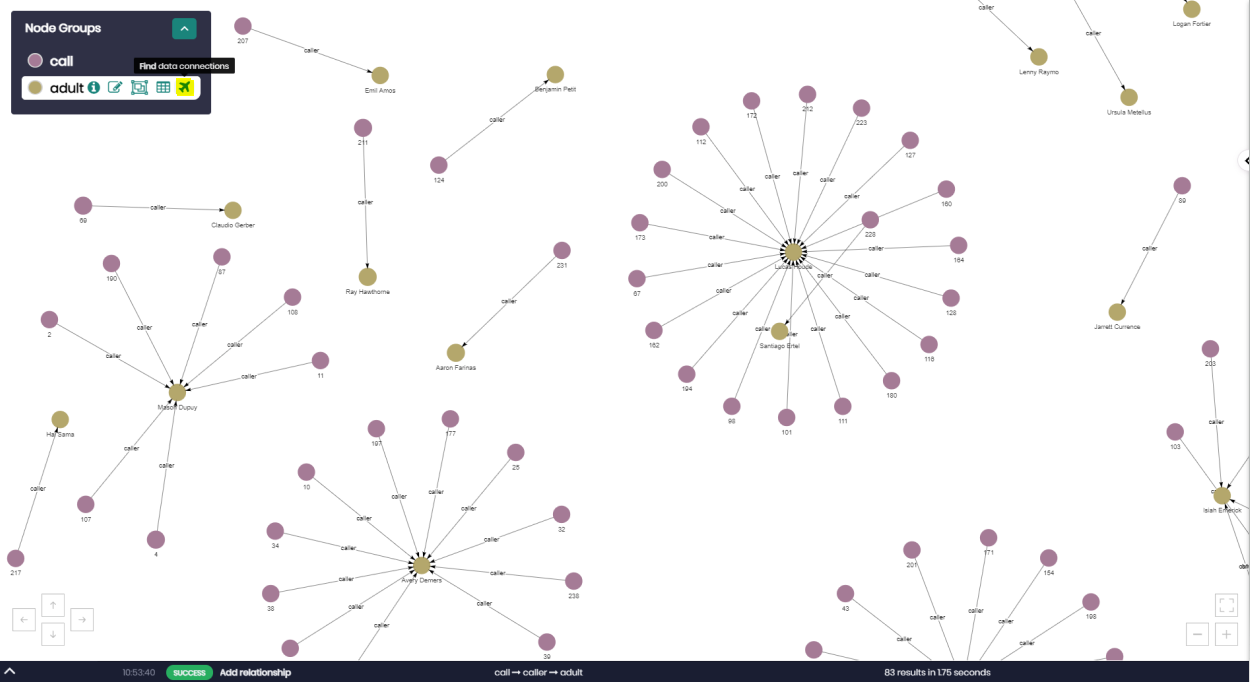
- Click on the Properties tab, choose the property city and add it to the graph by clicking on Add Selected Properties.
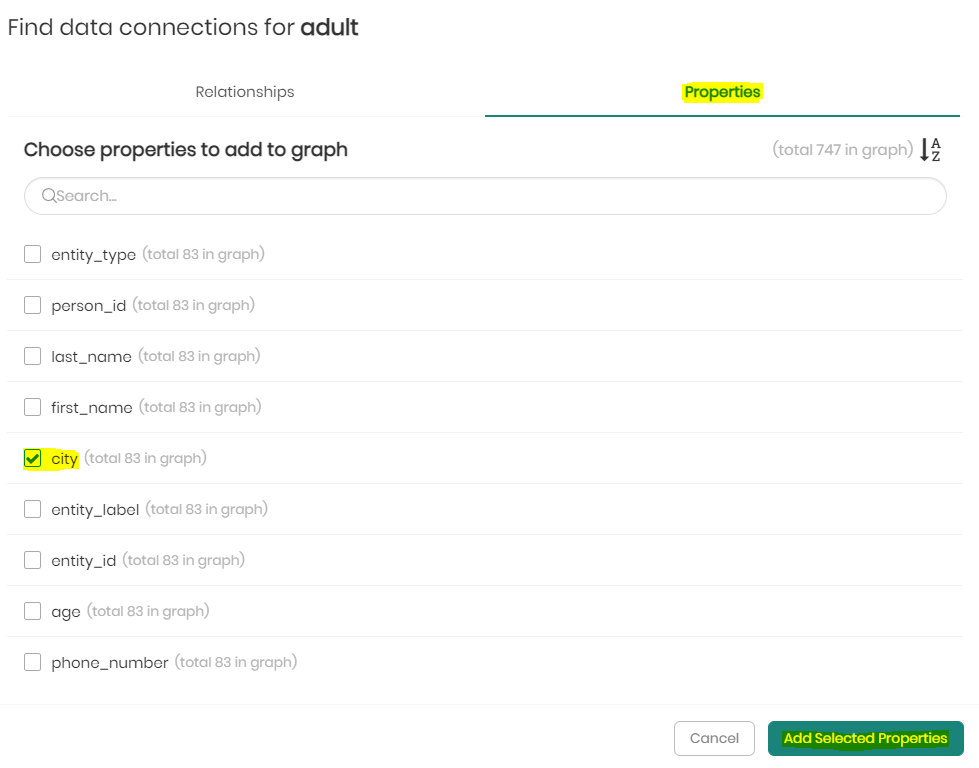
The city property was added to the graph as a property of an adult.
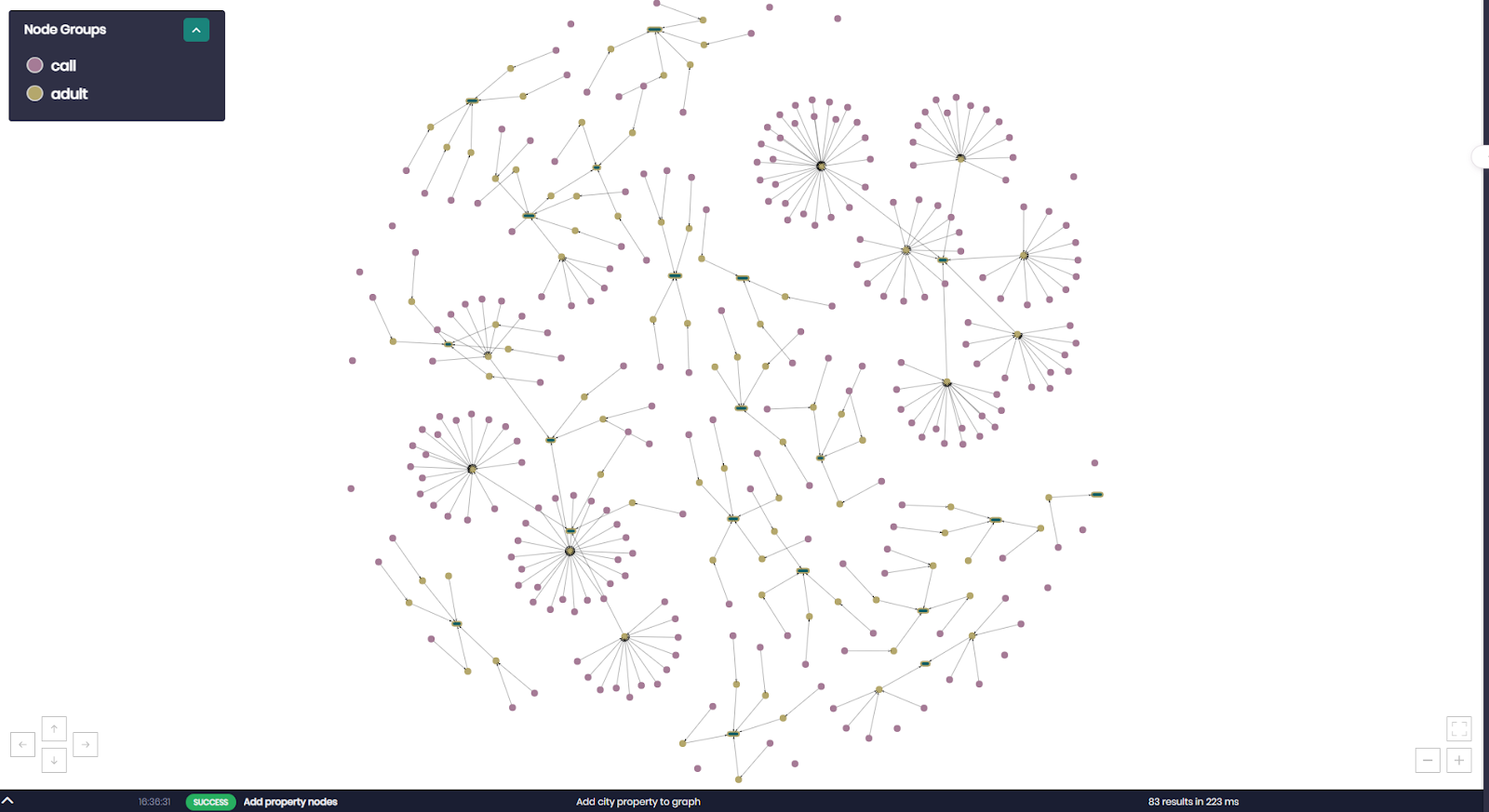
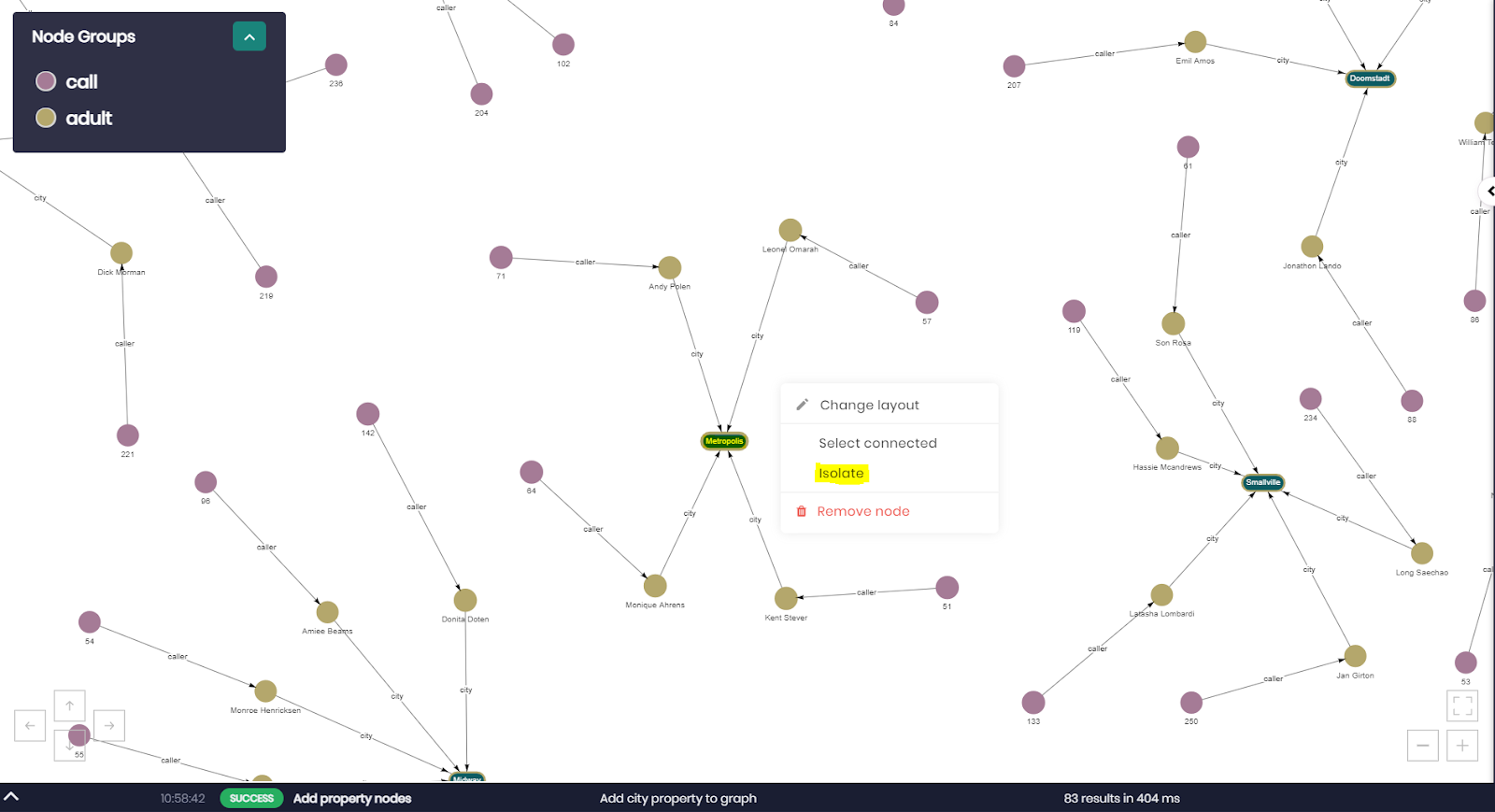
- Locate and right-click on the node Metropolis and click on isolate to isolate the node and all its connected nodes.
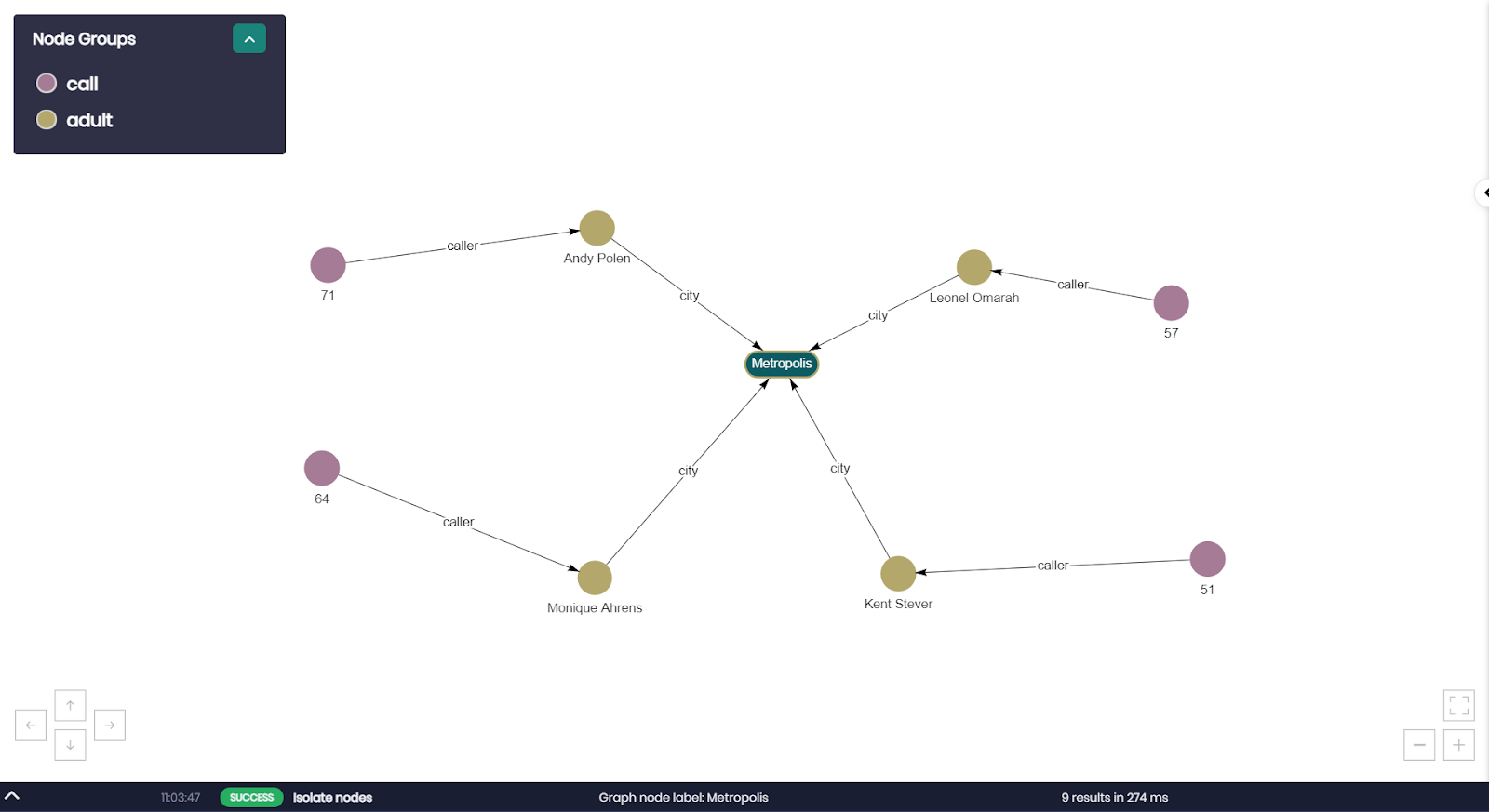
- Click on Yes to confirm the isolation.
We can now see we've received the same result as in our first query, this time using logic.
Now that we've explored our data as a graph, we can proceed to visualize our data in Timbr's internal BI tool.
FYI - You can connect Timbr to any BI tool and visualize the knowledge graph using the BI tool you're accustomed to.
Creating a visualization straight from the Knowledge Graph
- Click on the Model tab on the top menu bar and then click on Ontology Explorer.
- Select your knowledge graph.
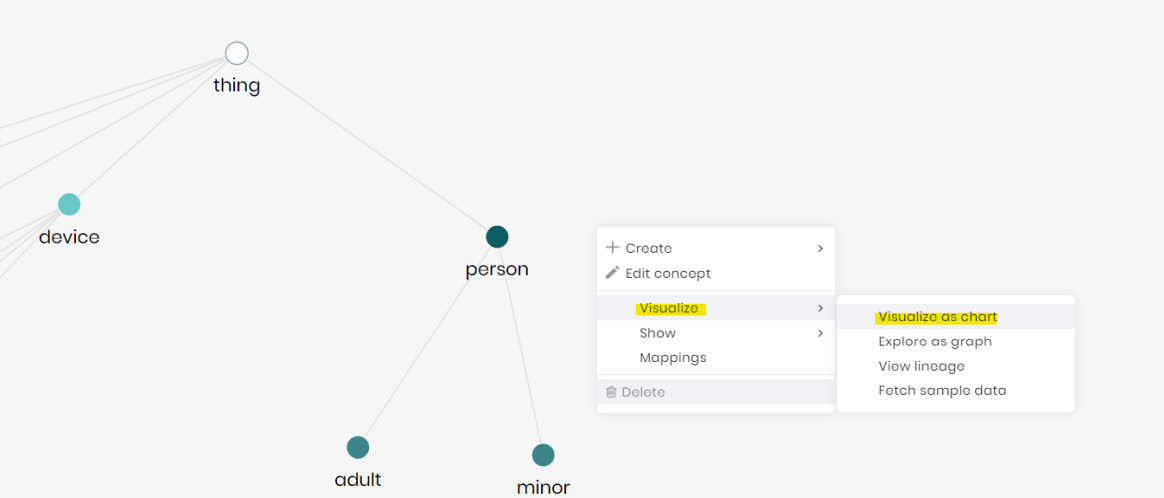
- Right-click on the person concept node, hover over Visualize, then click on Visualize as Chart.
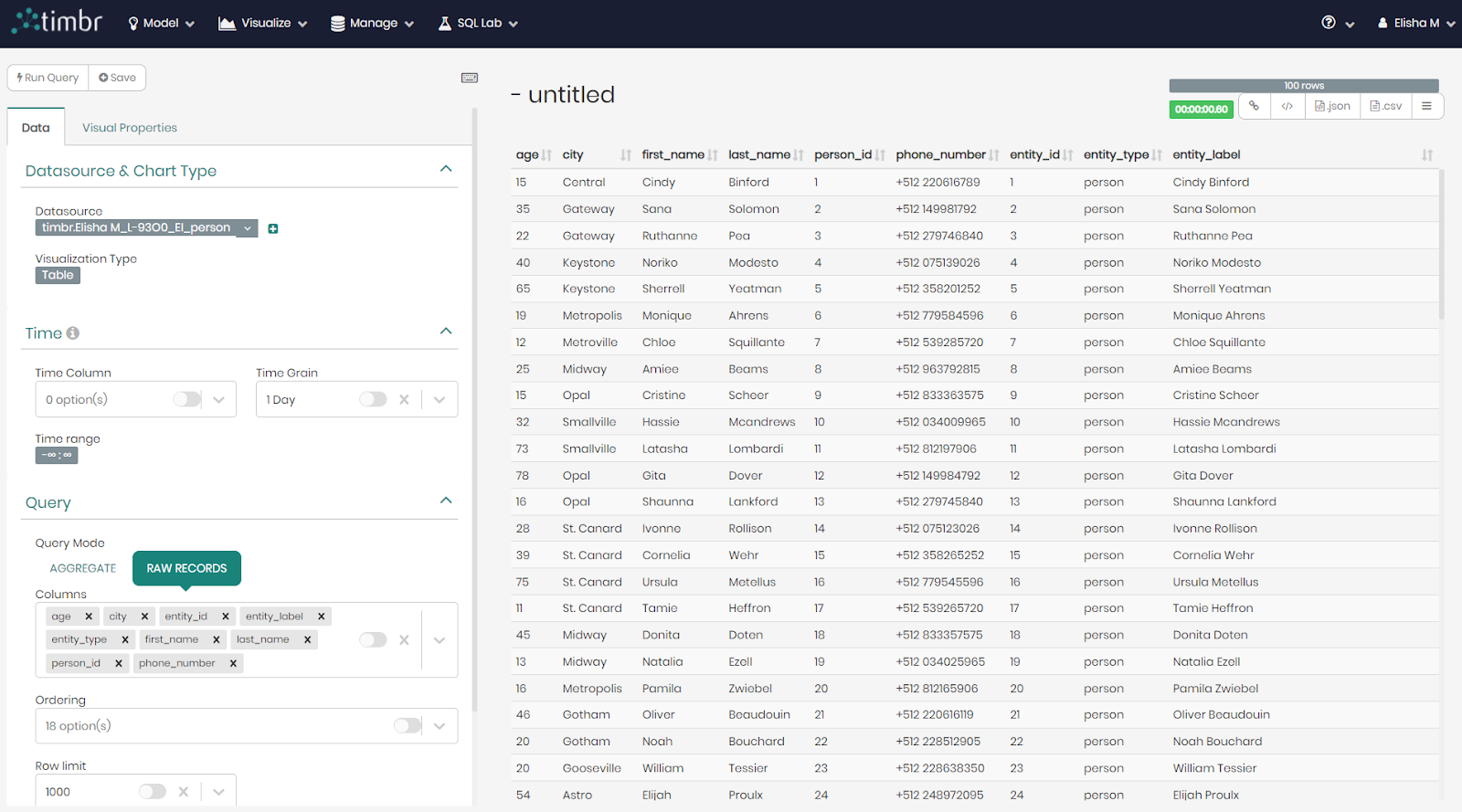
Timbr has now redirected us to a chart builder, and we can see our data in the default table view.
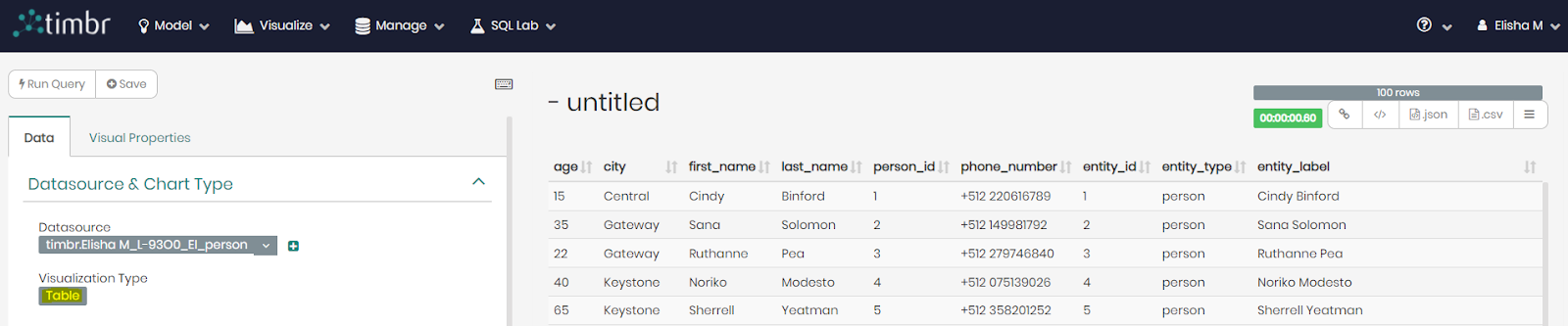
- Click on the Table button under the Visualization Type in the Datasource & Chart Type section, to choose our desired visualization.
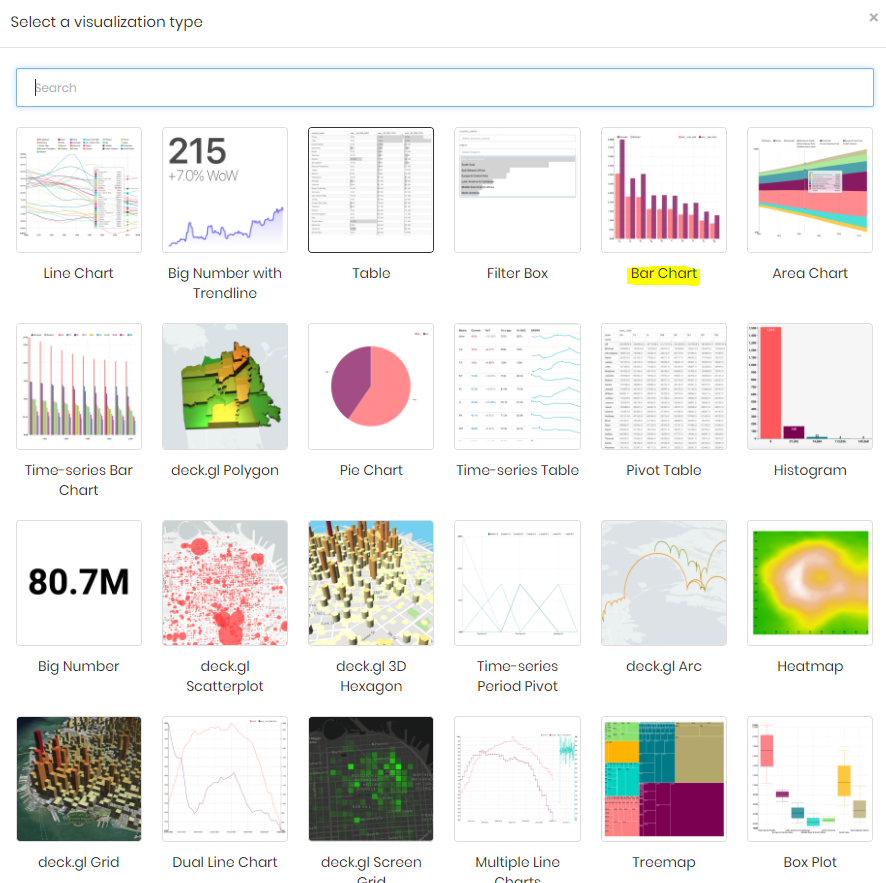
- Once the visualization window opens, choose the Bar Chart.
- Select the following: Metrics = "COUNT(age)", Filters = "age < 18", Series = "city".
When ready, click on the Run Query button above.
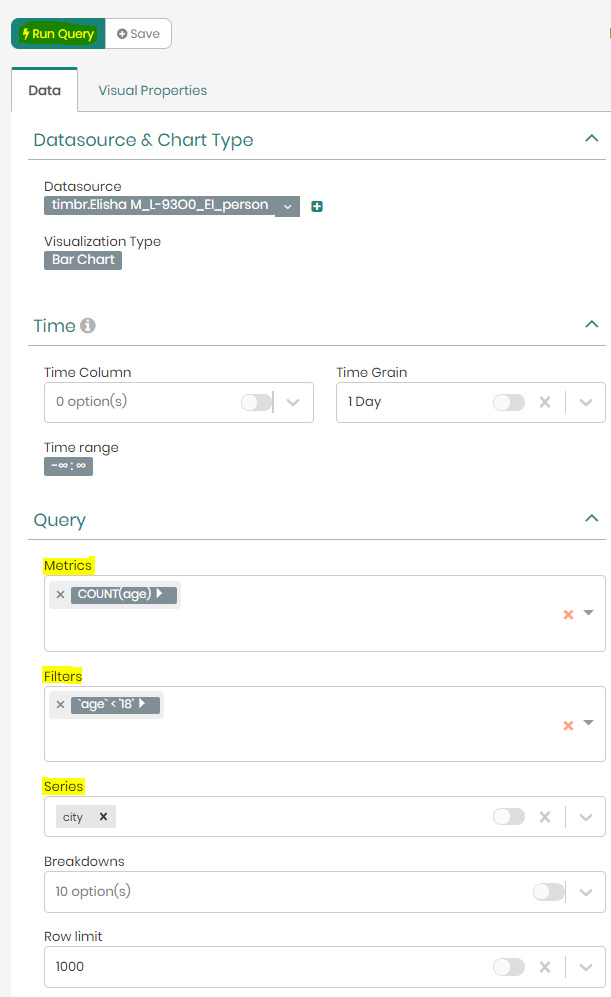
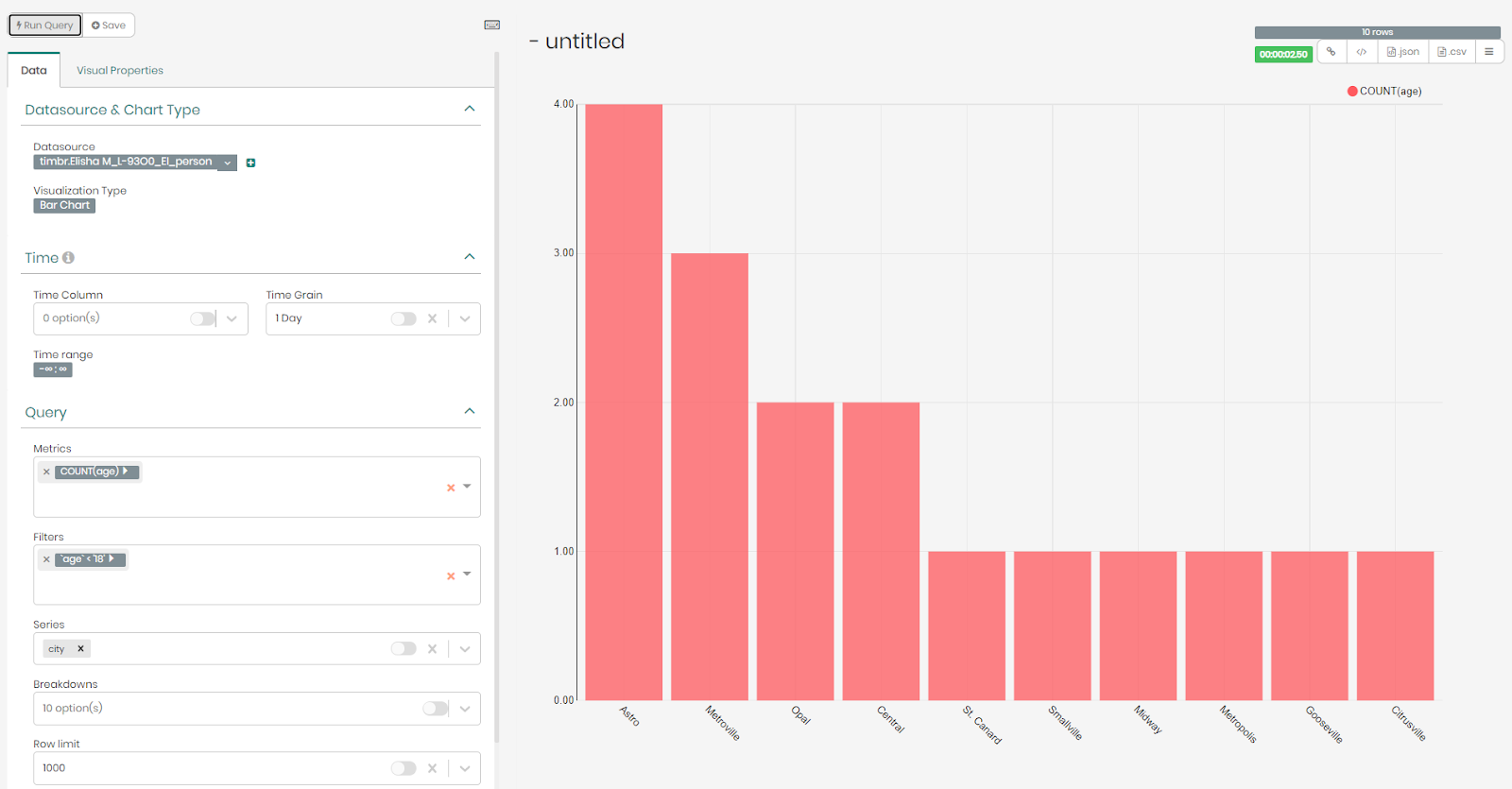
Based on the metrics we selected, we can now see the number of people under the age of 18 in each city represented in a bar chart.
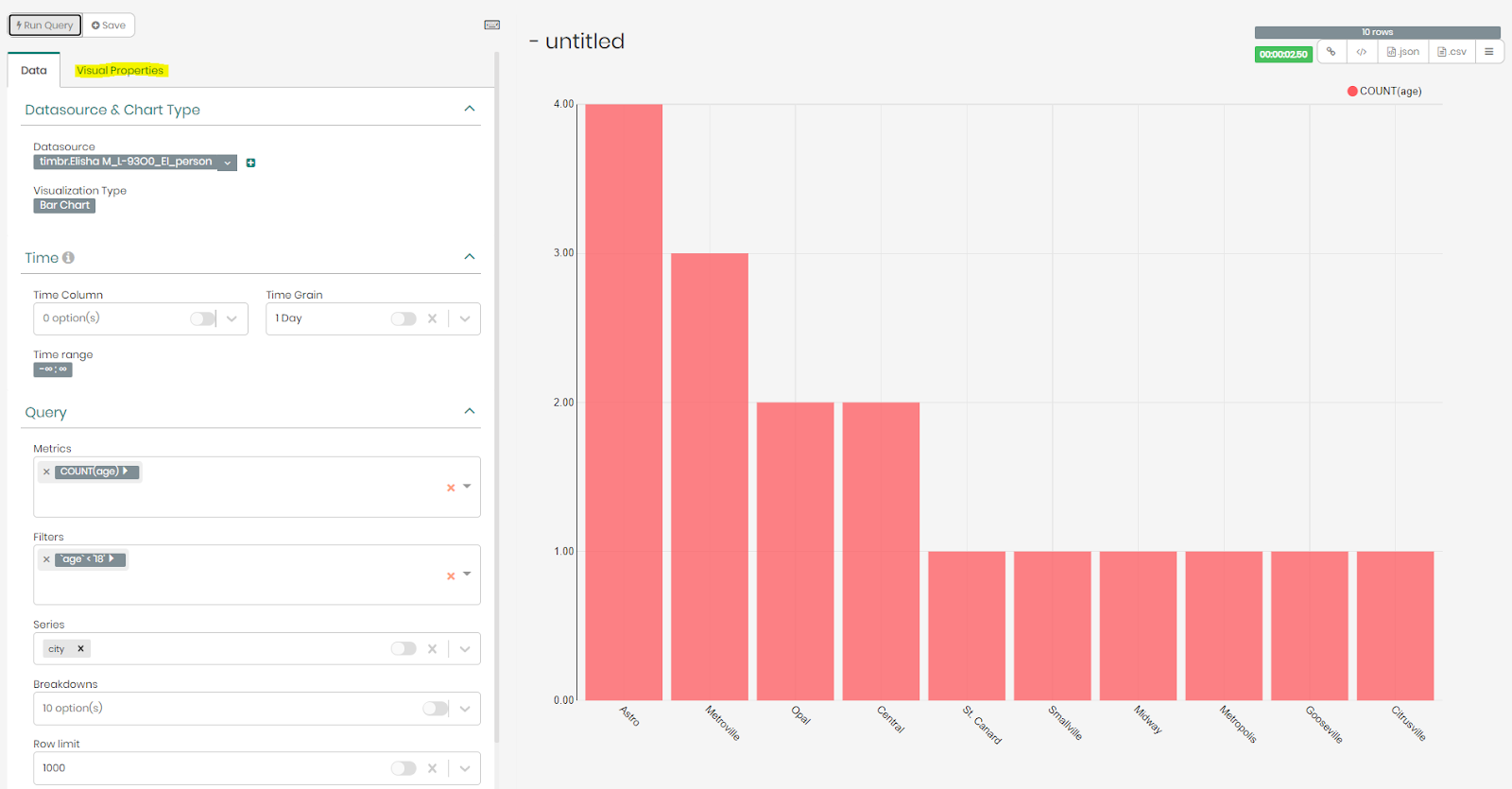
- Click on the Visual Properties tab to edit the chart and add information to it as you please.
- In this section you can give the chart a name, choose the colors you like, add values to the charts, name the X and Y axis and much more, depending on the chosen visualization.
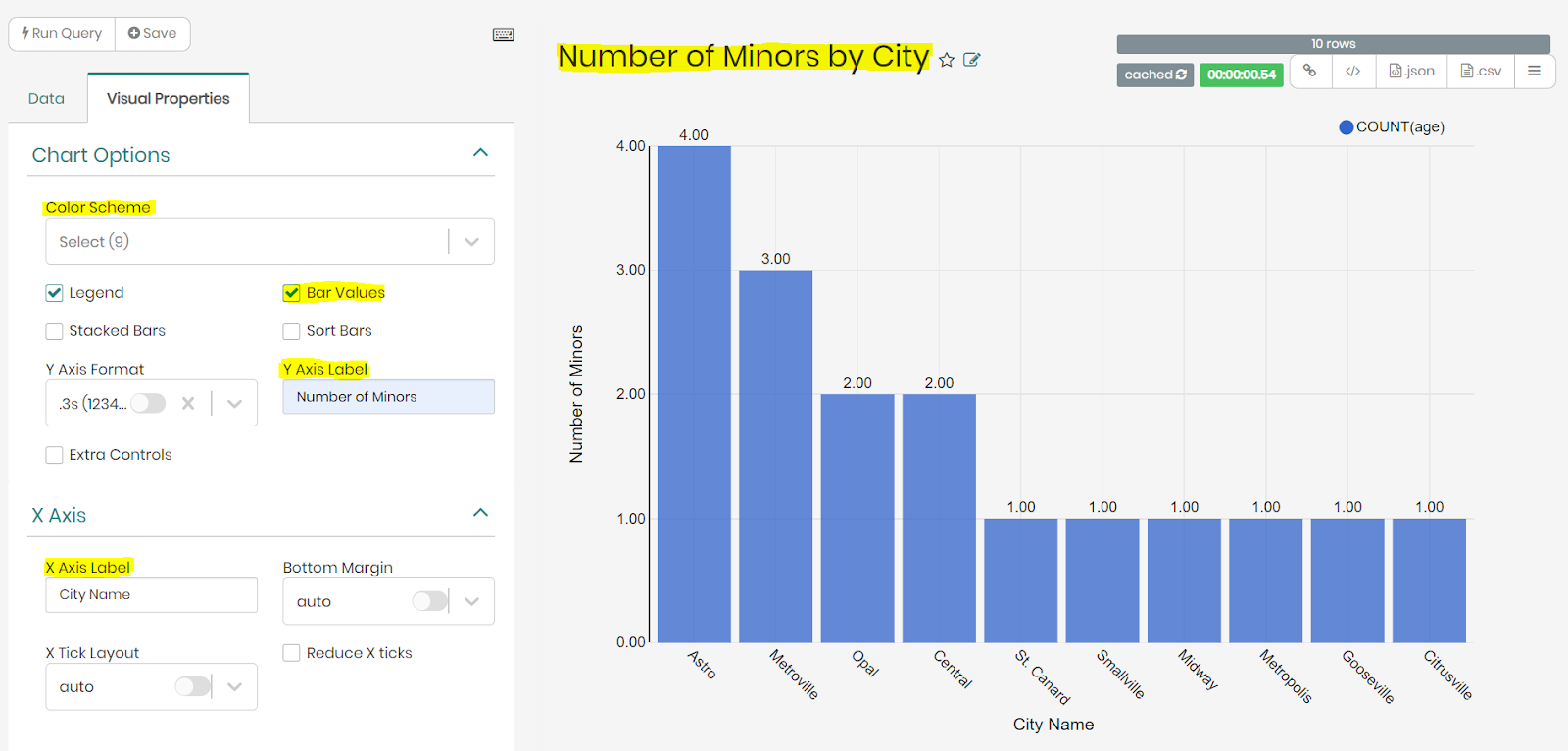
- You can save the chart by clicking on Save on the top left side, and choose if to add the chart to an existing dashboard or create a new one.
In this section we will alter the knowledge graph, add new concepts, change hierarchies and classify our concepts a little more.
- Return to the ontology by clicking on the Model tab on the top menu bar and choosing Ontology Explorer.
- Select your knowledge graph.
Creating communication concept
- Right-click on the concept thing and then click on + Child concept.
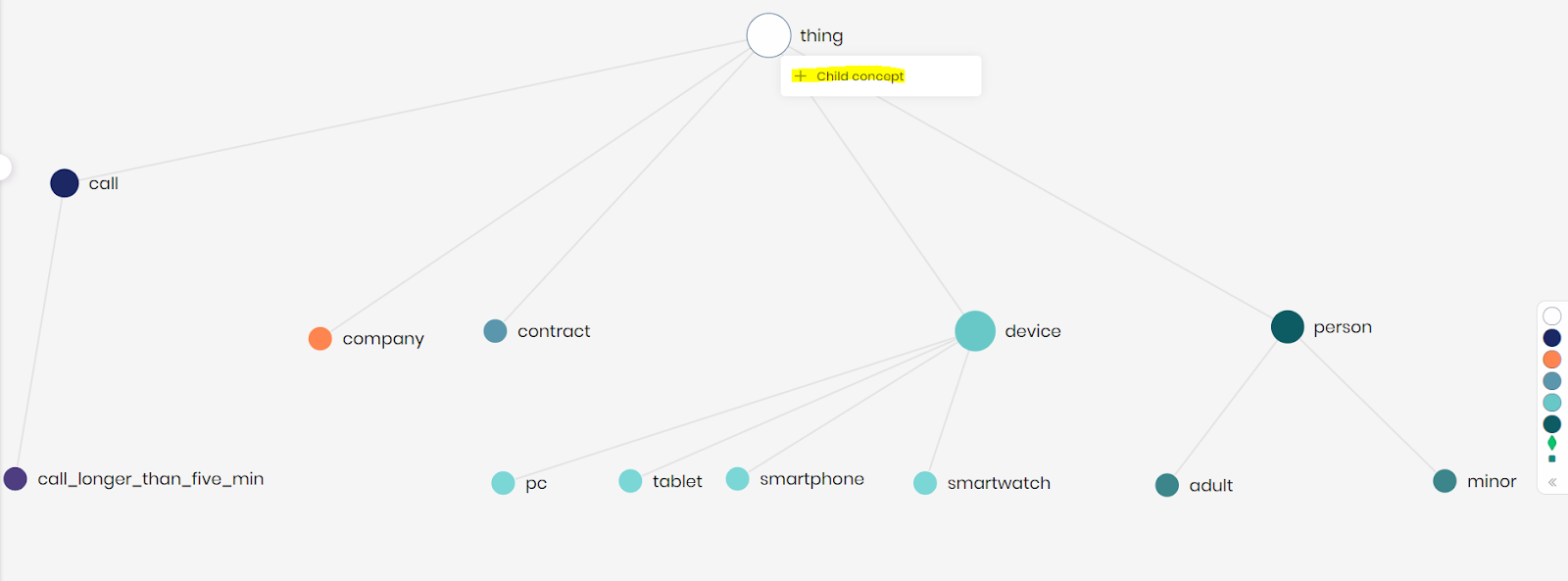
- Fill in the concept name communication and the description "All types of communication between two individuals".
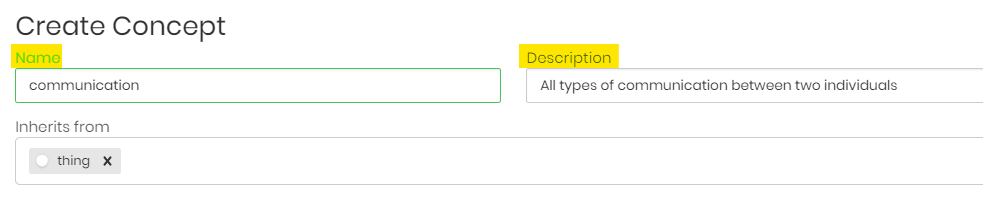
- Click on the dropdown menu under set properties and select device_id.
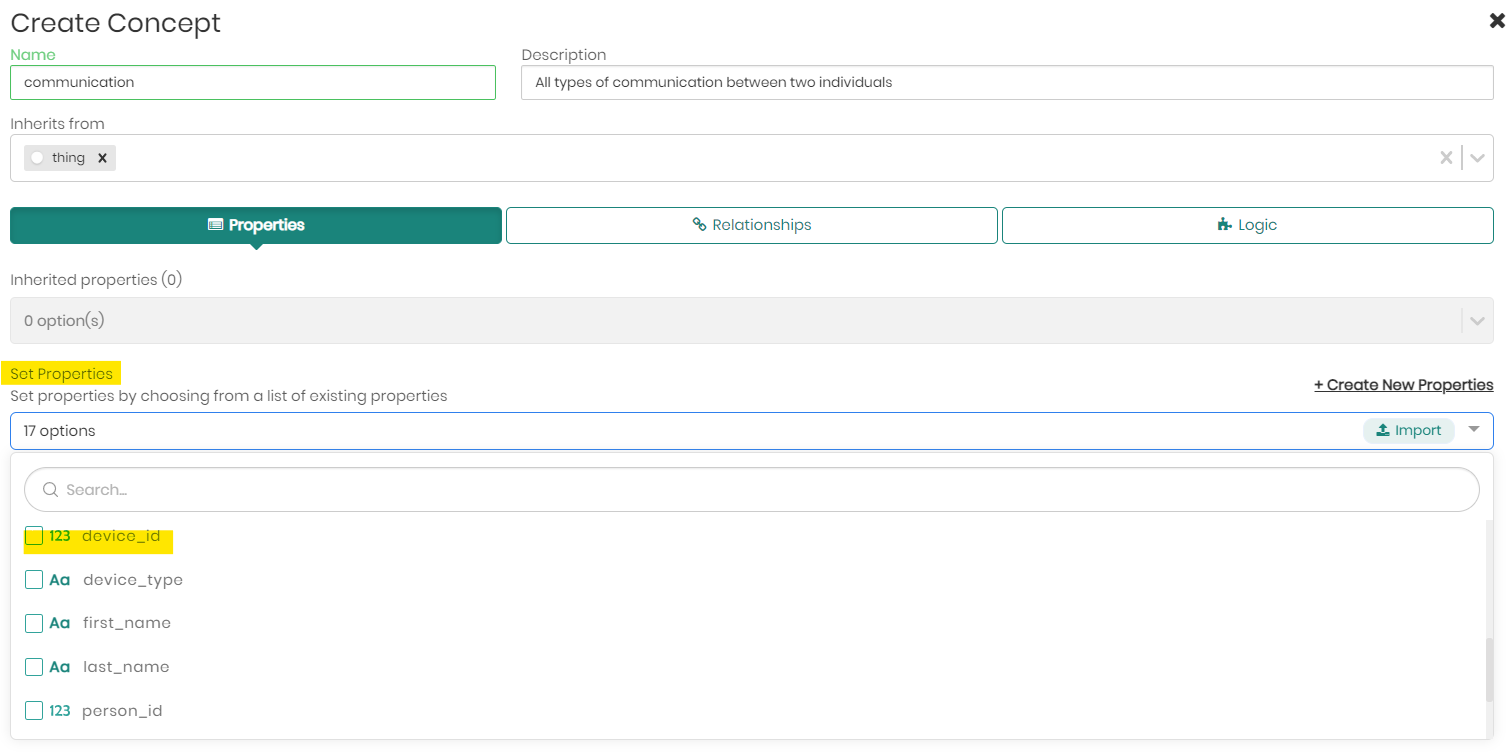
- Click on +Create New Properties to create another property.
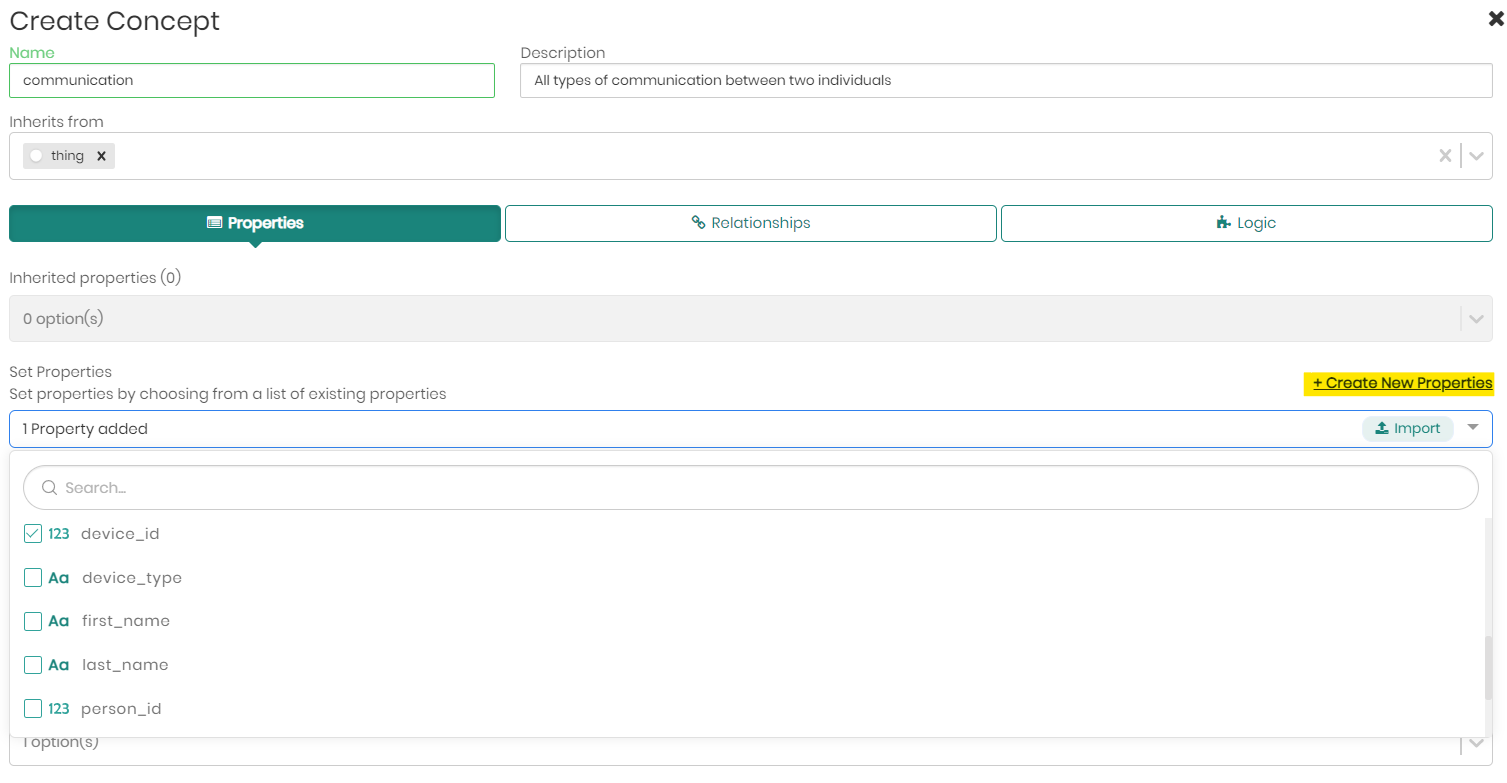
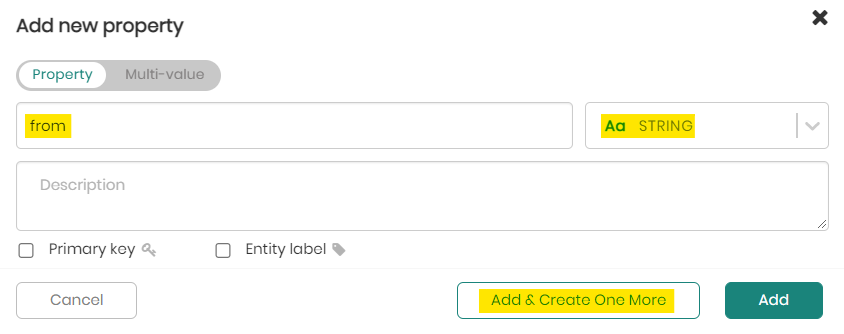
- Create a property called "from", of type string, and click Add & Create One More.
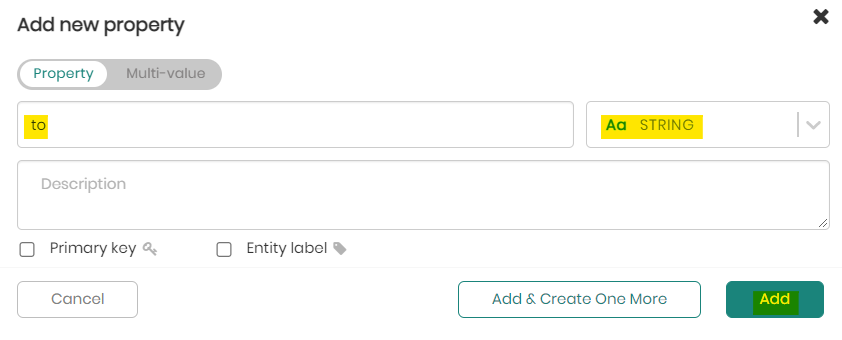
- Create a property called "to", of type string, and add it as well (click Add).
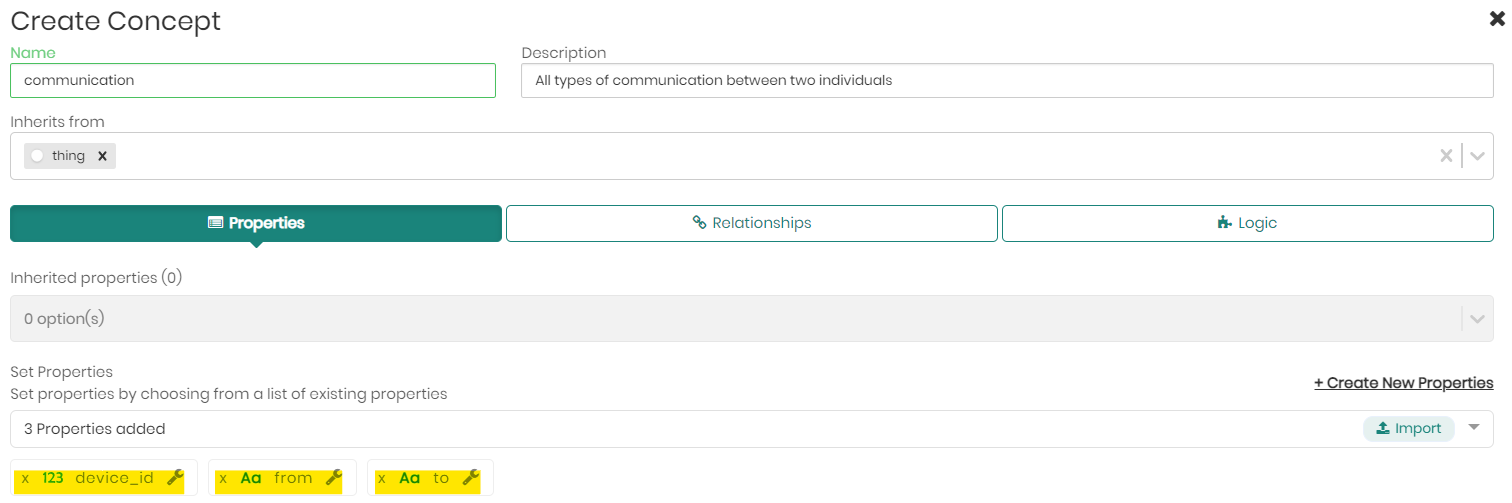
We can now see the three new properties you've added.
- At this stage we would normally choose a Primary Key and Entity Label for the concept, but in this case the concept communication will be used just as a parent concept and have no data mapped to it, therefore, we can continue and click Add New Concept.
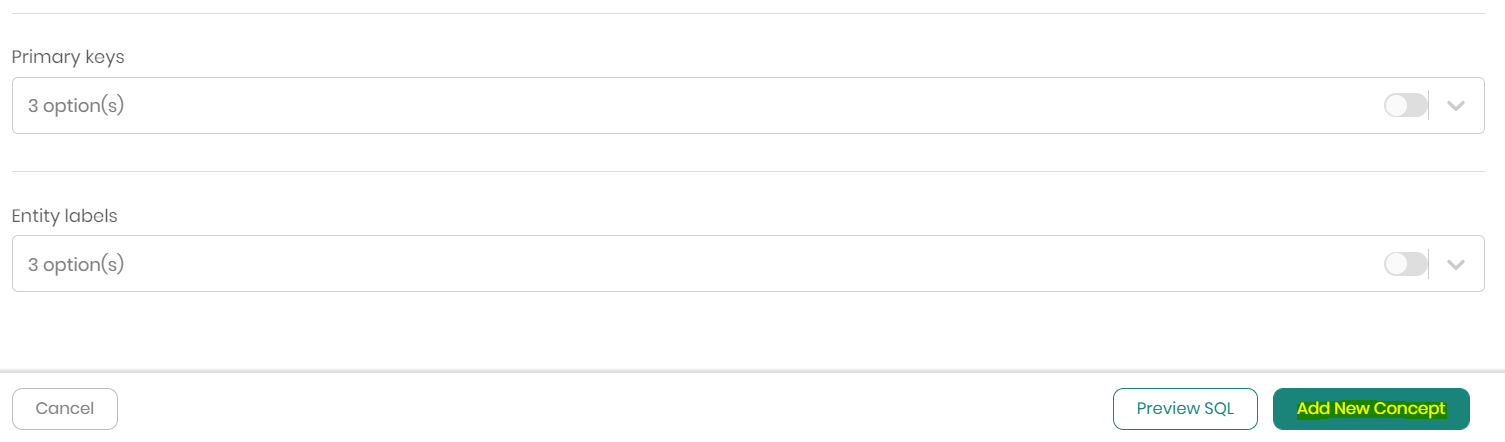
You have successfully created the concept communication.
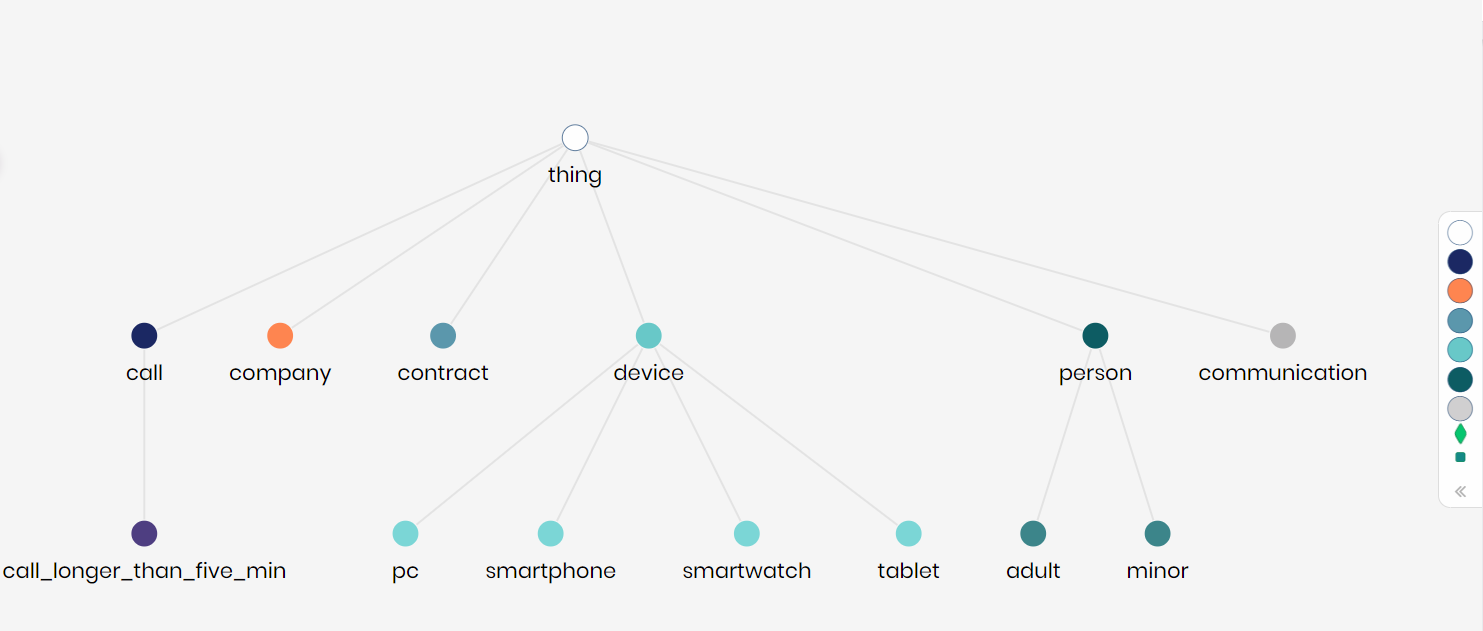
Creating message concept
We will now create a concept called message that will inherit from the concept communication that we just created.
- Right click on the concept communication, hover over + Create and then click on + Child Concept.
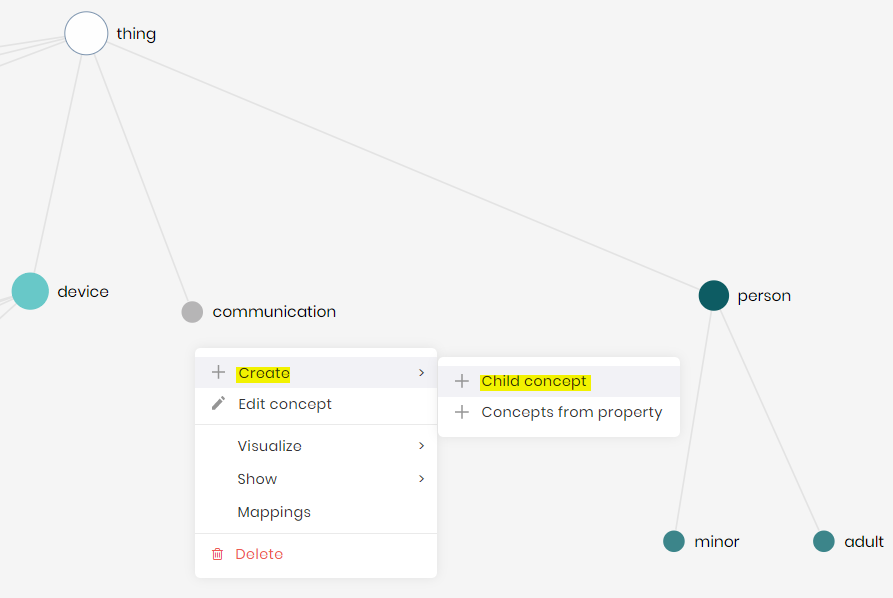
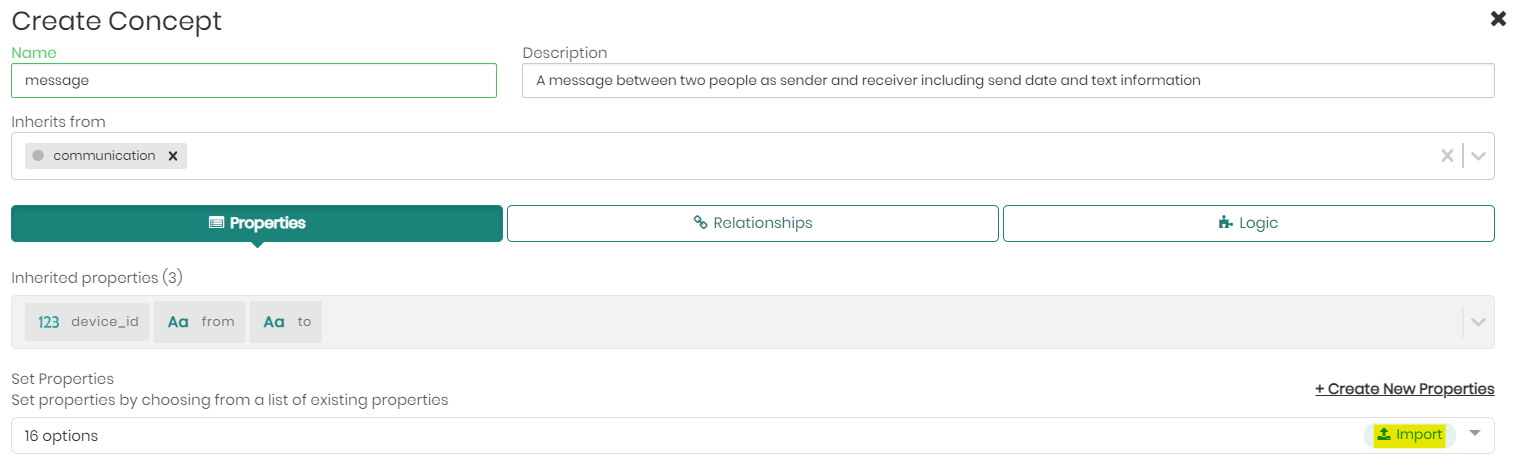
- Fill in the concept name "message" and description "A message between...." (see below full description).

- Click on the Import button to add properties to the concept, aside from the 3 inherited properties it already received from its parent concept communication.
- Once the import window opens, choose the schema calls, and the table messages.

We can now see the column names of the messages table.
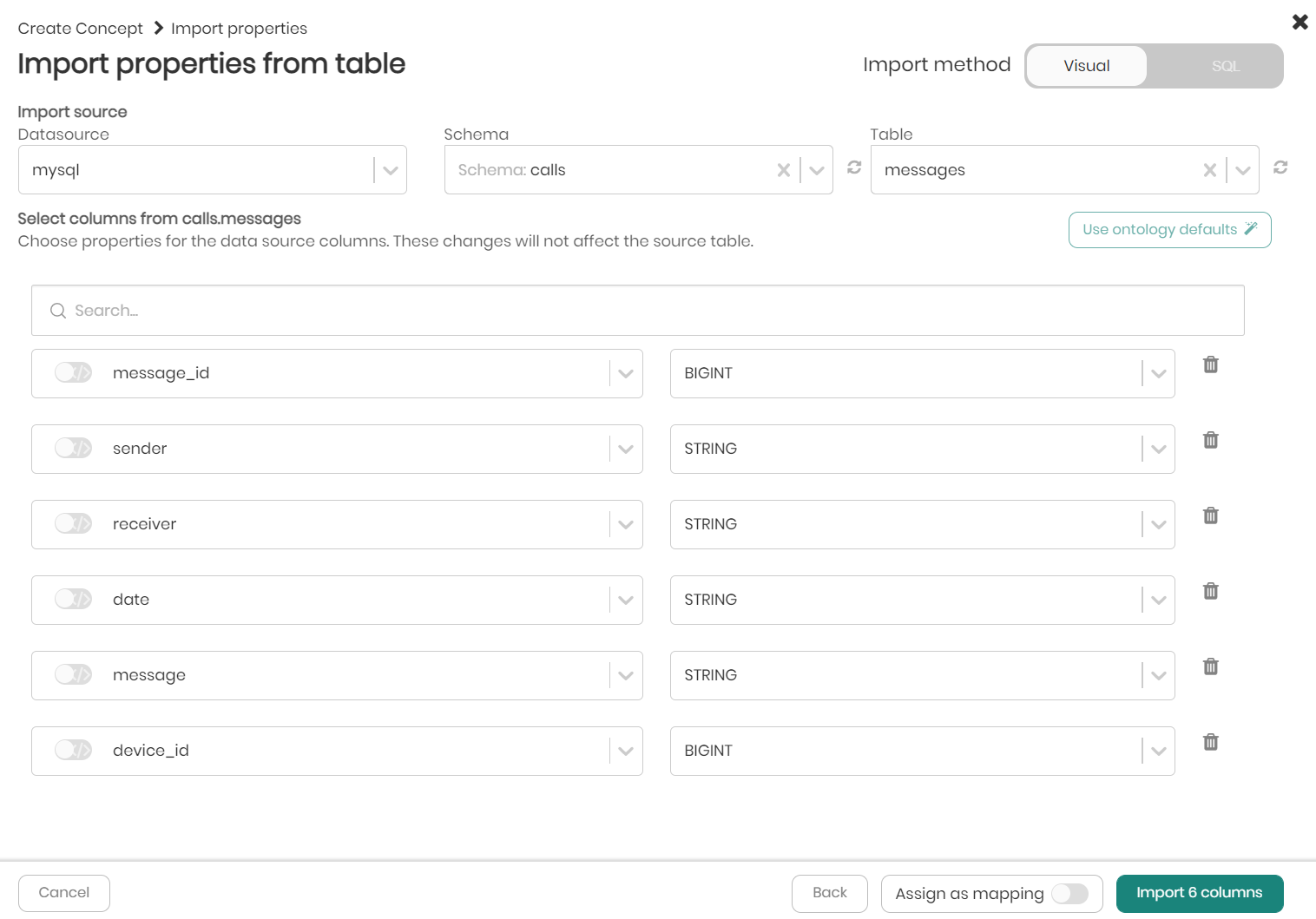
As the concept message already inherits the properties "device_id", "from" and "to", let's delete the columns "device_id", "sender" and "receiver" as those columns are represented by the inherited properties we already have.
- Delete the unwanted columns by clicking on the trash can on the right side of the row.
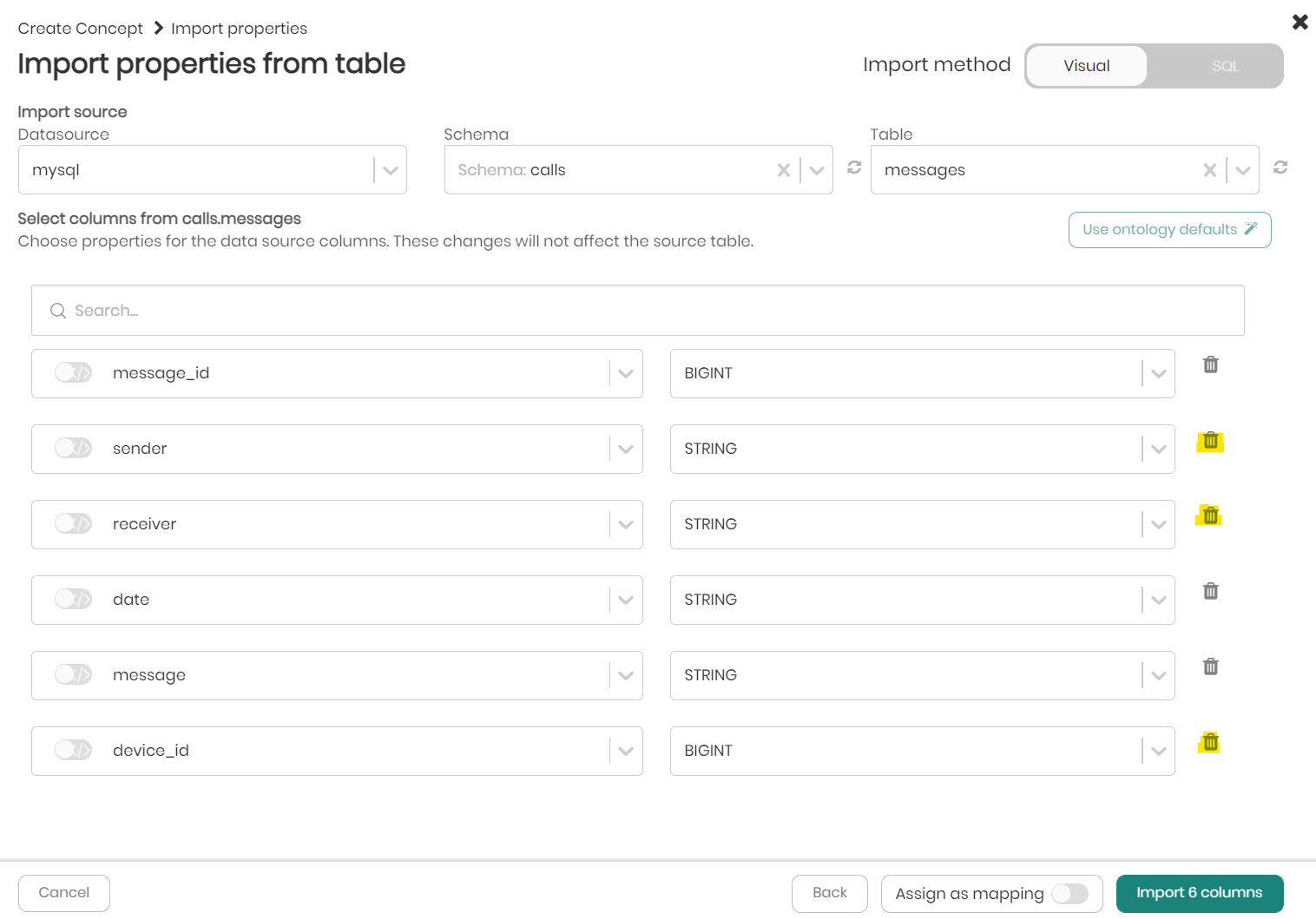
- When we are left with the properties we want to add, click on Import columns.
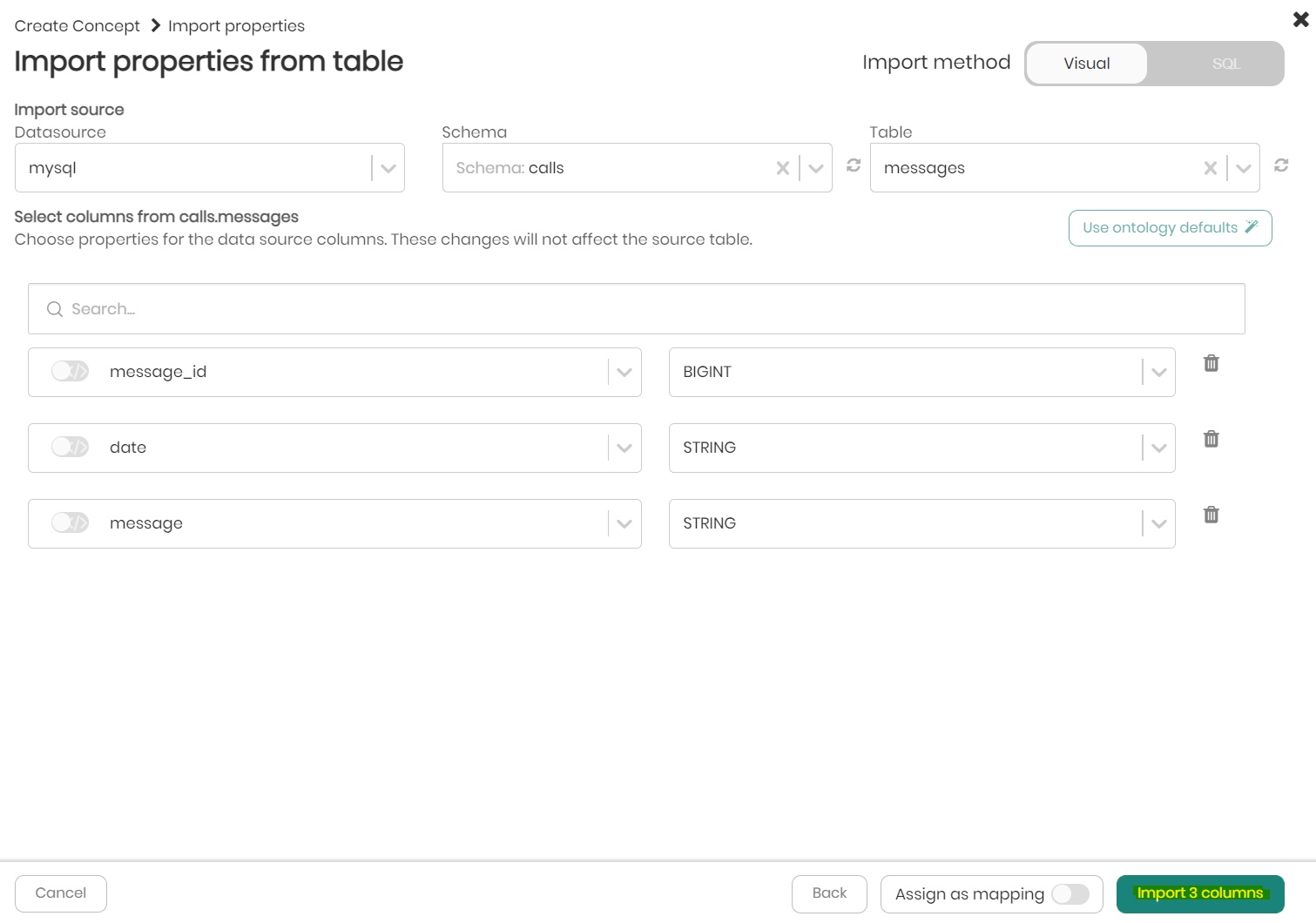
We can now see the inherited properties as well as the direct properties!
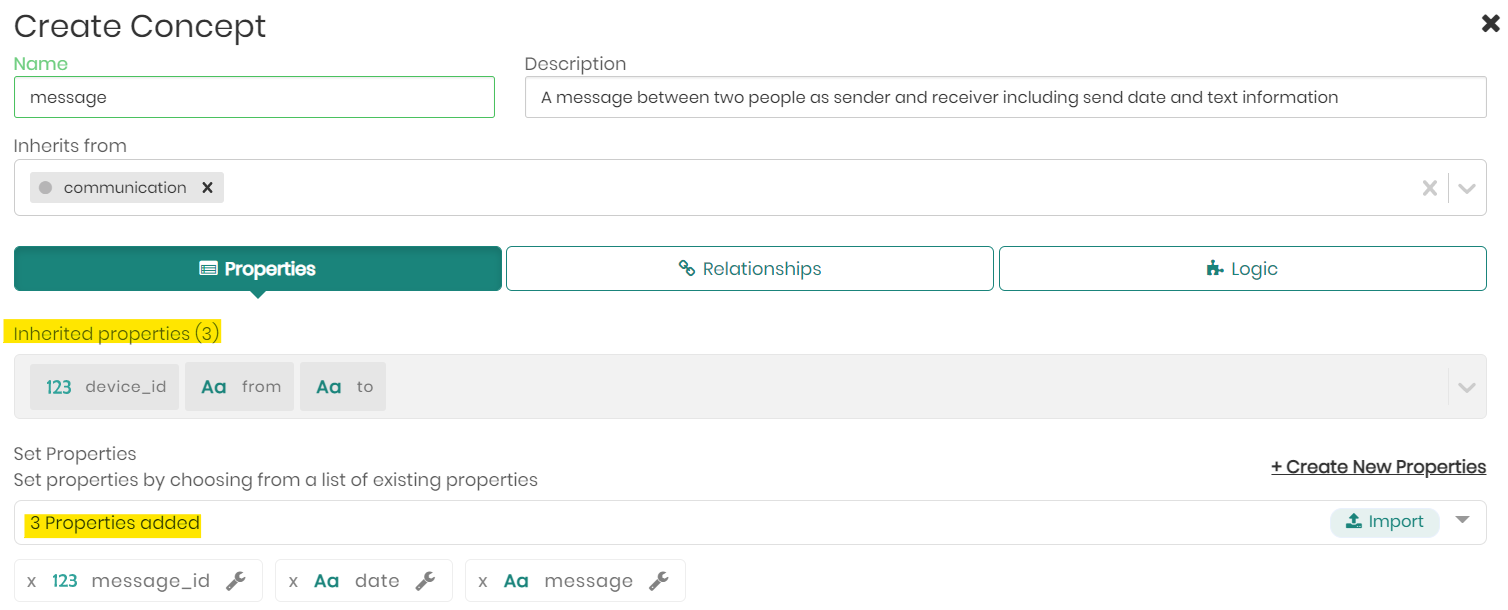
- Choose the primary key message_id and entity label message_id for the concept and click on Add New Concept.
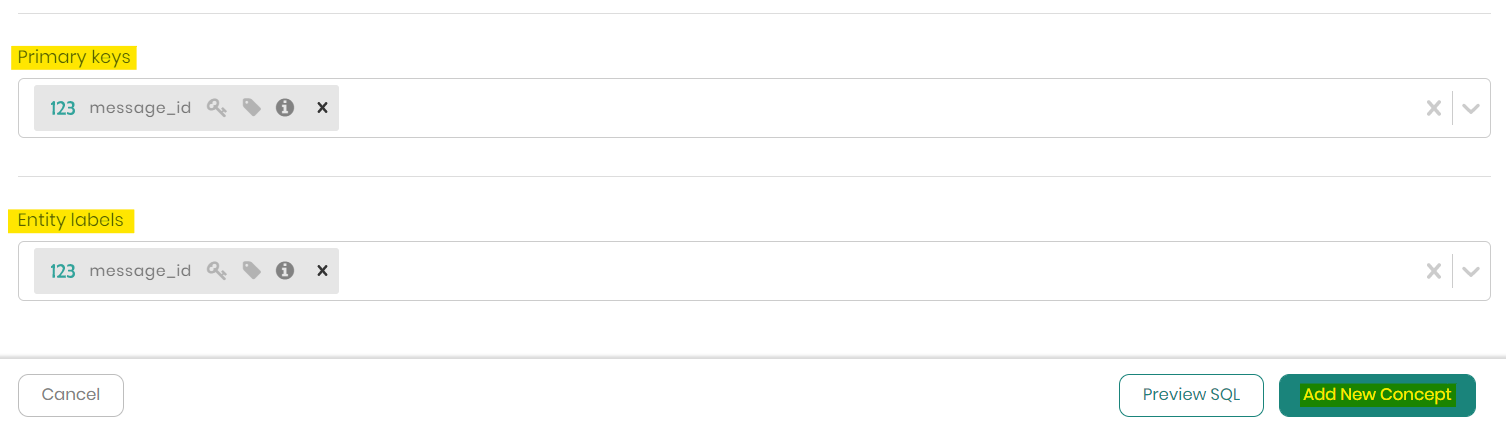
We have successfully created the concept message.
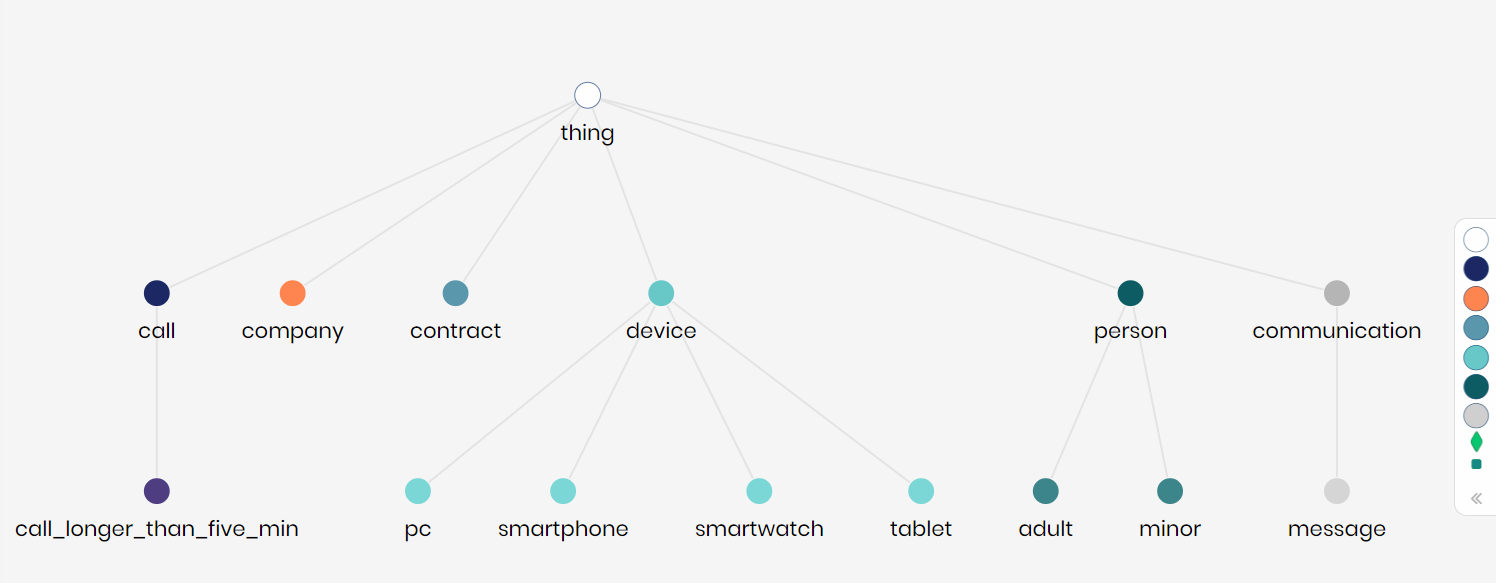
Changing the inheritance of call concept
We will now change the inheritance of concept call so it inherits from concept communication, as it's also a type of communication, just as we defined a moment ago for concept message.
- Right-click on concept call and then click on Edit concept.
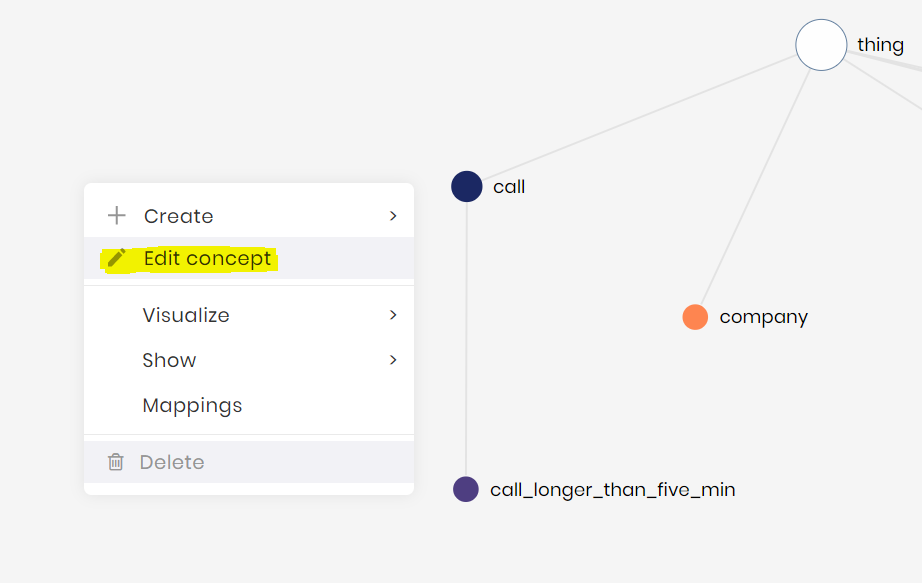
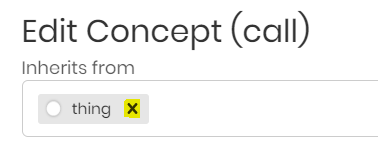
- In the edit concept box, click on the "X" in order to remove thing as the upper-level concept.
- Click to open the dropdown menu and choose the communication concept as the new upper-level concept call will inherit from.
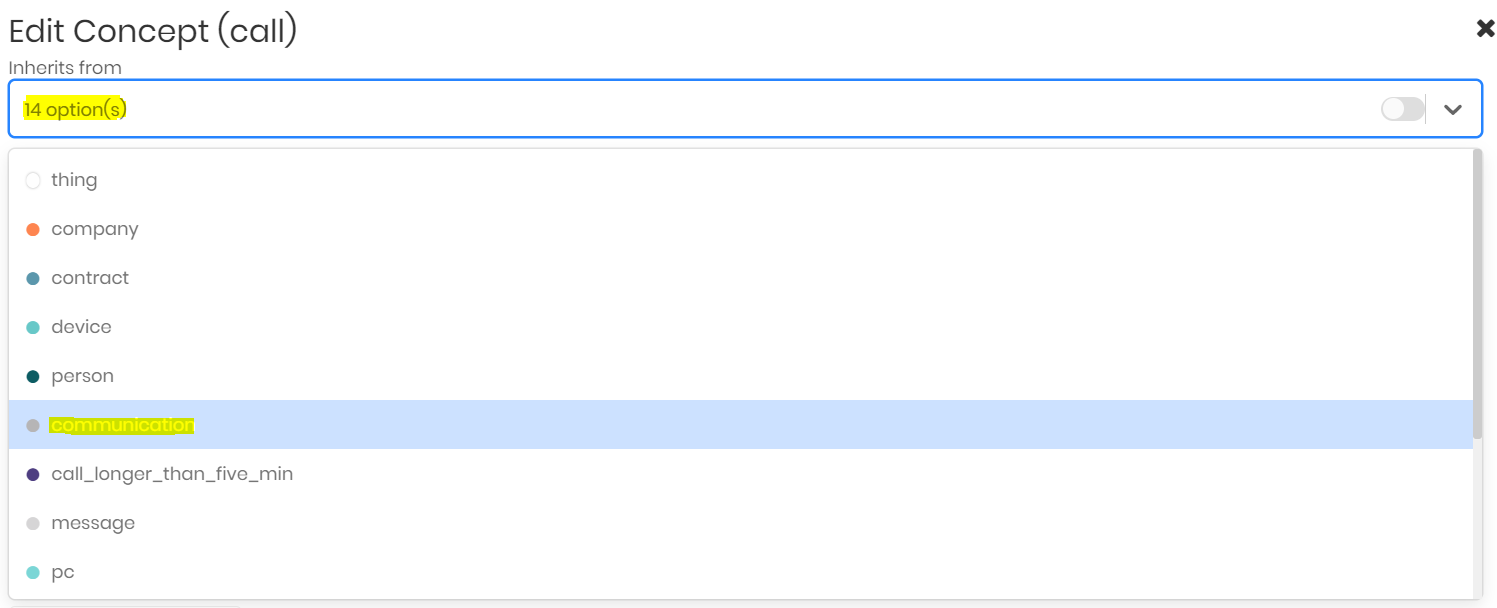
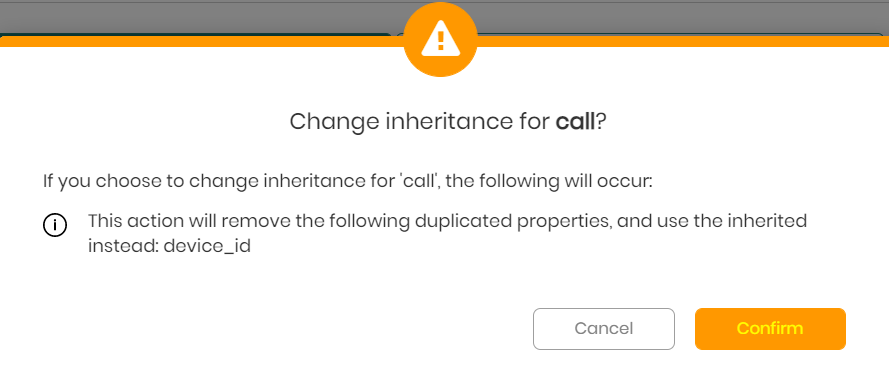
Once you choose the communication concept, a warning message will appear asking you if you are sure you want to make this change, go ahead and press Confirm.
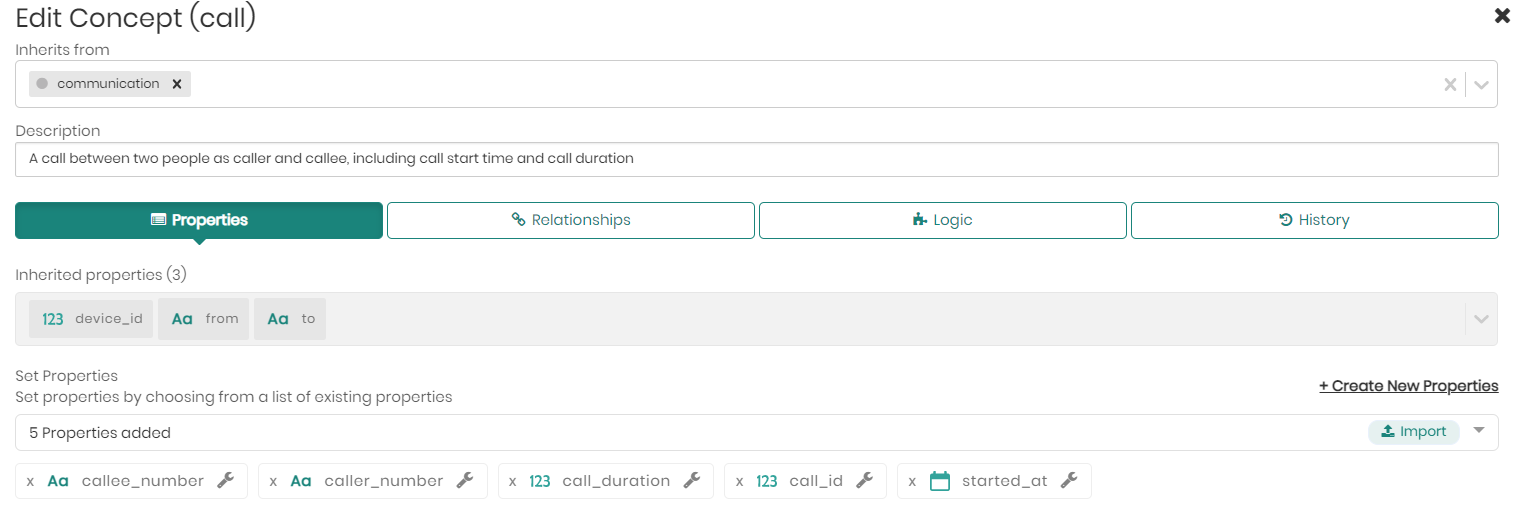
Now that we changed the inheritance, the concept will add the inherited properties including device_id.
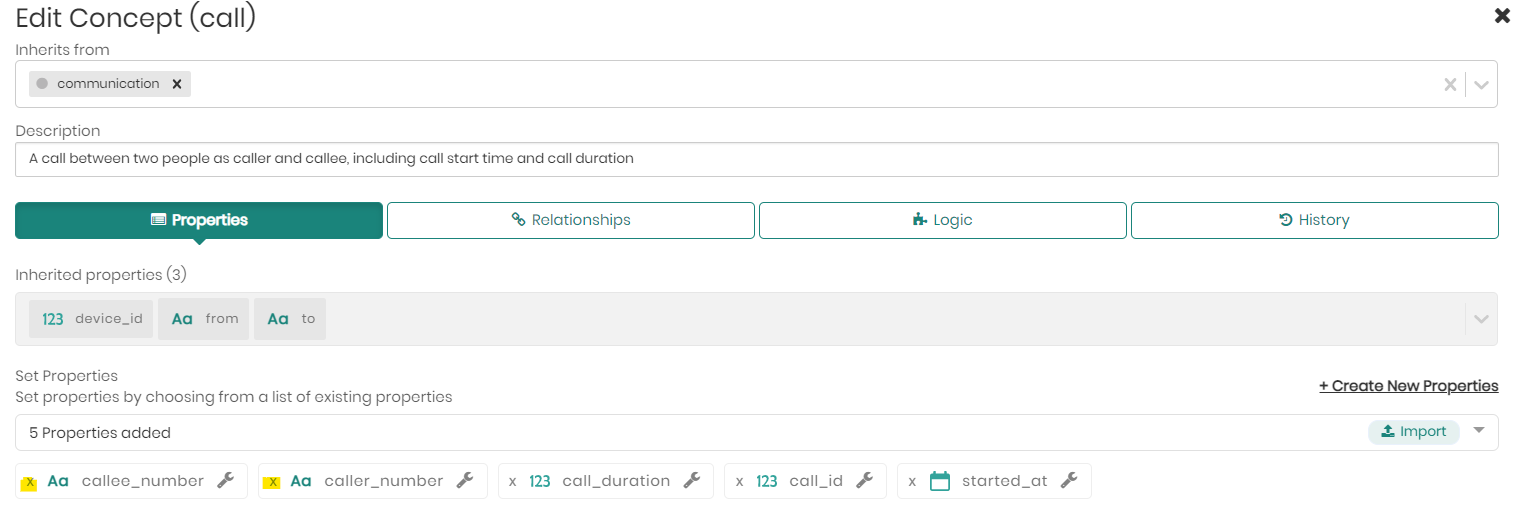
You can notice that the inherited properties named from and to can be used instead of the direct properties caller_number and callee_number.
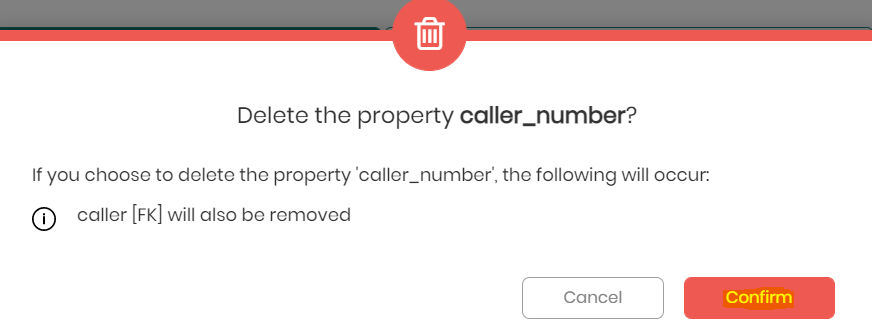
- Click on the X next to the callee_number and caller_number properties to remove them.
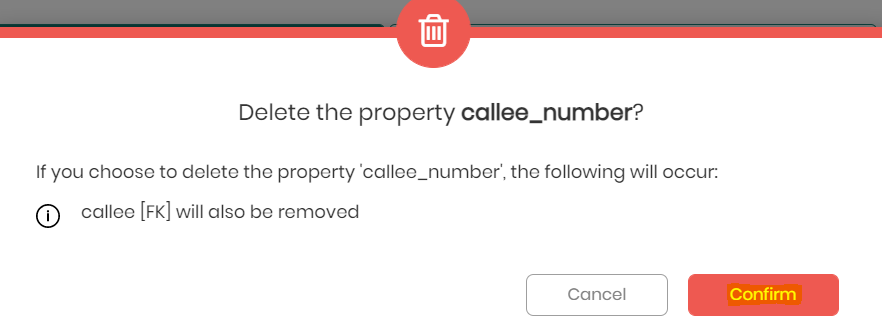
Notice that when deleting properties callee_number and caller_number, we will be deleting relationships that exist in the knowledge graph which are based on these properties. Timbr will warn us before deleting these properties.
- Click on Confirm in both messages to delete the properties.
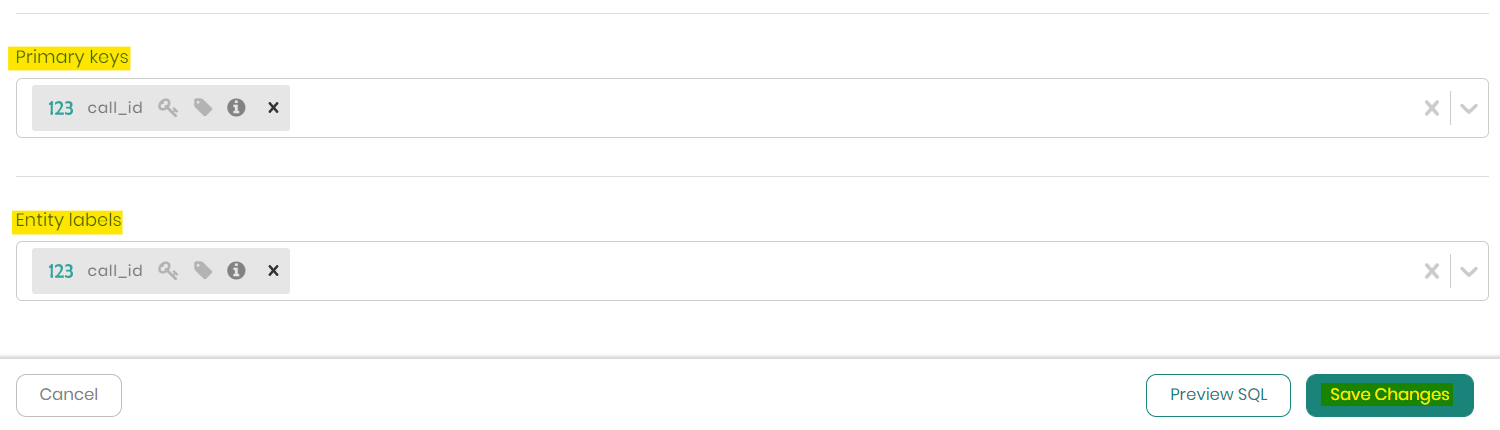
- Add call_id as the new Primary key and Entity label for the concept and click on Save Changes to complete the inheritance change.
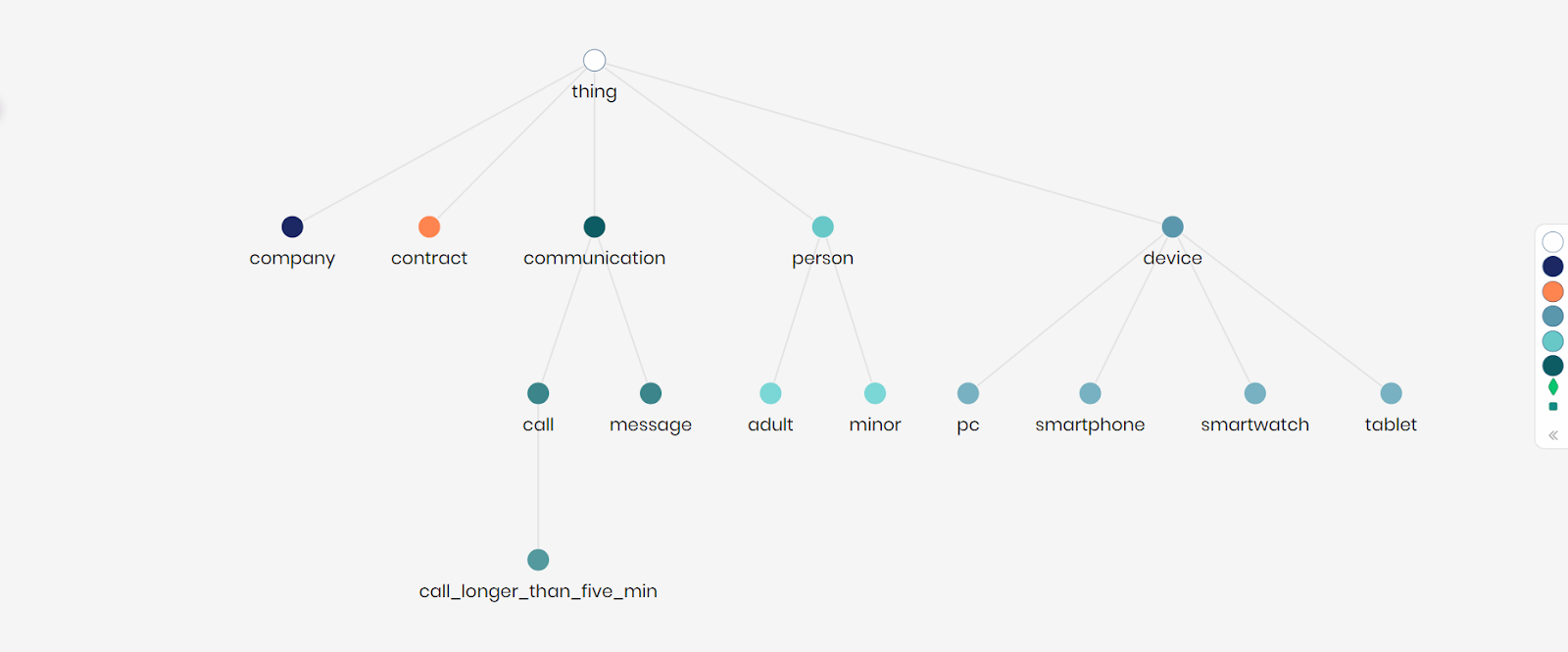
We can now see that the call concept inherits from concept communication.
Mapping data to message concept
- Right-click on concept message and then click on Mappings.
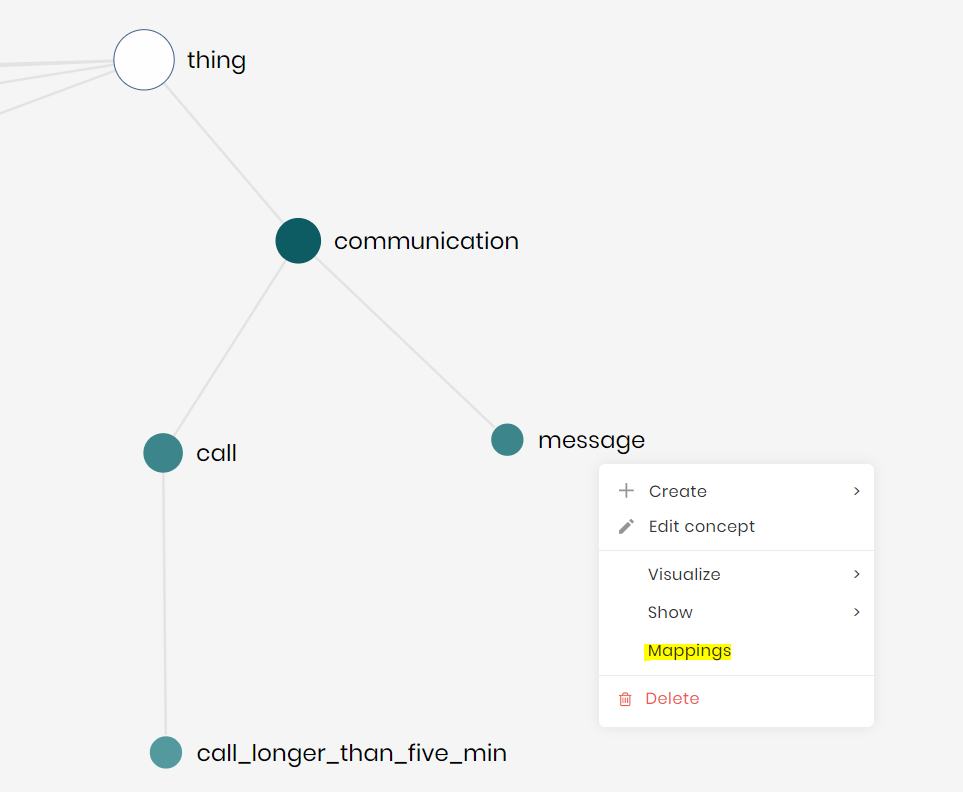
- Click on Map Data.
- In the pop-up that appears, click on Create Concept Mapping.
- Choose the calls schema. Once tables load, choose the table Messages.
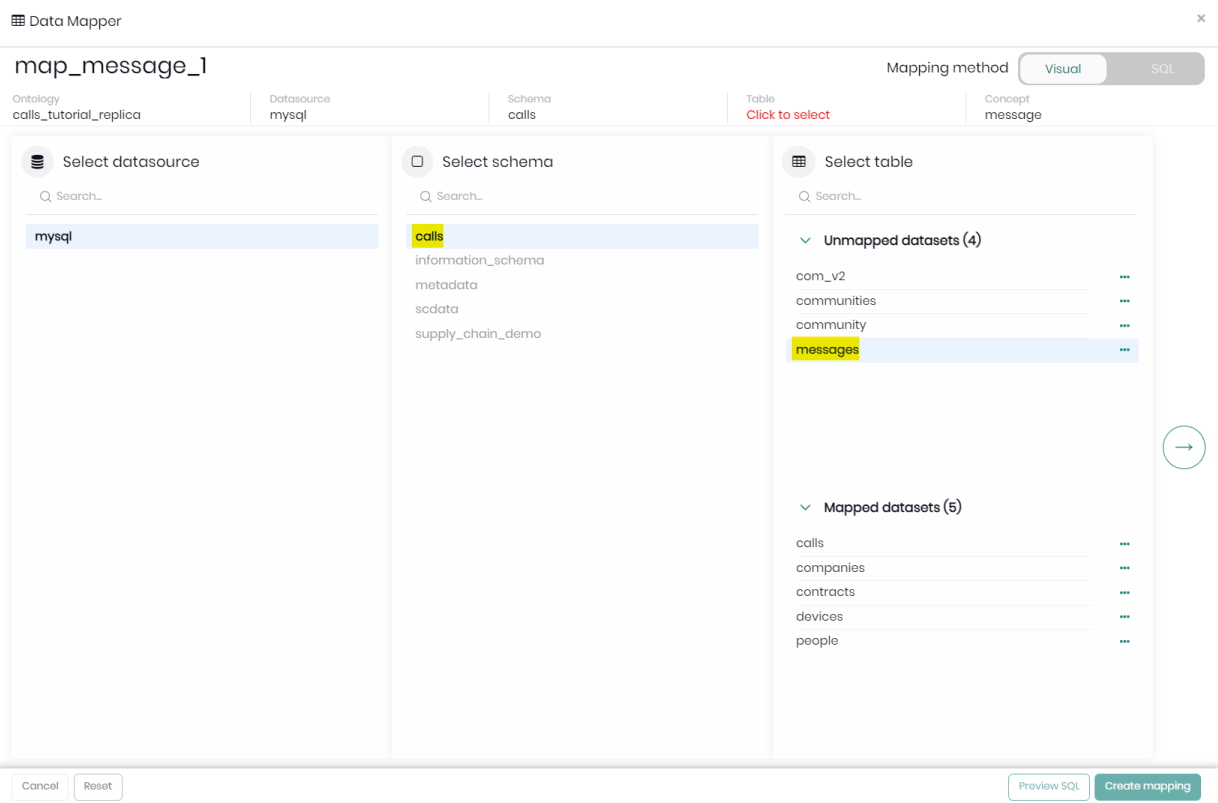
- Click on Add all suggestions to automatically match the column names with the properties created.
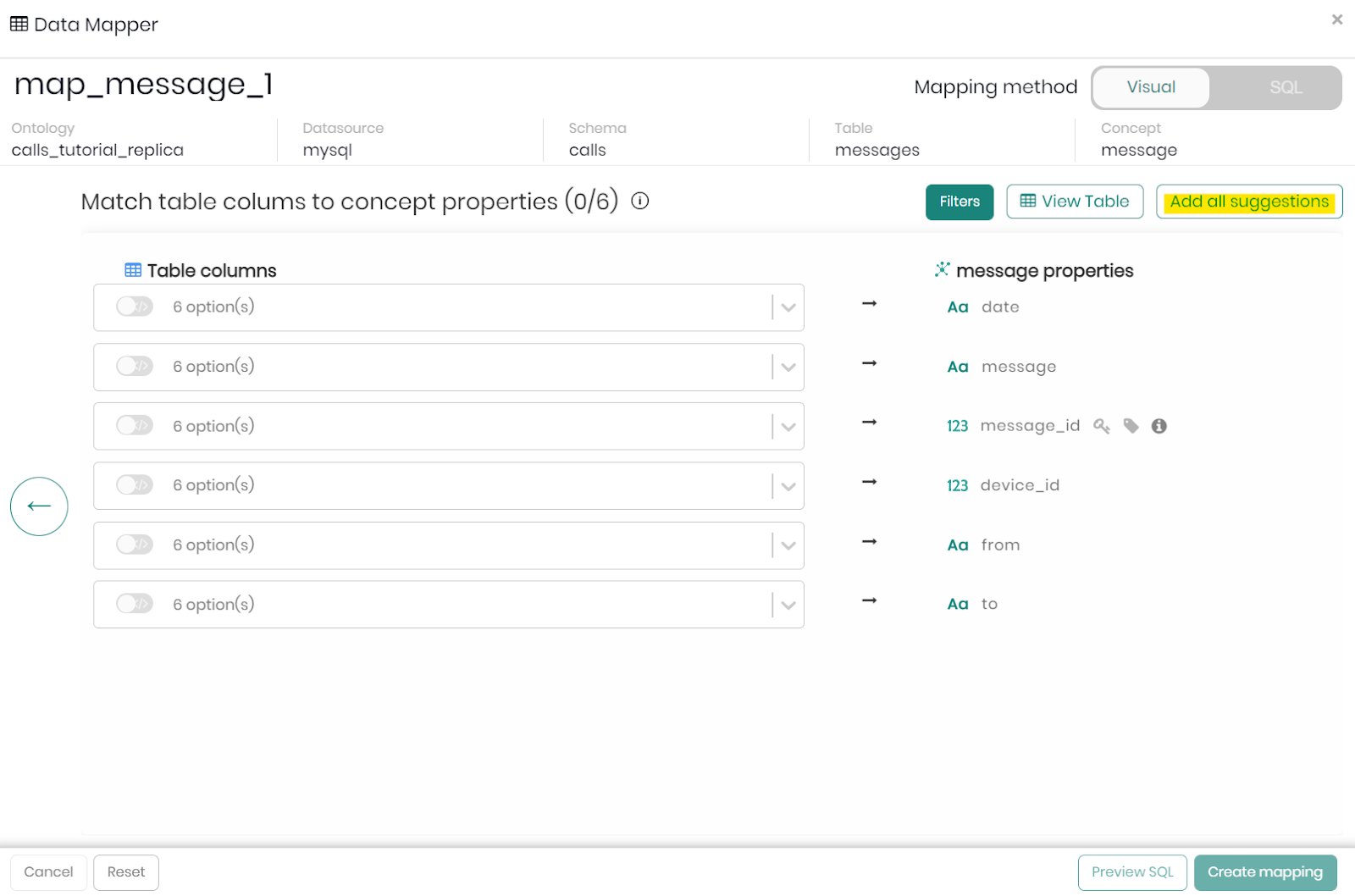
Notice that properties "from" and "to" don't have exact matches.
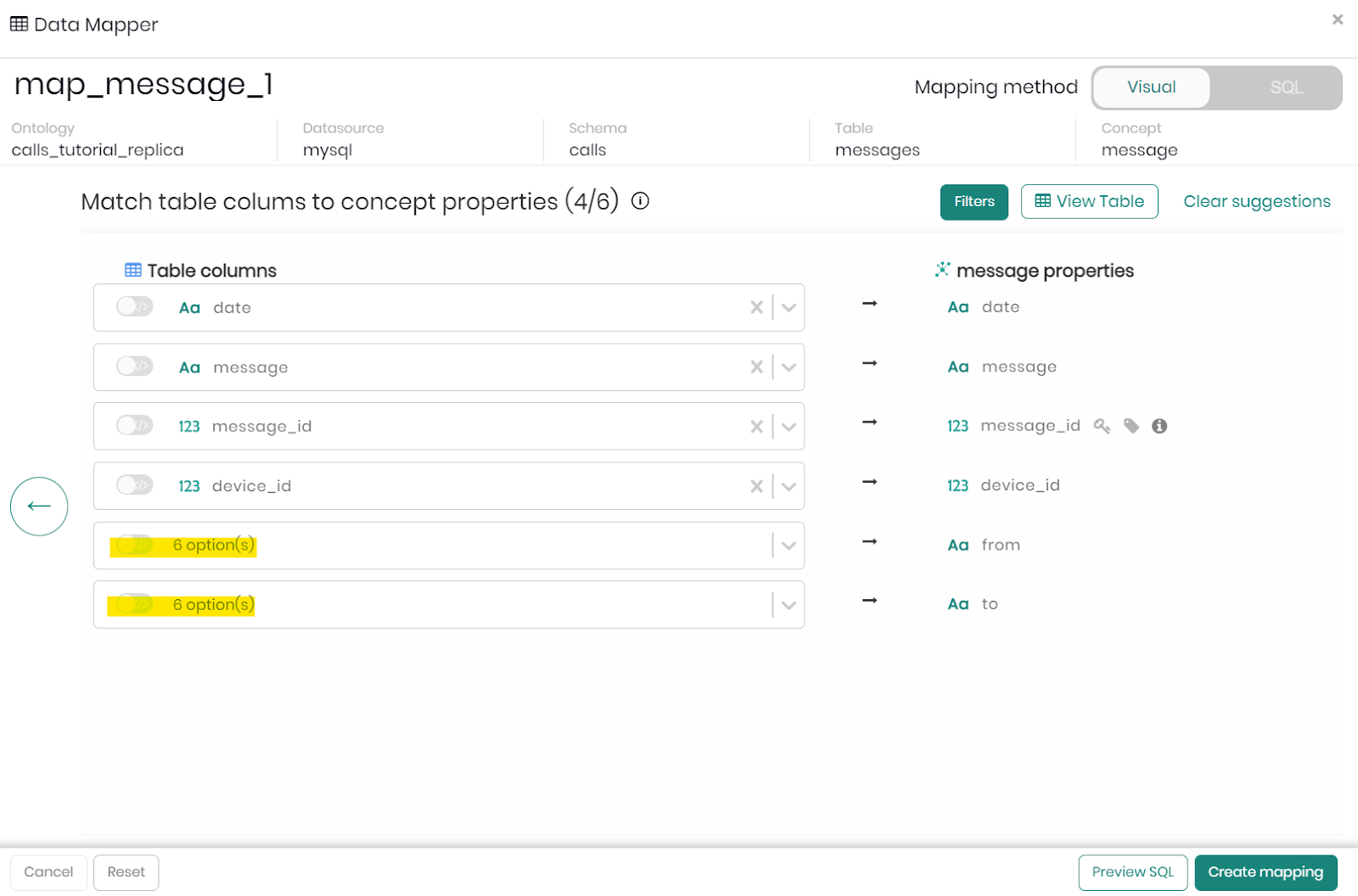
therefore we can choose the relevant columns by clicking on the dropdown menu and manually selecting "sender" and "receiver" as the columns to map to properties "from" and "to", when ready, click on Create Mapping.
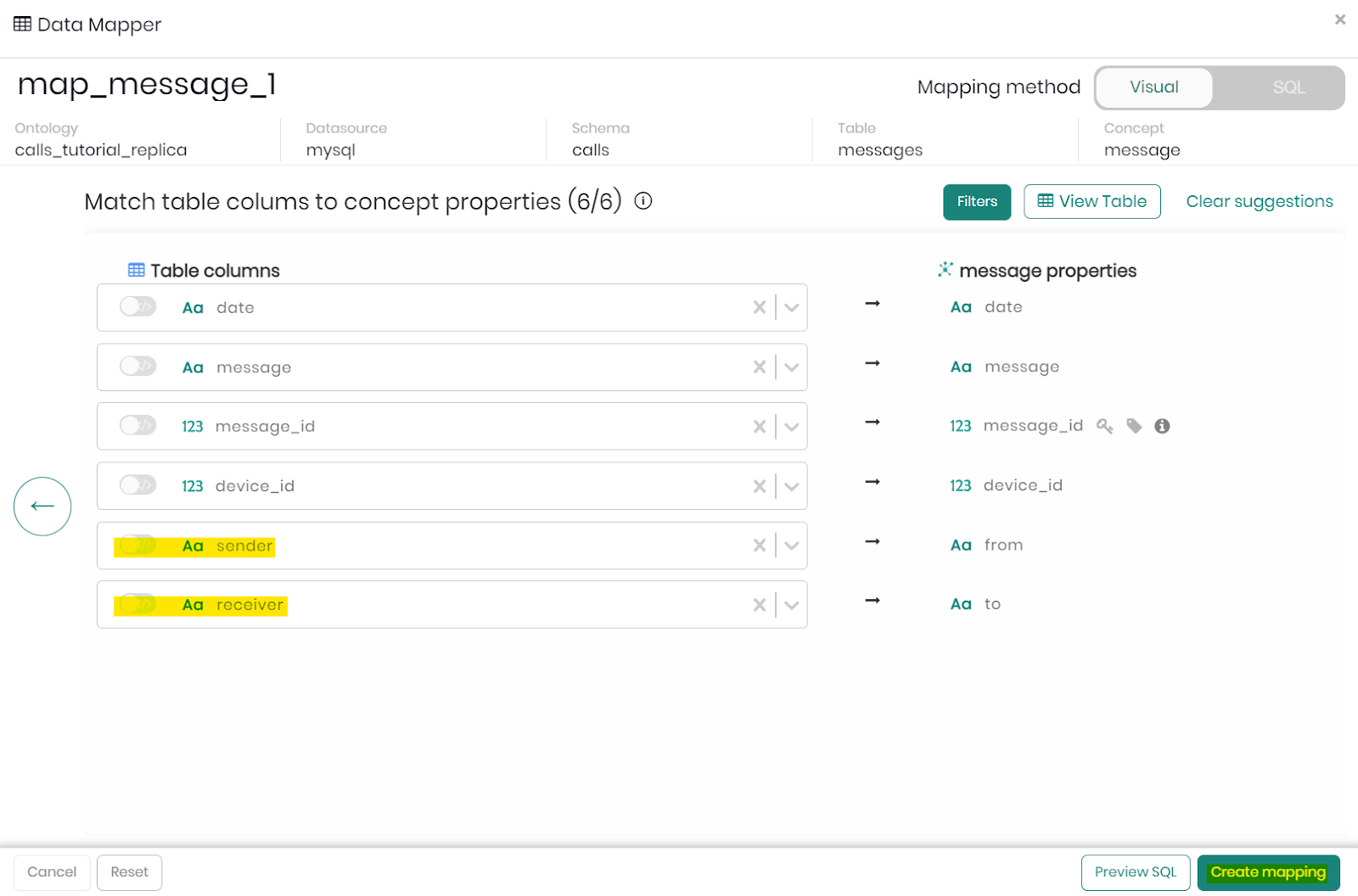
Our message concept now contains the relevant data about messages between individuals.
Renewing the mapping of call concept
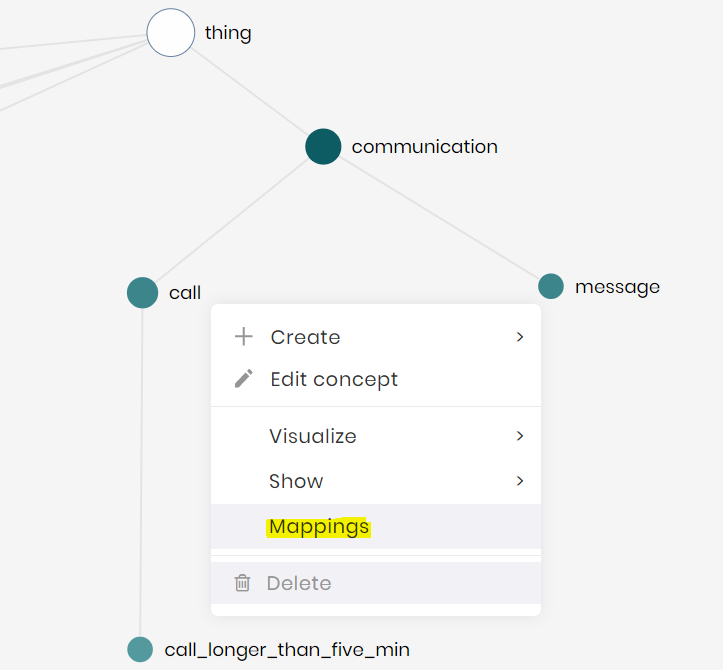
After changing the inheritance of concept call as well as its properties, we will now want to remove the previous mapping and create a new one in order to map the relevant data to the correct properties.
- Right-click on concept call and then click on Mappings.
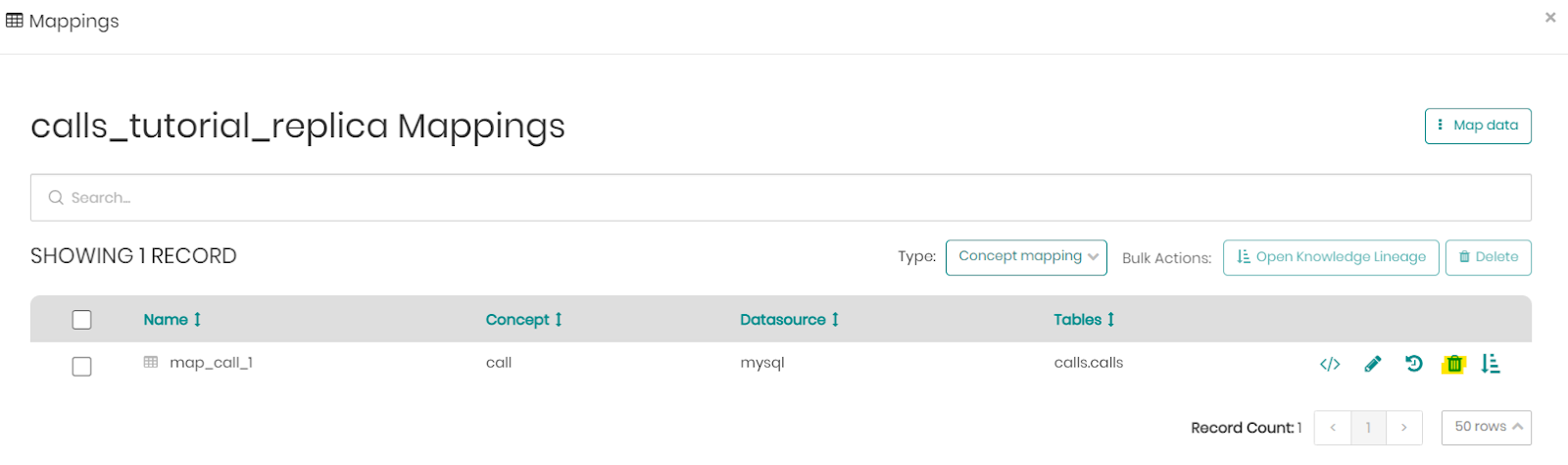
To edit previous mappings we can click on the "edit pencil" logo next to the mapping we want to edit. In this case though we will delete the previous mapping and create a new one.
- Click on the trash can to delete the previous mapping.
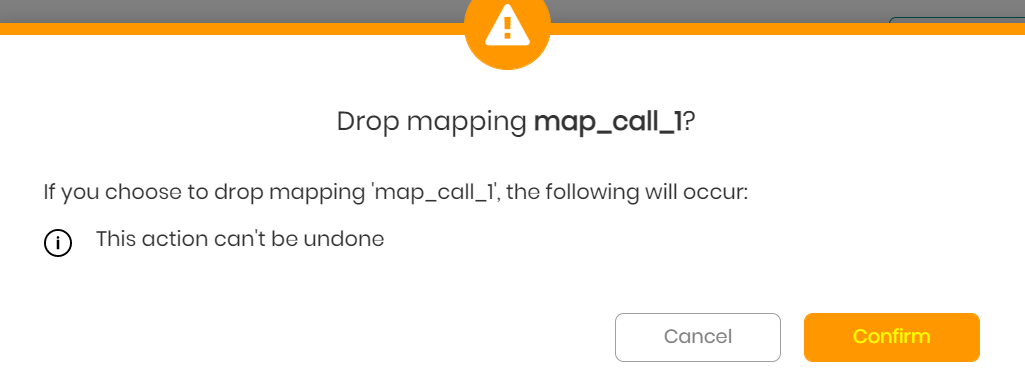
- Click on Confirm to delete the old mapping.
- To create the new mapping for concept call, right-click the concept and click on Mappings.
Step 1: Click on Map Data.
Step 2: Click on Create Concept Mapping.
Step 3: Choose schema calls as well as table calls.
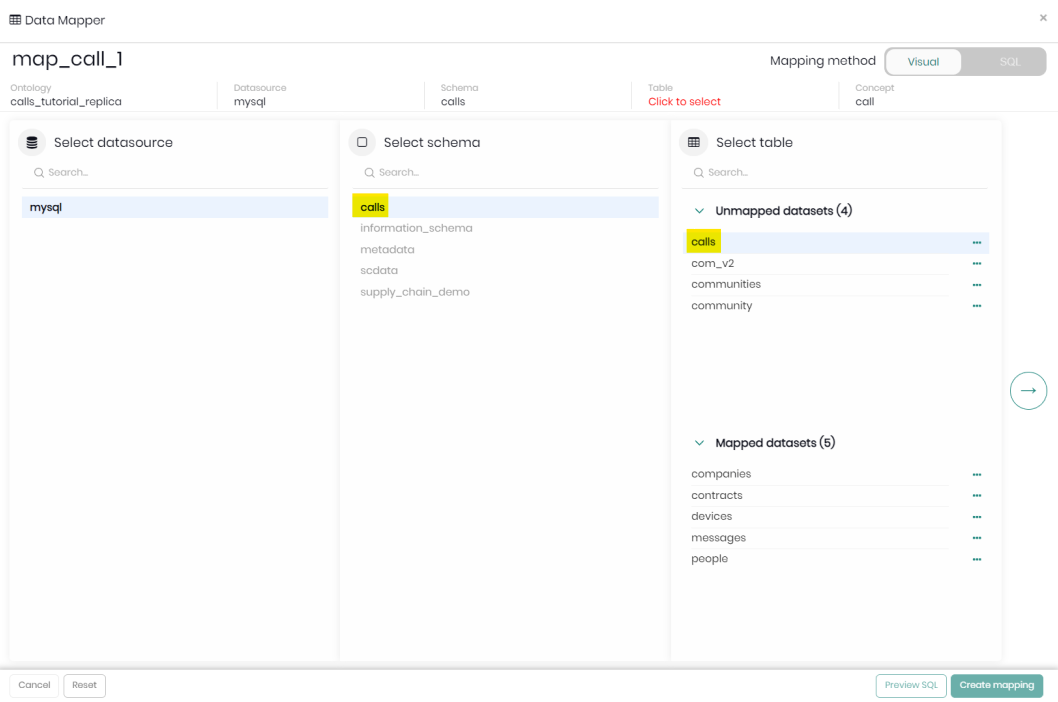
Step 4: Click on Add all suggestions to automatically match the column names with the properties.
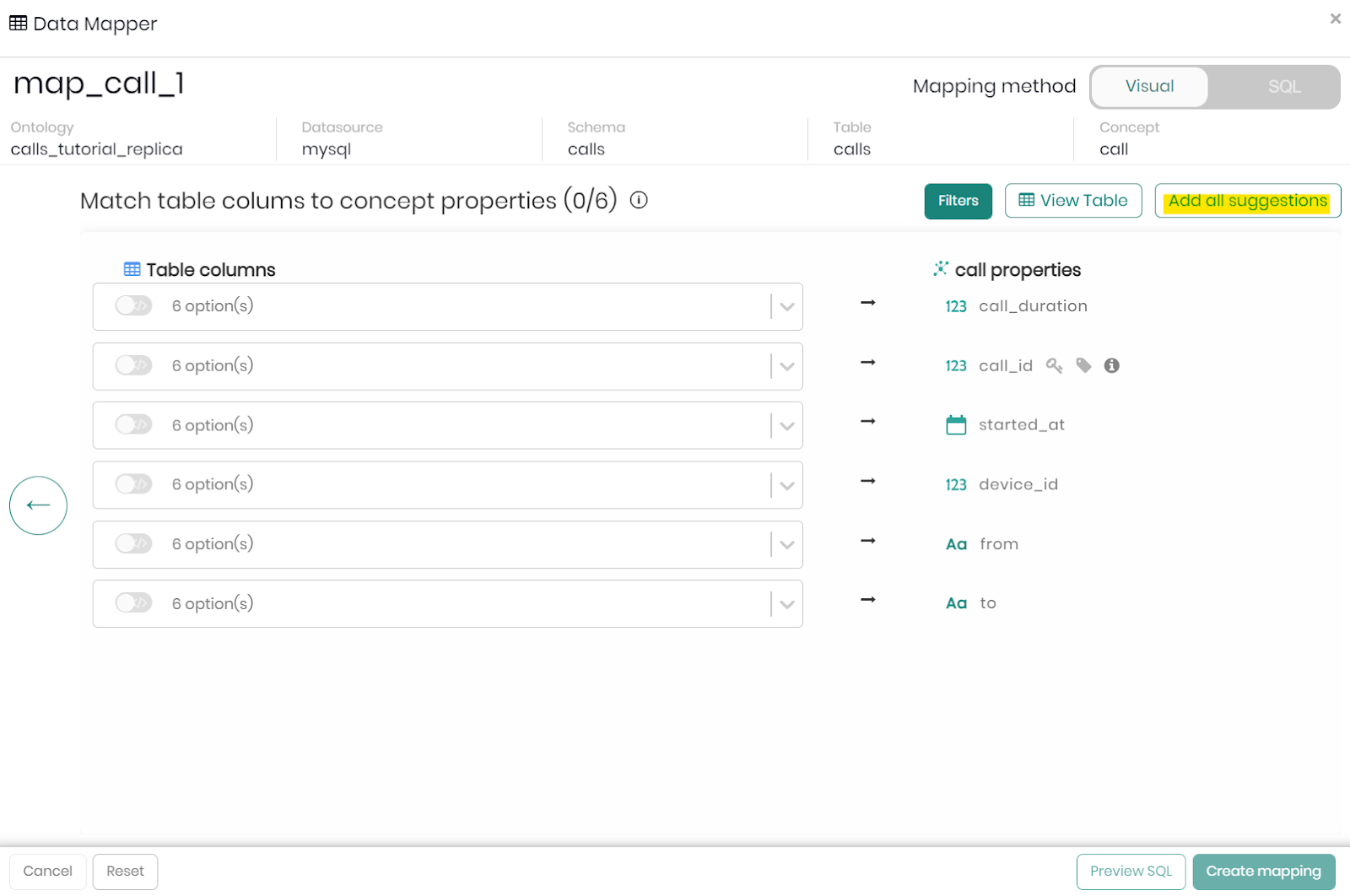
Notice that properties "from" and "to" don't have exact matches.
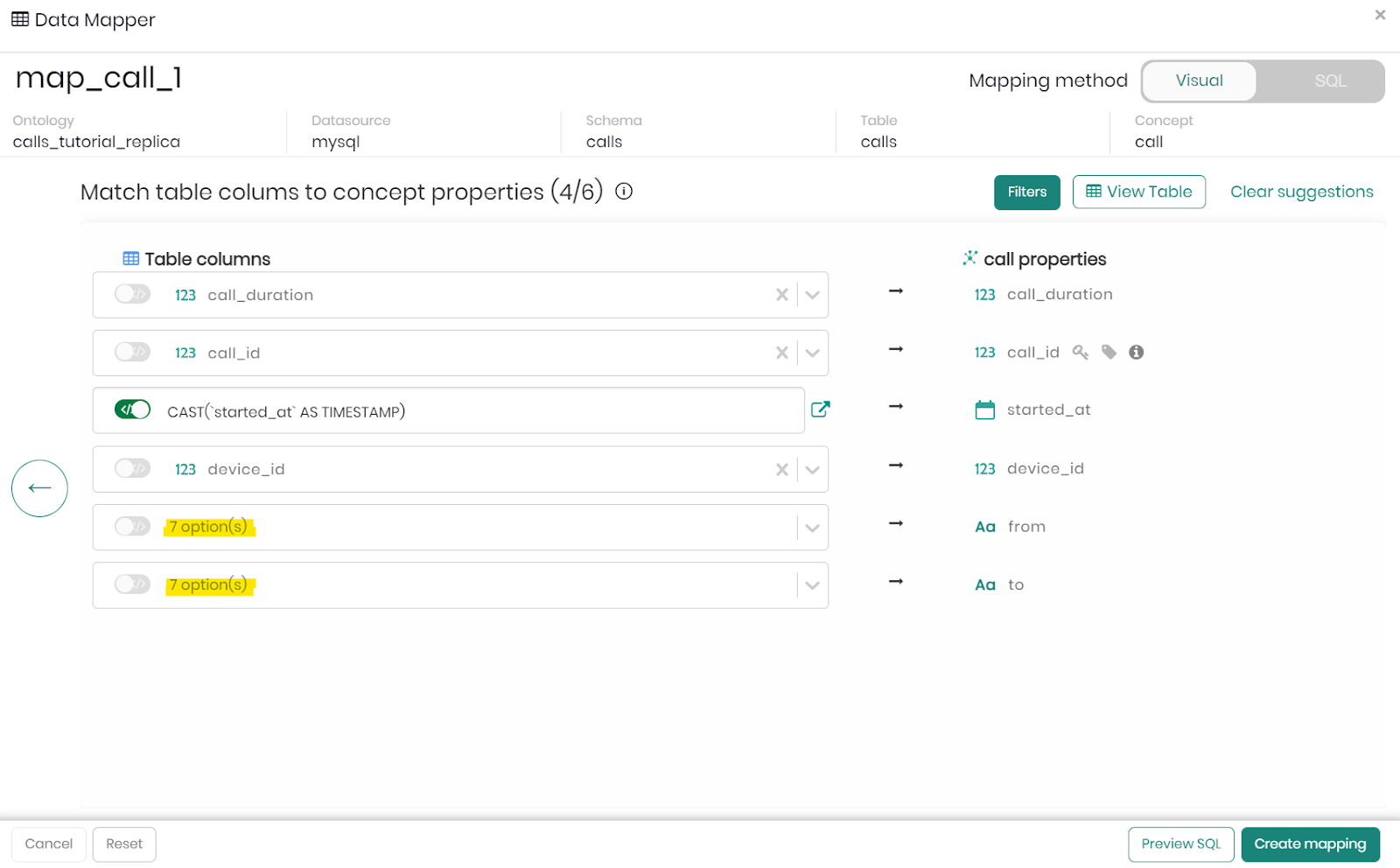
Therefore, choose the relevant columns "caller_number" and "callee_number" from the datasource to map to properties "from" and "to", then click on Create mapping.
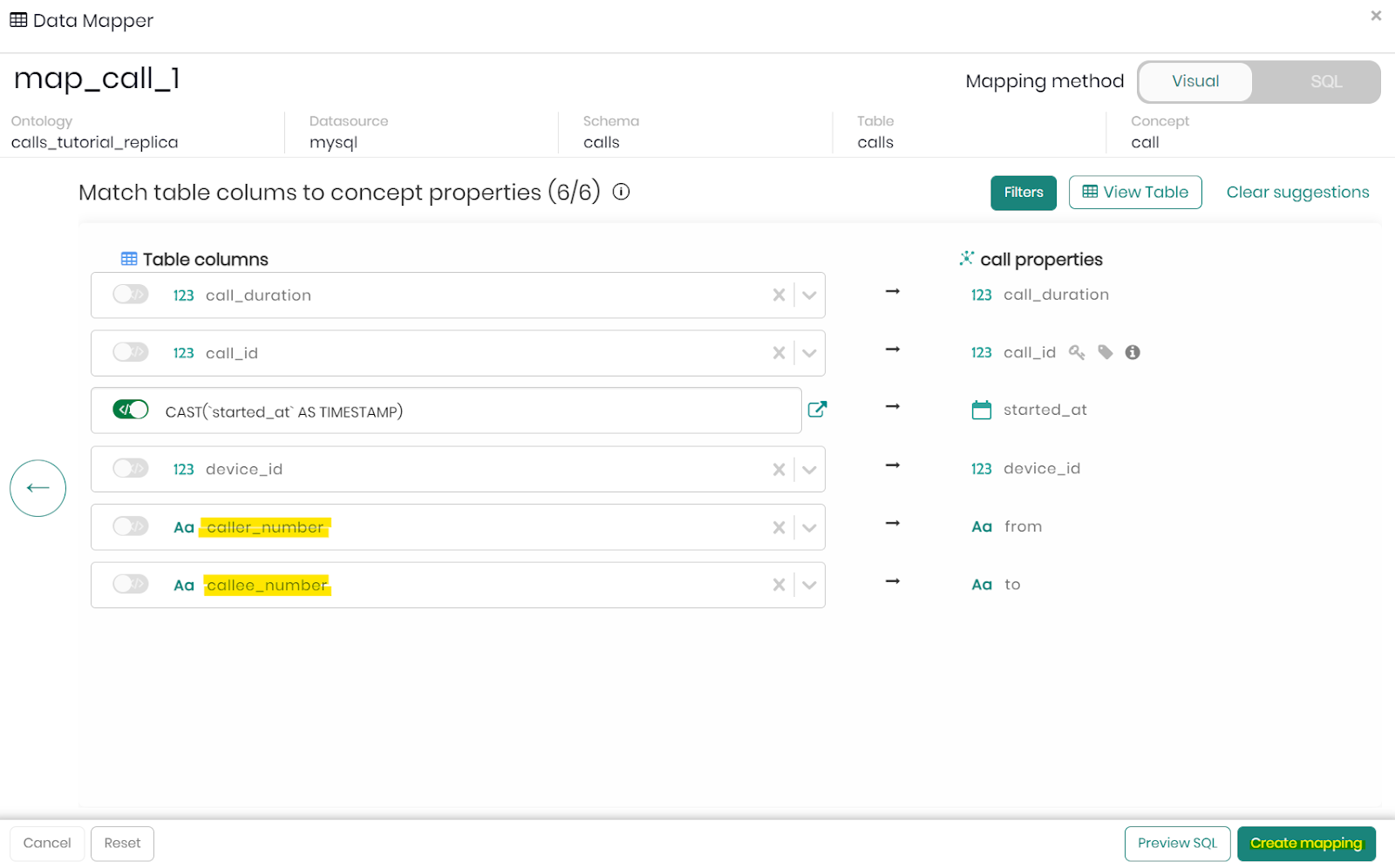
Our Call concept now contains the relevant data.
Defining new relationships using the new properties
After we added and edited the concepts and properties, it is now time to redefine our relationships using the new concepts and properties.
Relationship #1
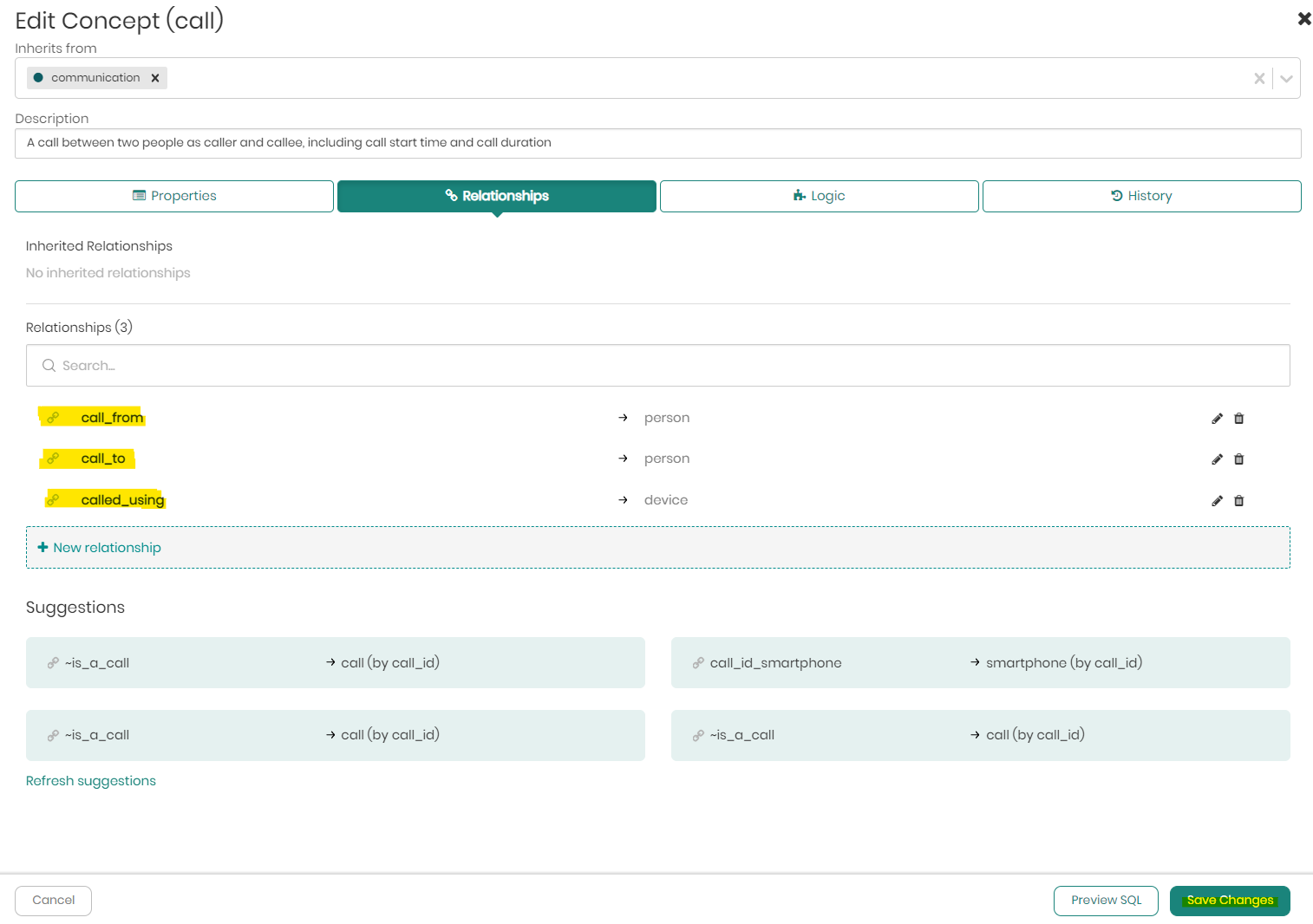
- Right-click on the call concept and click on Edit concept.
- Click on the Relationships tab.
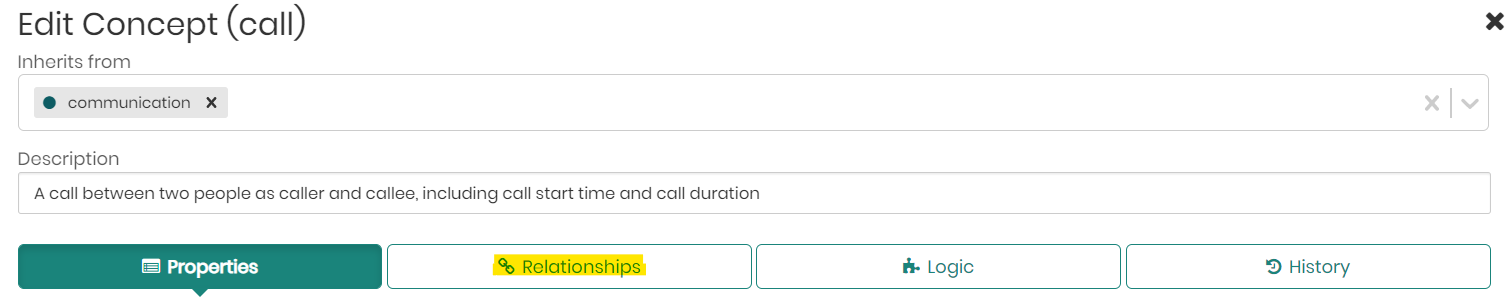
- Click on + New relationship. (Notice below, that when creating relationships Timbr automatically suggests possible relationships based on our concepts' properties in order to save us valuable time and effort).
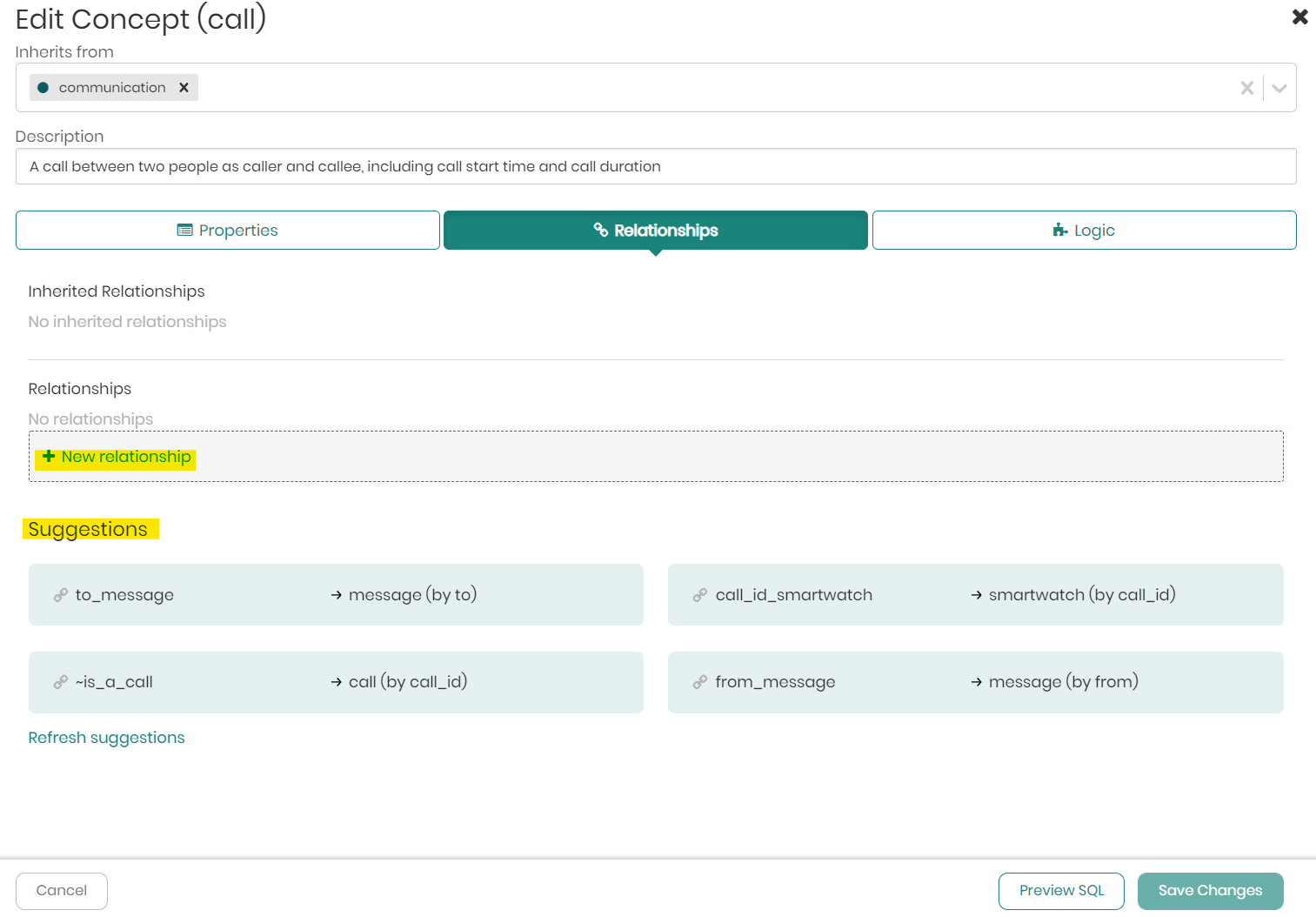
- Enter the direct relationship name "called_using", as well as an inverse relationship name "used_to_call".
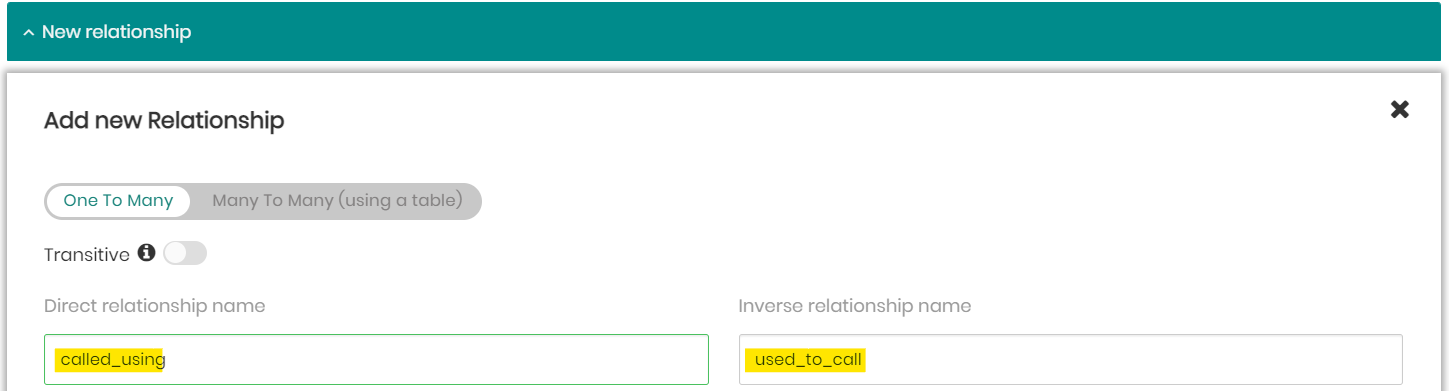
- Choose the target concept device.
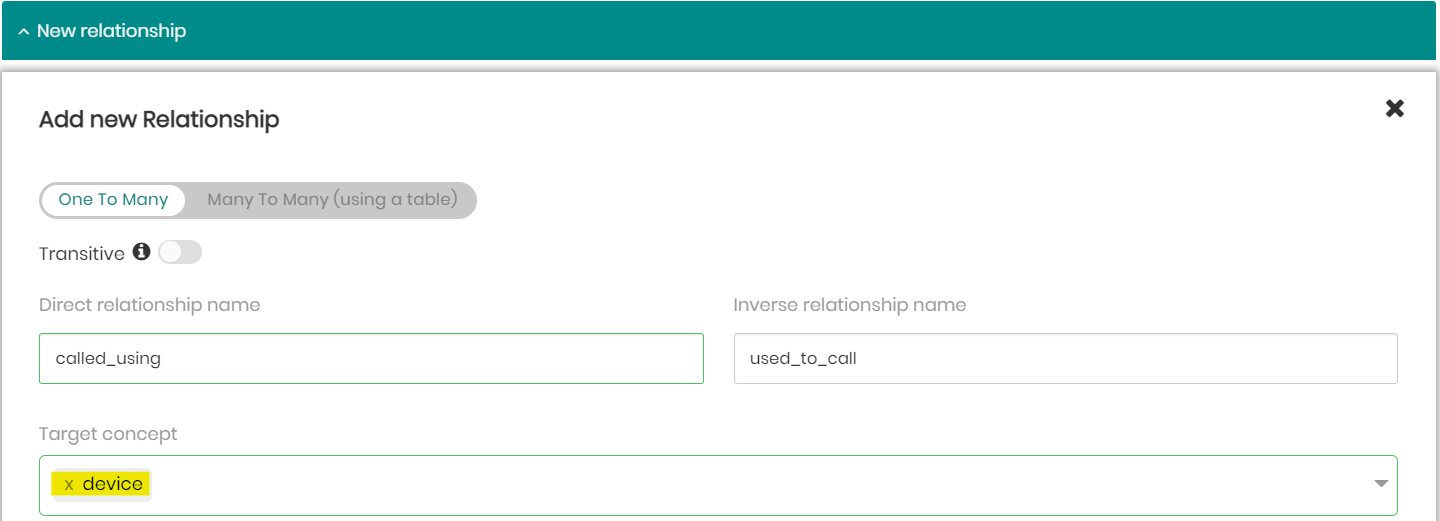
- Choose the "device_id" property for concept call, and match it with the "device_id" property for concept device, and click Save.
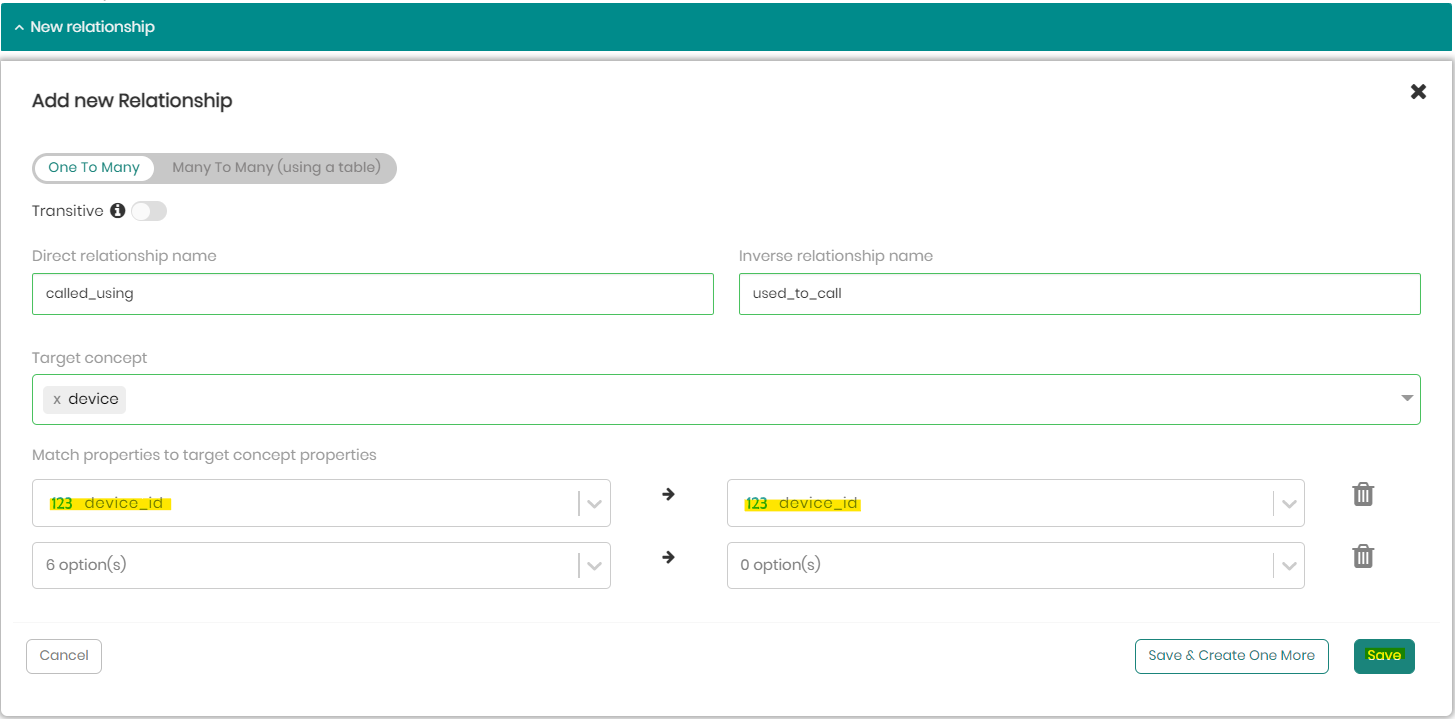
Relationship #2
- Click on + New relationship.
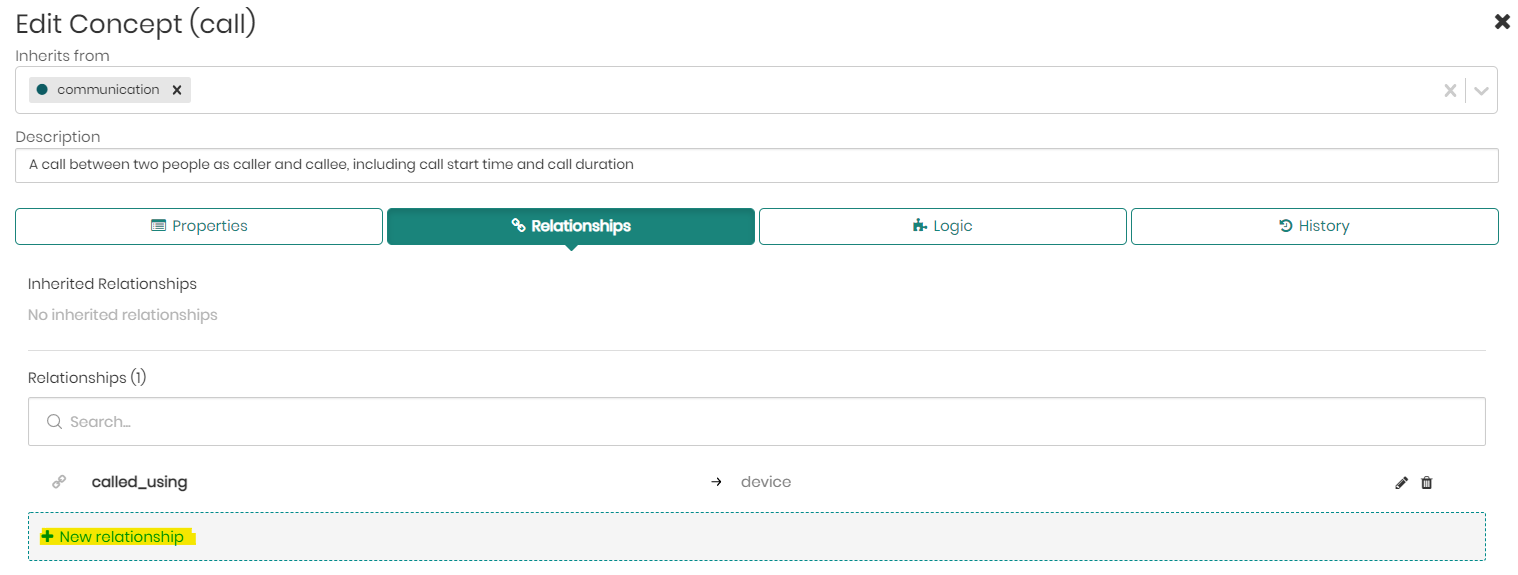
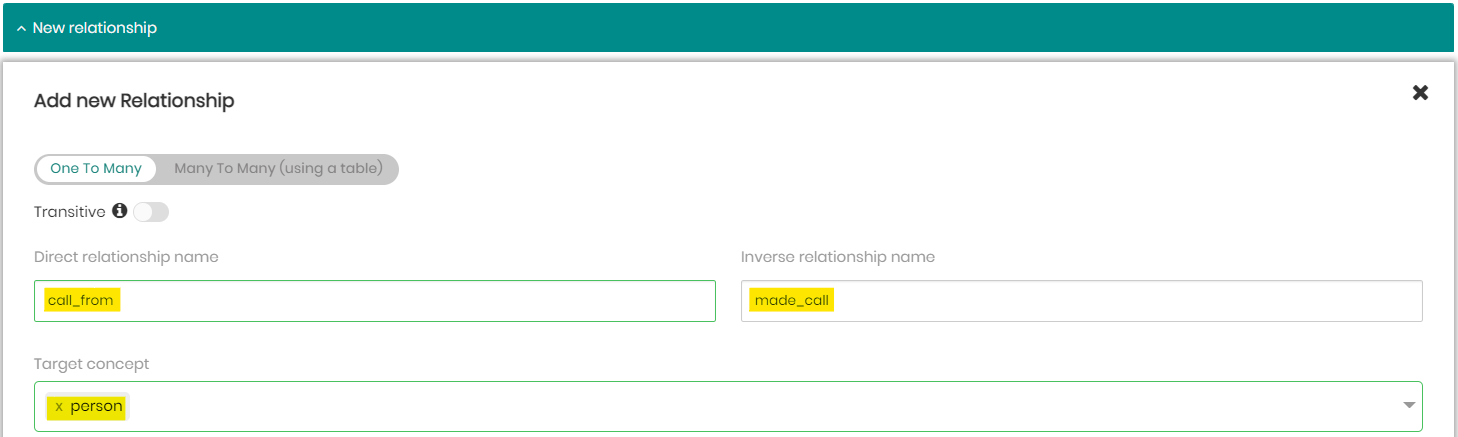
- Enter the direct relationship name "call_from" and the inverse relationship name "made_call", and select the target concept as person.
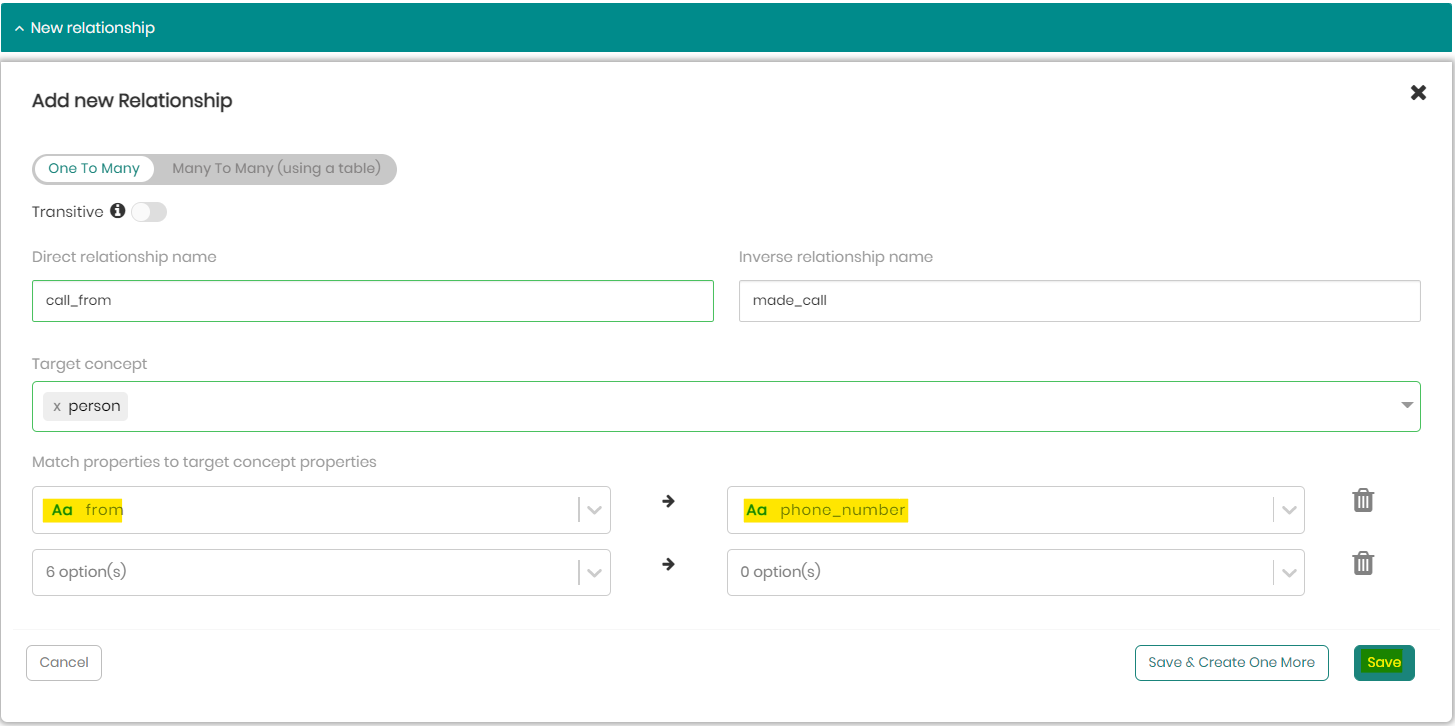
- Choose the "from" property for concept call, and match it with the "phone_number" property for concept person, and click Save.
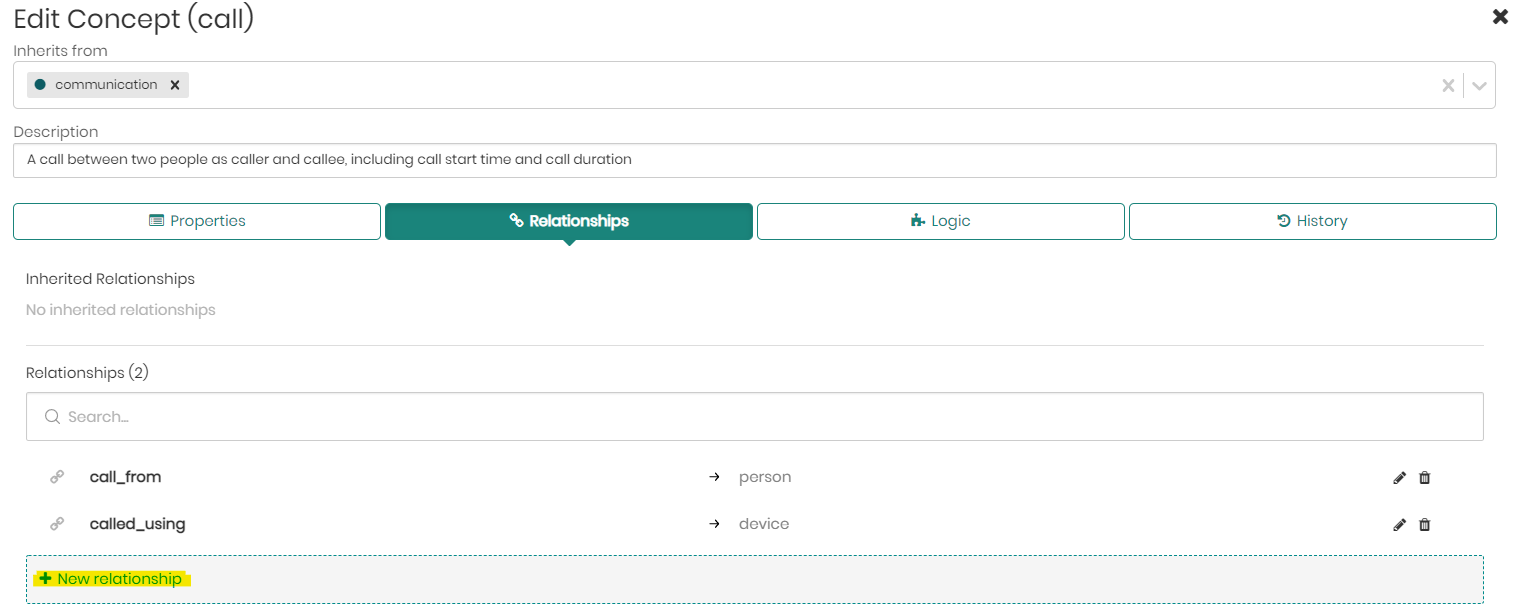
Relationship #3
- Click on + New relationship.
- Enter the direct relationship name "call_to" and the inverse relationship name "received_call", select the target concept person.
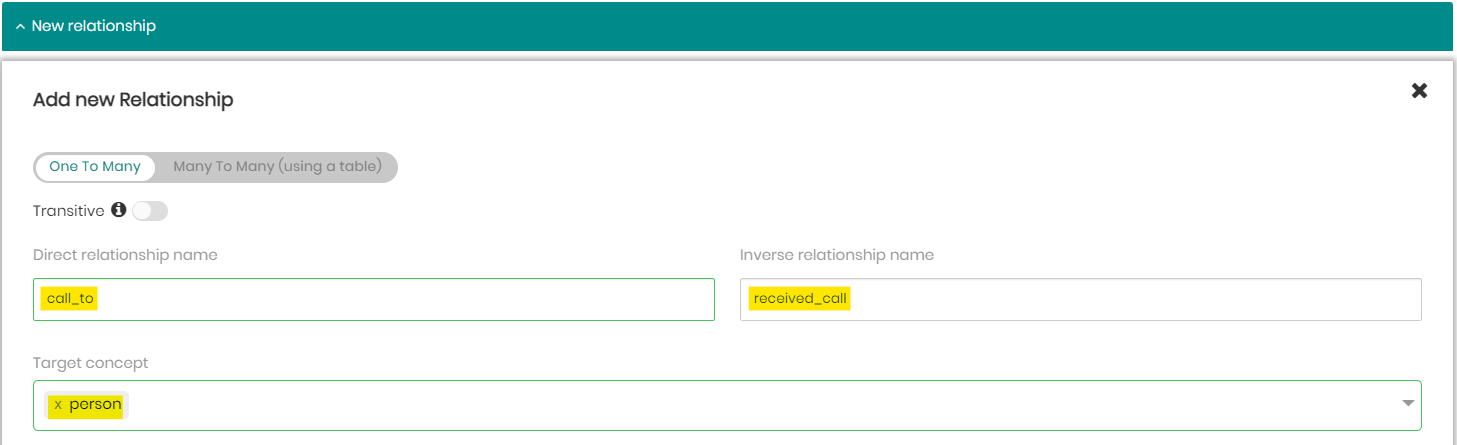
- Choose the property "to" for concept call, and match it with the property "phone_number" for concept person, then click Save.
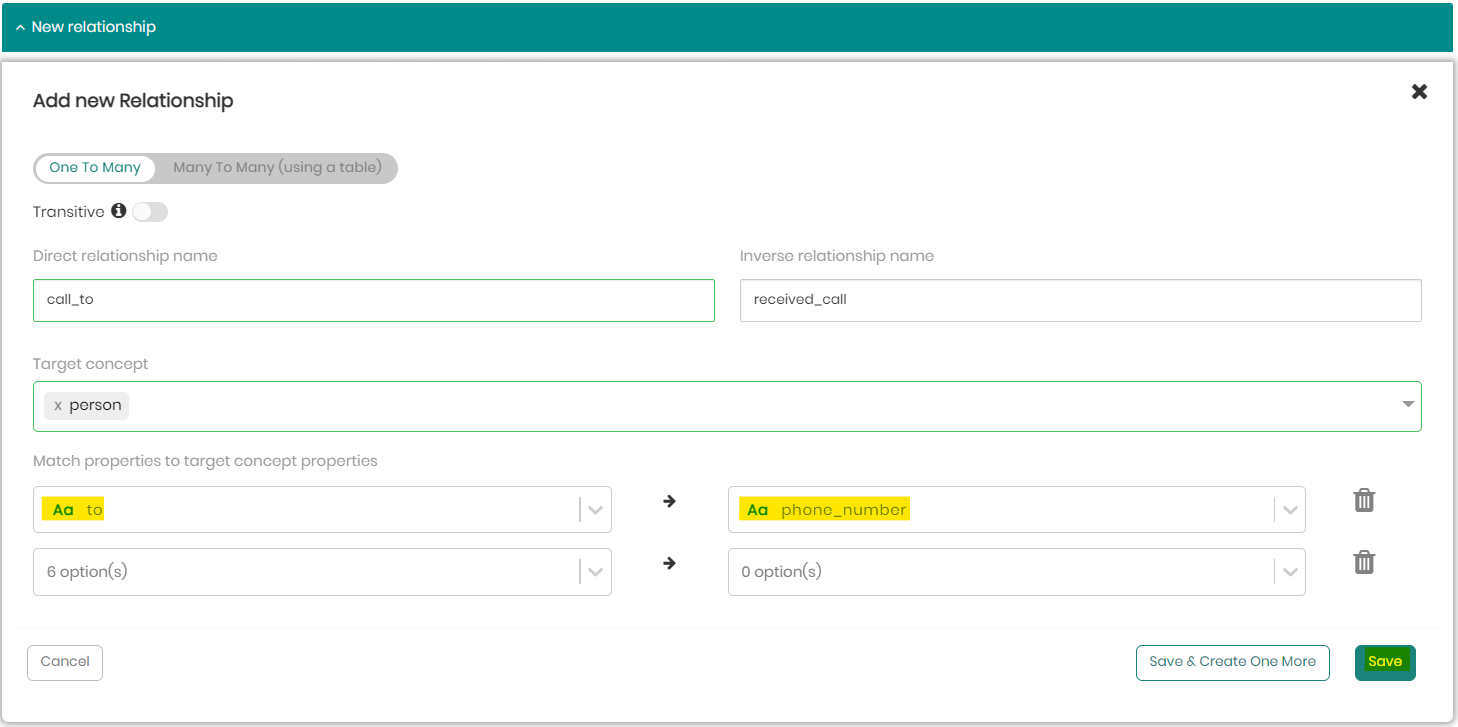
- Now, click Save Changes in order to complete adding the 3 new relationships from call.
Relationship #4
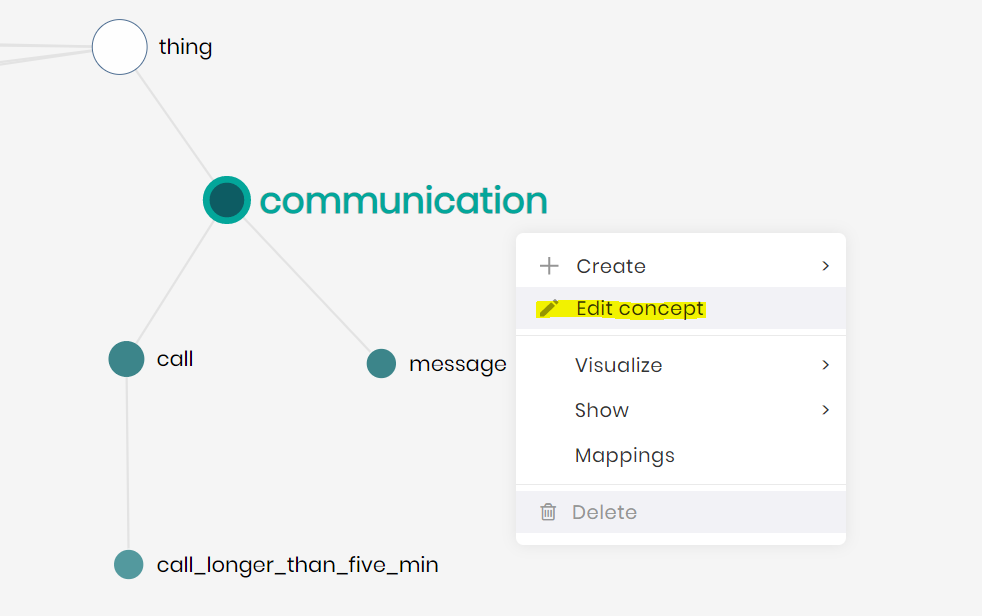
- Right-click on the communication concept and click on Edit concept.
- Click on the relationships tab.

- Click on + New relationship.
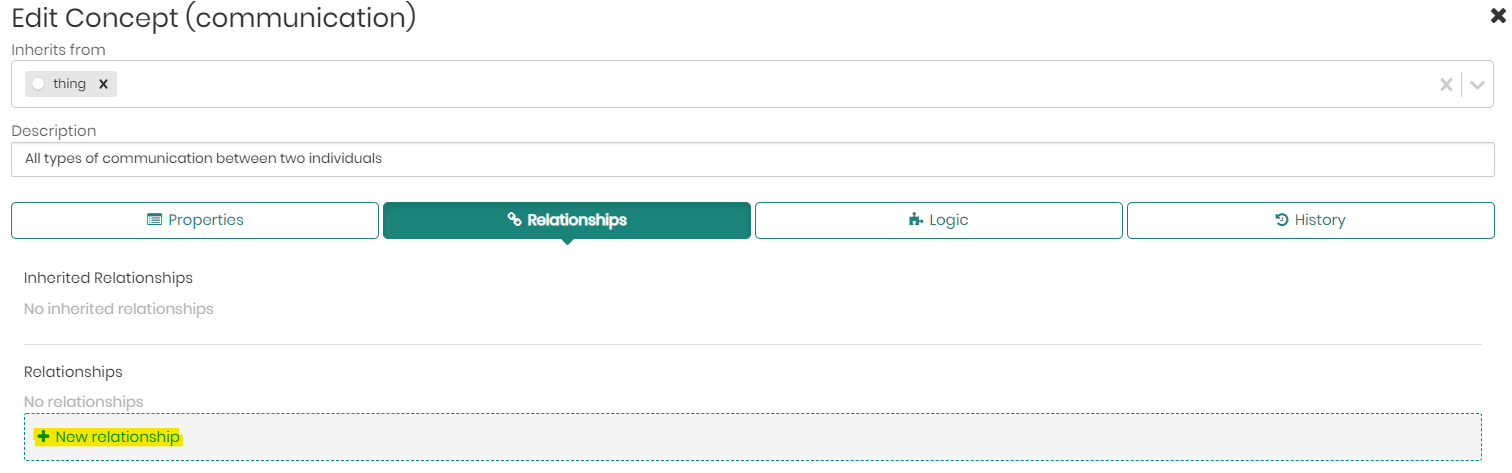
- Enter the direct relationship name "communicated_with" and the inverse relationship name "performed_communication", select the target concept person.
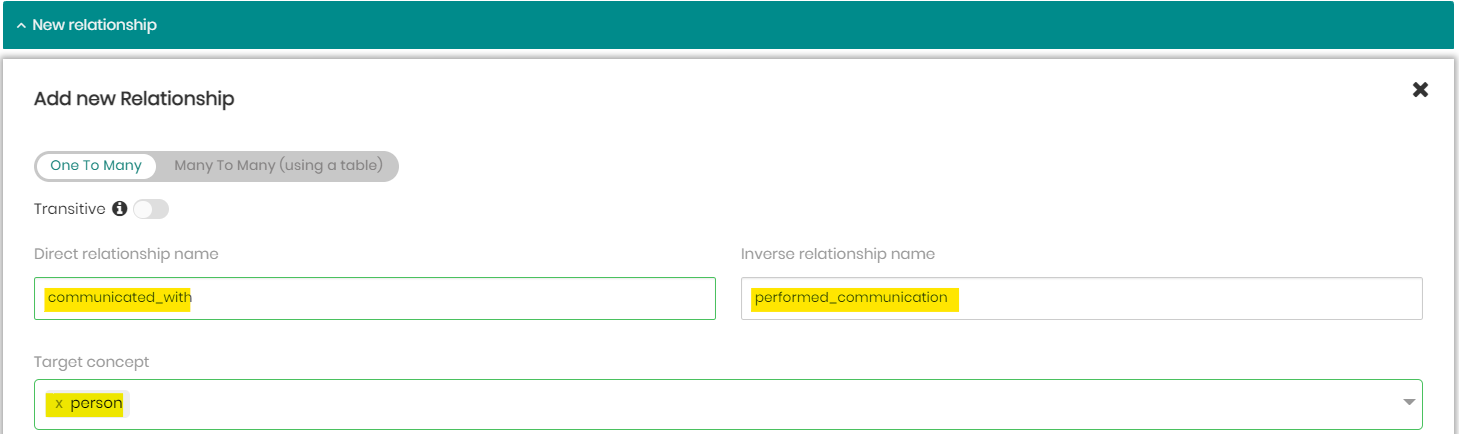
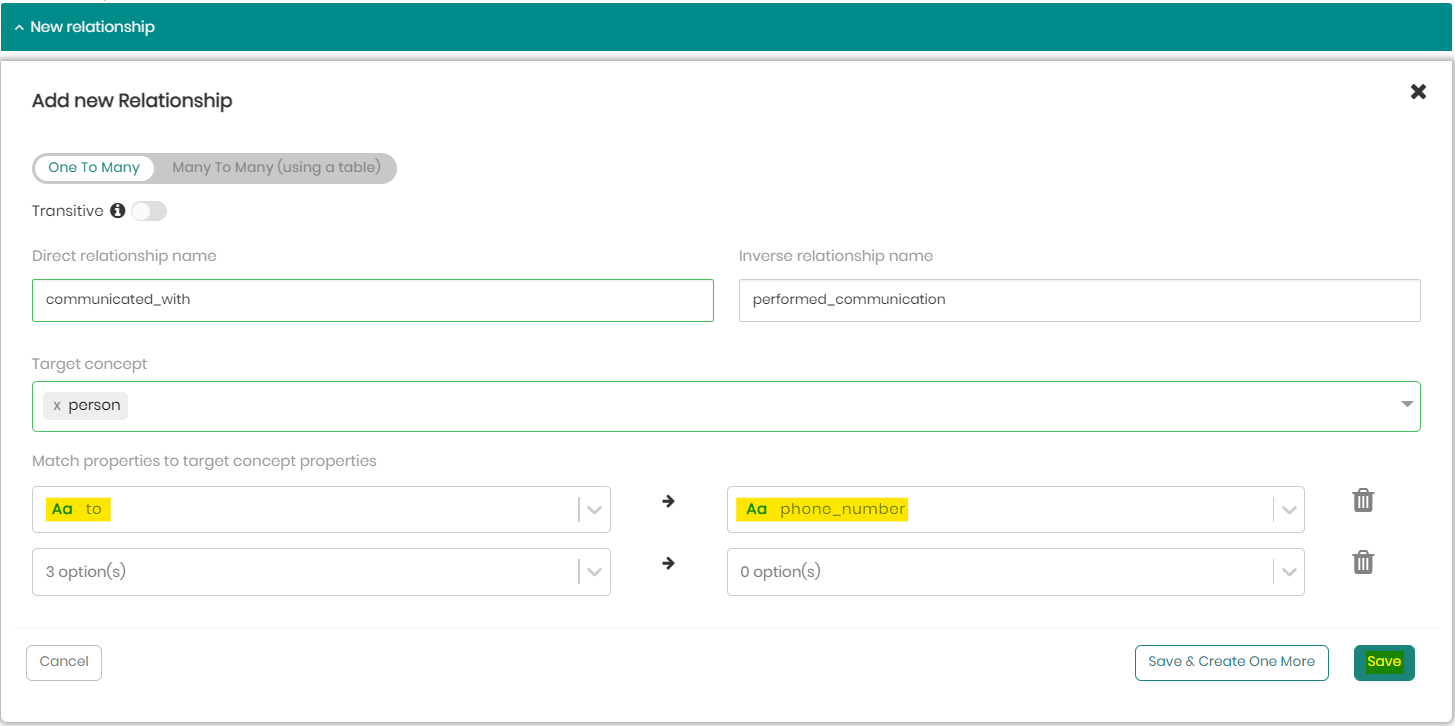
- Choose the property "to" for concept communication, and match it with the property "phone_number" for concept person, and click Save.
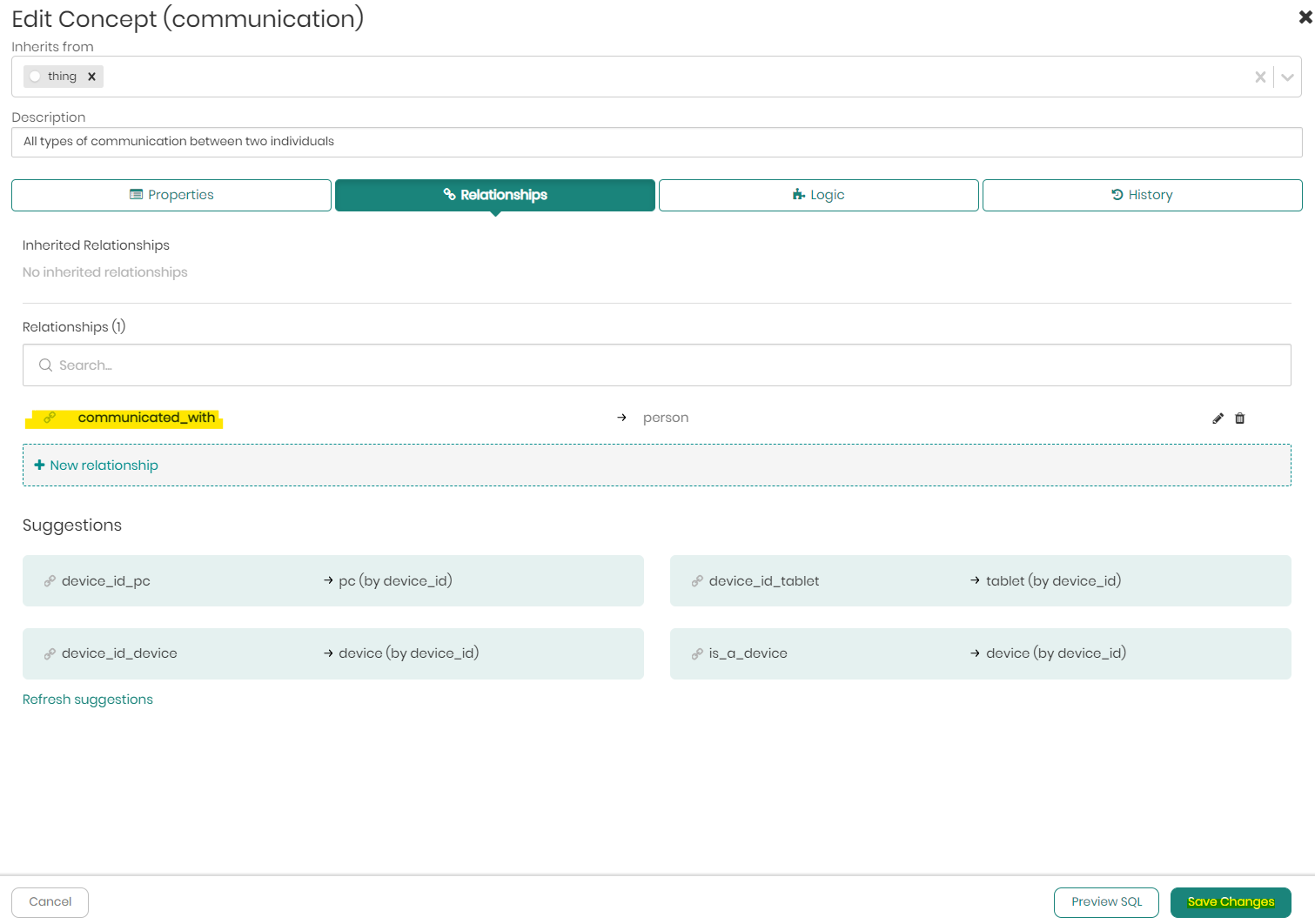
- Now, click Save Changes in order to complete adding the relationship.
Running SQL queries on the new concepts
To run the queries we will need to enter the SQL Editor.
- Click on the SQL Lab tab on the top menu bar and then click on SQL Editor.
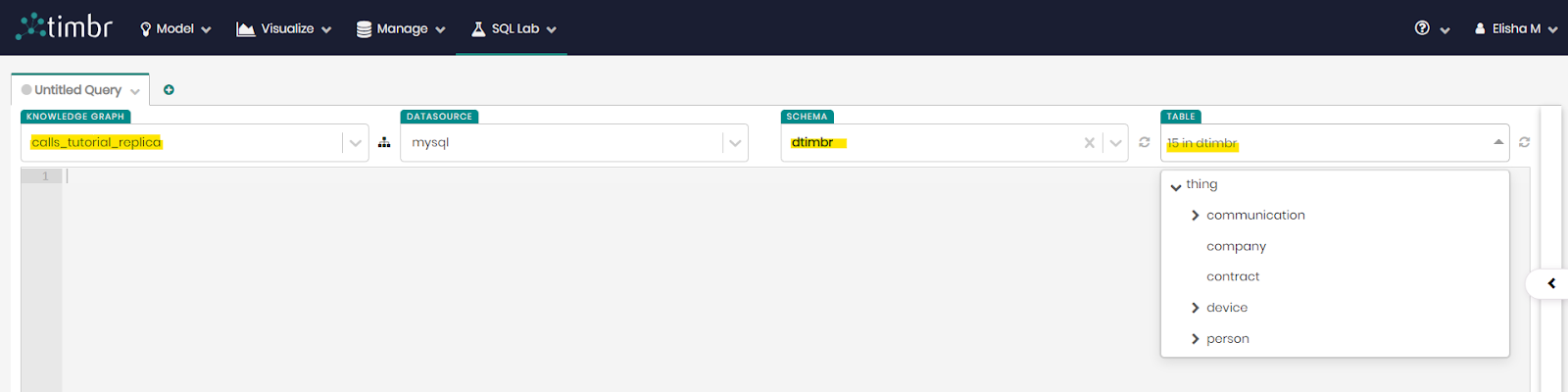
- Choose your knowledge graph and the schema dtimbr as well as the concept you would like to query (in these queries we will use the dtimbr schema, as this schema allows us to travel through the graph using relationships).
Query #1
Enter the following query into the main box in the center and click on Run Query:
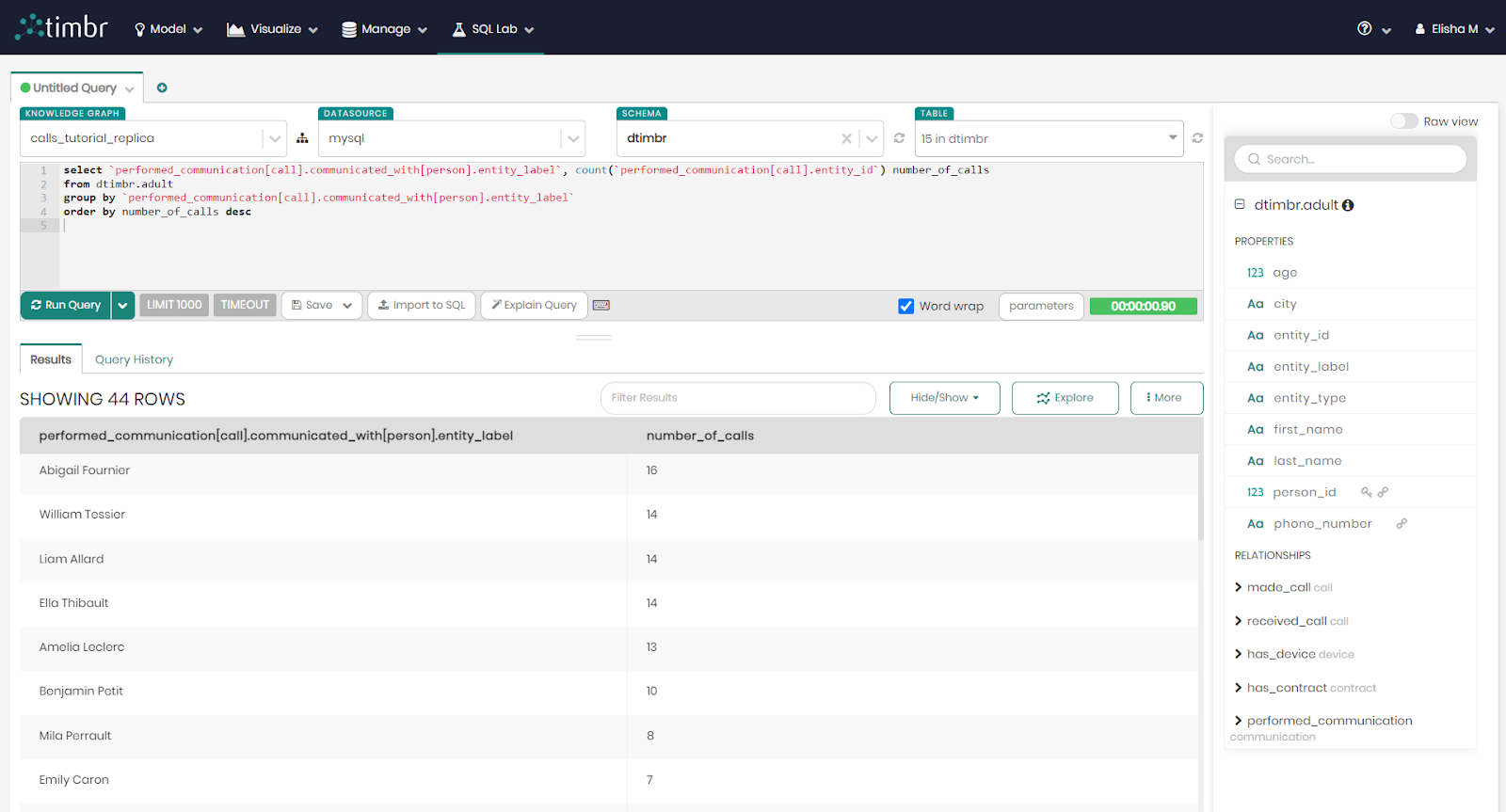
select `performed_communication[call].communicated_with[person].entity_label`, count(`performed_communication[call].entity_id`) number_of_calls
from dtimbr.adult
group by `performed_communication[call].communicated_with[person].entity_label`
order by number_of_calls desc
This query will find the first and last name of any person who received a phone call from an adult as well as the number of calls they received.
The query and result should look like this:
Query #2
Enter the following query into the main box in the center and click on Run Query:
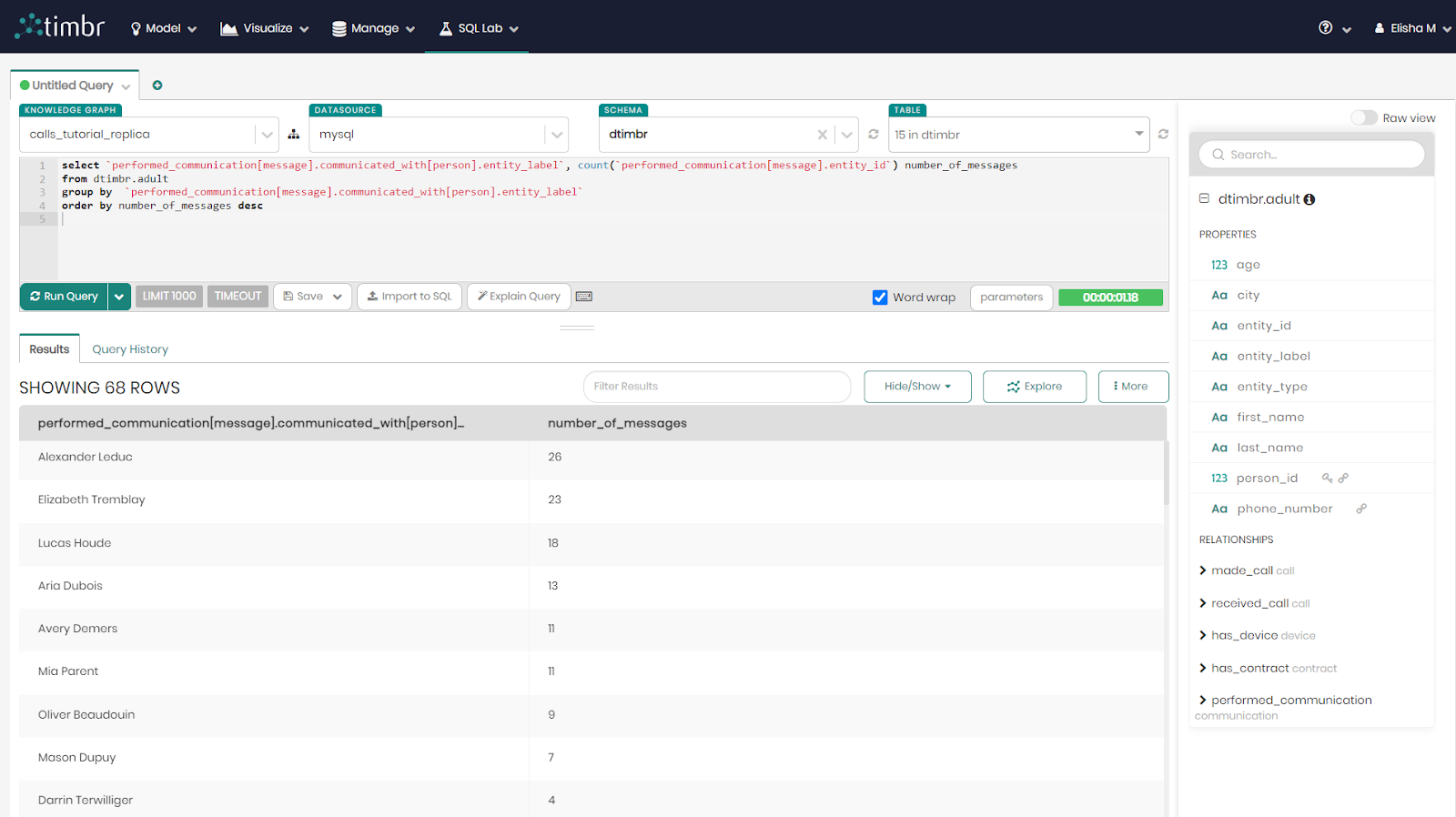
select `performed_communication[message].communicated_with[person].entity_label`, count(`performed_communication[message].entity_id`) number_of_messages
from dtimbr.adult
group by  `performed_communication[message].communicated_with[person].entity_label`
order by number_of_messages desc
This query is similar to the first query, the difference being that instead of calls this query will deal with messages. We will now find the first and last name of any person who received a text message from an adult, as well as the number of messages they received.
This change is made by simply replacing the word "call" in the parentheses which represents concept call, with the word "message" which represents concept message.
The query and result should look like this:
Query #3
Enter the following query into the main box in the center and click on Run Query:
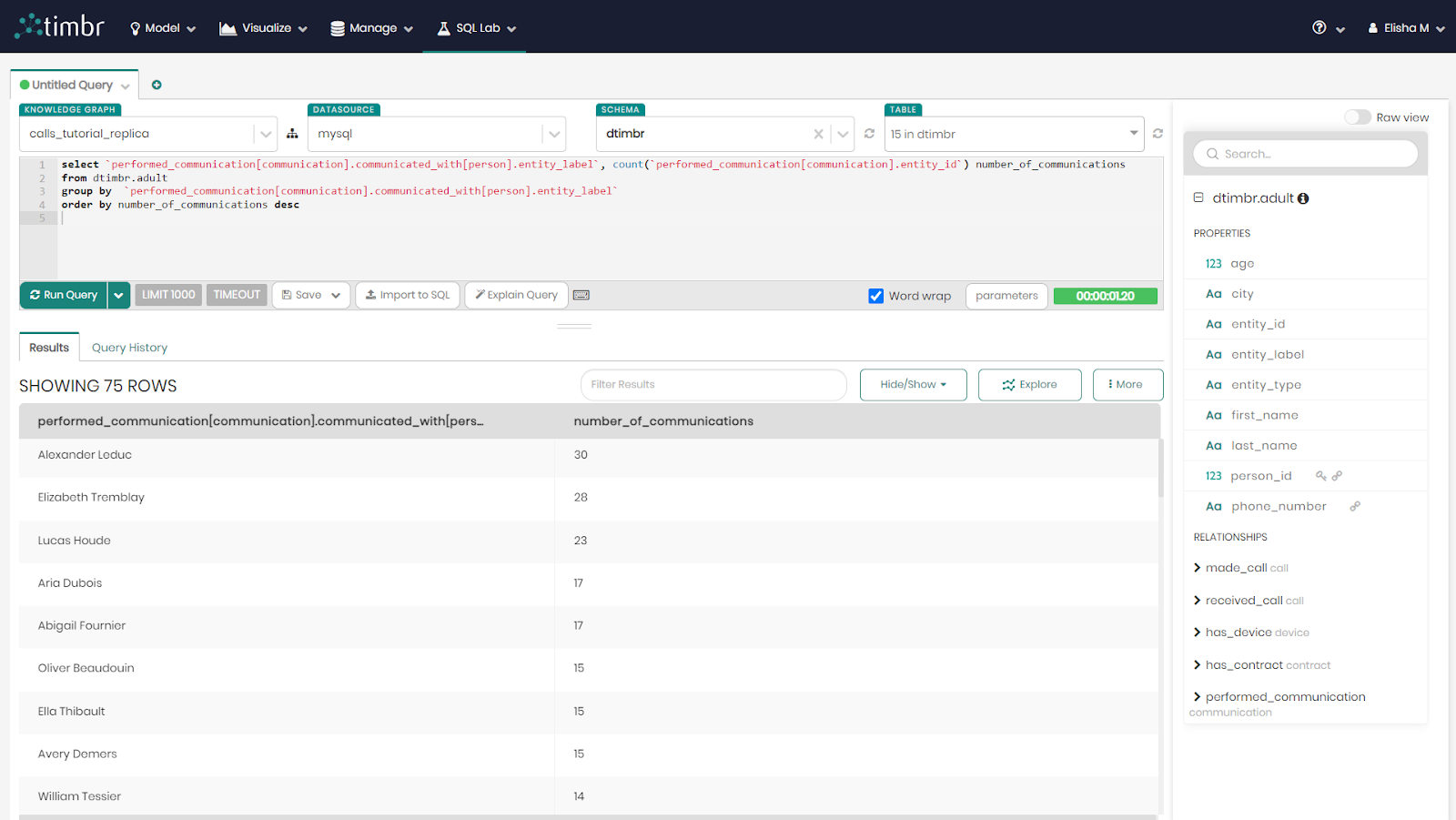
select `performed_communication[communication].communicated_with[person].entity_label`, count(`performed_communication[communication].entity_id`) number_of_communications
from dtimbr.adult
group by  `performed_communication[communication].communicated_with[person].entity_label`
order by number_of_communications desc
This query is unique due to the fact that by entering the word communication into the parentheses you will now find the first and last name of any person who received any form of communication from an adult, whether it be a call, message or anything else that we defined as a communication.
This is done easily with no joins or unions due to the use of the knowledge graph: 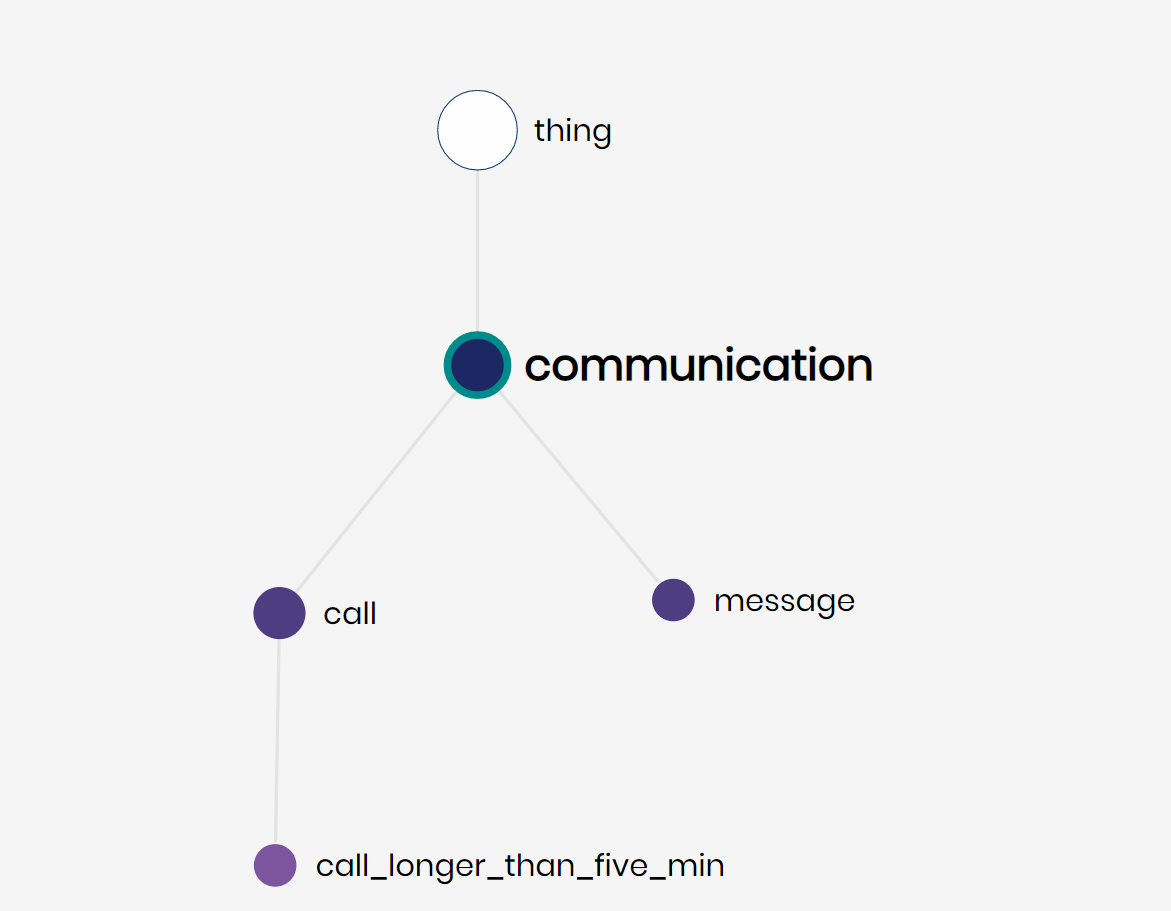
The query and result should look like this:
You've completed our Telecommunications use case and built your own knowledge graph!
You're welcome to explore your knowledge graph, play with the data, run semantic queries, visualize charts and build dashboards!
What we've covered
- How to create and model a Knowledge Graph with hard-coded logic
- How to map data to the Knowledge Graph
- How to create relationships connecting data points together
- How to query the data using a variety of SQL queries
- Building and exploring the data as a graph
- Representing the data findings in BI visualizations
- Editing the Knowledge Graph and its relationships, properties, and data, at any point
Additional information
- Learn more about the timbr.ai platform
- Check out more details at timbr.ai